Certificates
Create and manage participation certificates for event attendees. Use templates and the visual builder to design certificates, generate single or bulk certificates, download certificates, revoke or restore them, and allow public verification via QR or URL.
Overview
Certificates are generated PDFs issued to event guests to confirm participation. Administrators and event staff create reusable templates (design, elements, background) and then generate certificates for guests either one-by-one or in bulk. Certificates include a verification URL and QR code so recipients or third parties can confirm authenticity.
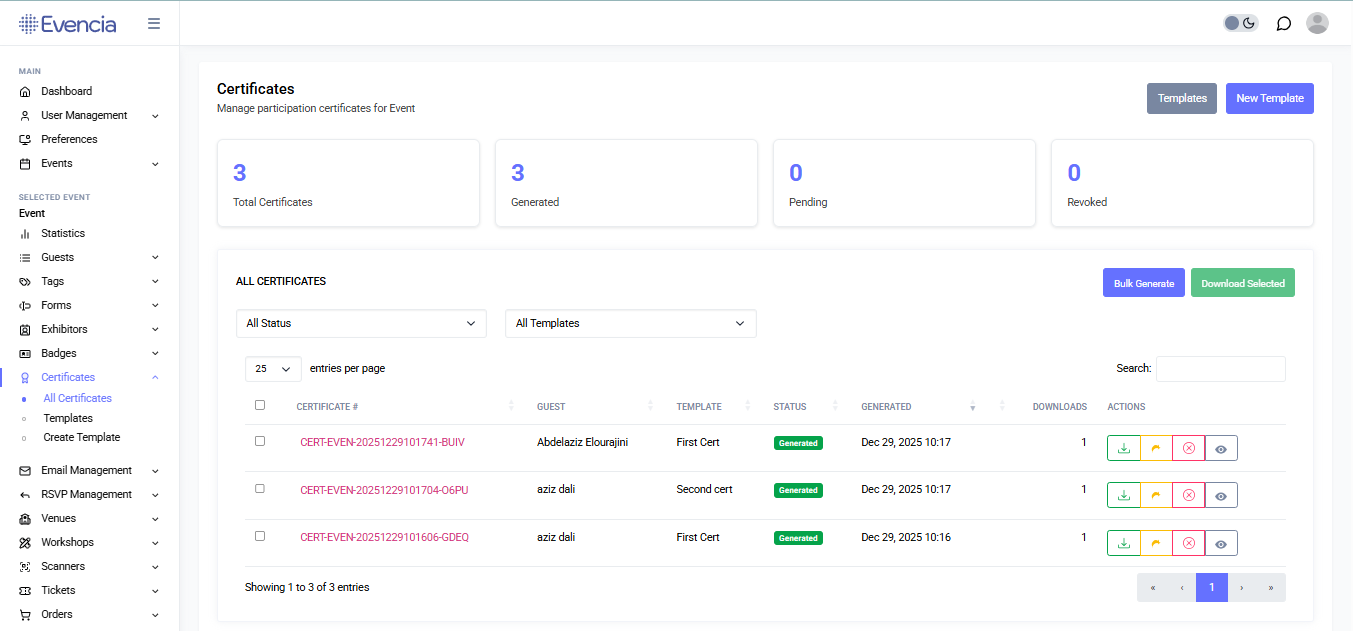
Certificates main page showing statistics (Total, Generated, Pending, Revoked) and the list of all certificates with actions.
Certificate Templates
Templates define the layout, text placeholders, images, and QR code placement used to generate PDFs.
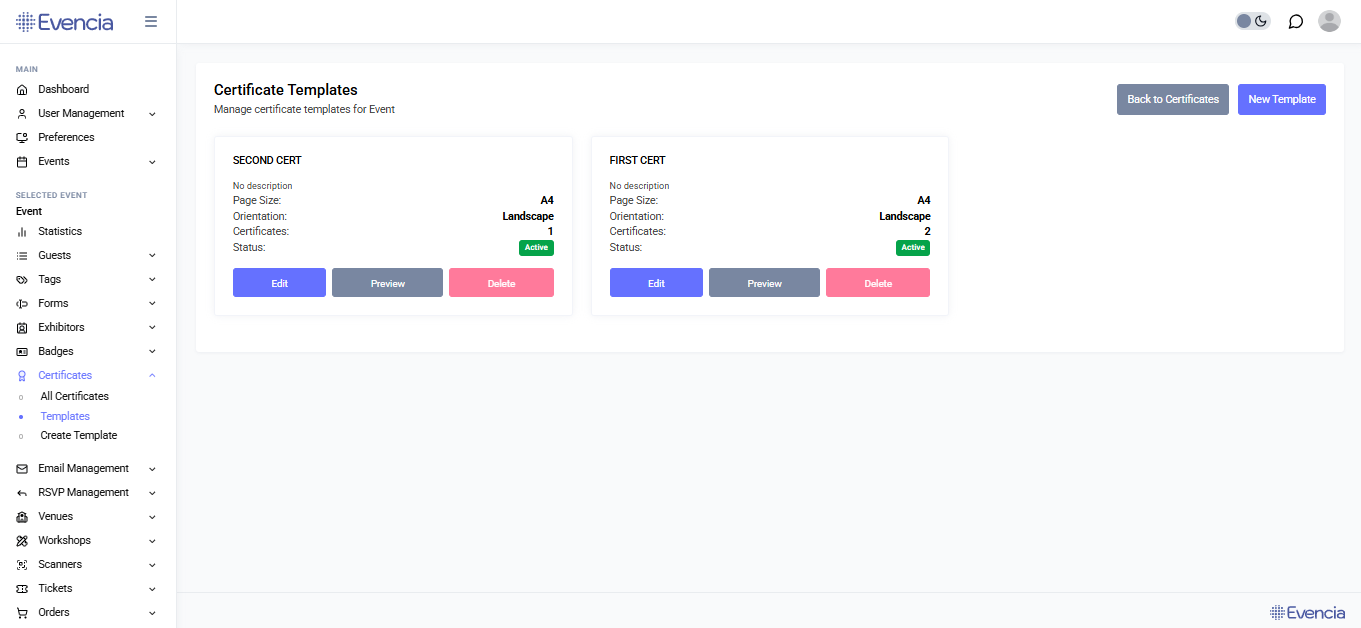
Certificate Templates page showing template cards with page size, orientation, certificate count, status, and action buttons (Edit, Preview, Delete).
Where to find templates
- From the main Certificates page click the "Templates" button (label: "Templates") or open the Templates area from the event menu.
- The Templates page title: "Certificate Templates".
Create a template
- Click "New Template" (button labeled: "New Template").
- The builder opens — design your certificate (see Builder section).
- Click "Save Template" to open the "Save Certificate Template" modal.
- Enter a Template Name and optional Description. Optionally check "Set as default template".
- Click "Save" in the modal.
Template list & actions
Each template card shows: Name, Page Size, Orientation, Certificates count, Status (Active/Inactive), and action buttons.
Buttons available on each card:
- Edit — opens the builder (label: "Edit").
- Preview — generates a single live preview (label: "Preview").
- Delete — removes the template (label: "Delete"). Note: templates with existing certificates cannot be deleted (delete button disabled when certificate count > 0).
Notes
- The preview action will generate a preview PDF in a background request and open it in a new tab.
- Templates can be set as default to be preselected during certificate generation.
Builder (Visual Editor)
The Certificate Builder is a WYSIWYG tool where you place text, placeholders and images on a canvas sized for printing (A4 by default).
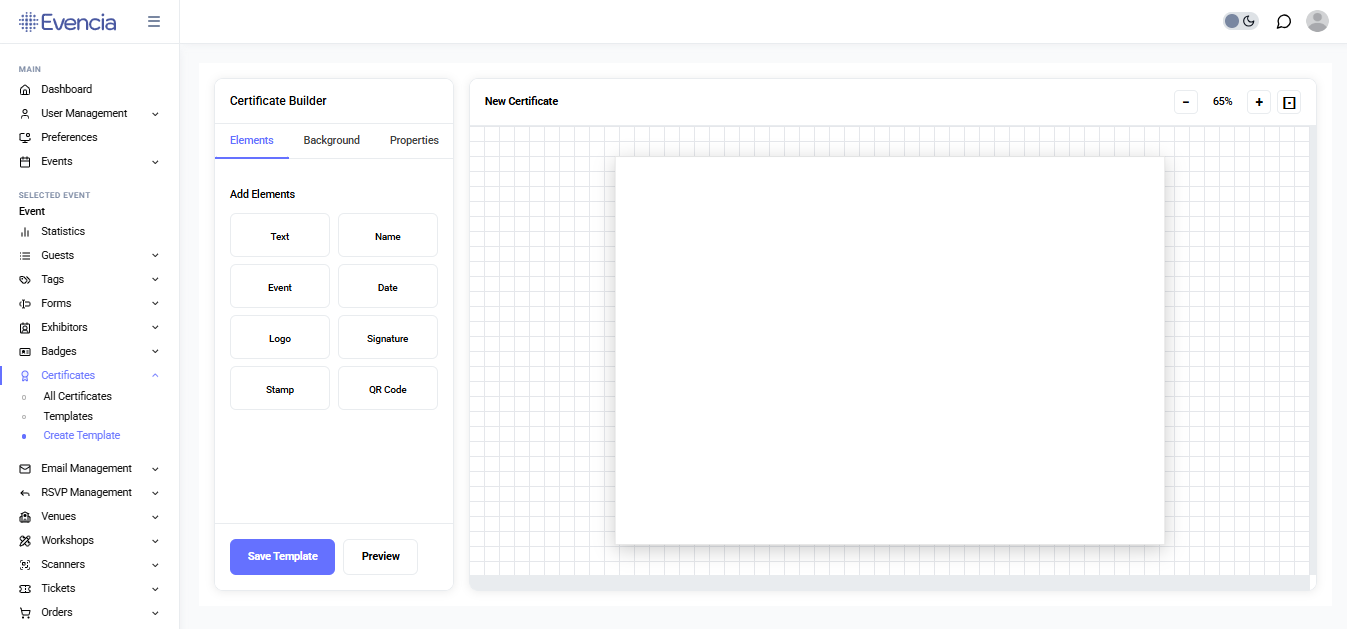
Certificate Builder interface showing the Elements panel with add options (Text, Name, Event, Date, Logo, Signature, Stamp, QR Code), the canvas with zoom controls, and action buttons (Save Template, Preview).
Certificate Builder: tools, canvas, and properties.
Key UI elements
- Page title: "Certificate Builder"
- Tabs: Elements, Background, Properties
- Tools (Add Elements): Text, Name, Event, Date, Logo, Signature, Stamp, QR Code
- Canvas toolbar: Zoom In (+), Zoom Out (−), Fit to Screen (⊡)
- Action buttons (bottom-left): "Save Template", "Preview"
Typical workflow
- Open the builder (Edit an existing template or click "New Template").
- Use the Elements tab to add placeholders (Name, Event, Date, etc.).
- Add a QR Code element — links to the public verification URL.
- Use the Background tab to choose color or upload an image.
- Click "Preview" to generate a PDF preview in a new tab.
- Click "Save Template" and provide name/description to persist.
Notes & tips
- Coordinates and sizes are measured in millimeters (mm) for print accuracy; fonts use points (pt).
- The builder shows a screen preview at 96 DPI; final PDF generation uses a higher DPI for exports.
Generate Certificates
Certificates are produced from templates and guest data. Generation runs asynchronously (background jobs) for large batches.
Certificates page
The main "Certificates" page shows stats (Total, Generated, Pending, Revoked) and a table of all certificates. Actions include: Bulk Generate, Download Selected, filters, and per-row actions.
Single (on-demand) generation
- For a pending certificate row, click the "Generate" button. Generation runs in background and the table refreshes when queued.
Regenerate a certificate
- Click "Regenerate" (confirm: "This will replace the existing certificate file."). Confirm to proceed.
Bulk generation
- Click "Bulk Generate".
- In the modal, pick a Template from the dropdown.
- Choose recipients: all event guests or guests with specific tags.
- Click "Generate"; large batches run in background.
Downloads
- Single download: Open certificate details and click "Download Certificate" (visible when generated and not revoked).
- Bulk download: Select rows and click "Download Selected" to request a ZIP.
Revoke / Restore
- Revoke: Click "Revoke" and provide an optional revocation reason. Revoked certificates cannot be downloaded by participants.
- Restore: Click "Restore" to unrevoke and make available again.
Deletion rules
- Certificates can be deleted only if they are not yet generated.
View Certificate Details & Verification
Each certificate has a public verification URL and a QR code printed on the certificate.
Certificate details screen
Shows Certificate Number, Recipient, Email, Template, Status, Generated At, Generated By, Downloads count, Revocation info and reason. Right side contains a QR Code image and a short verification link.
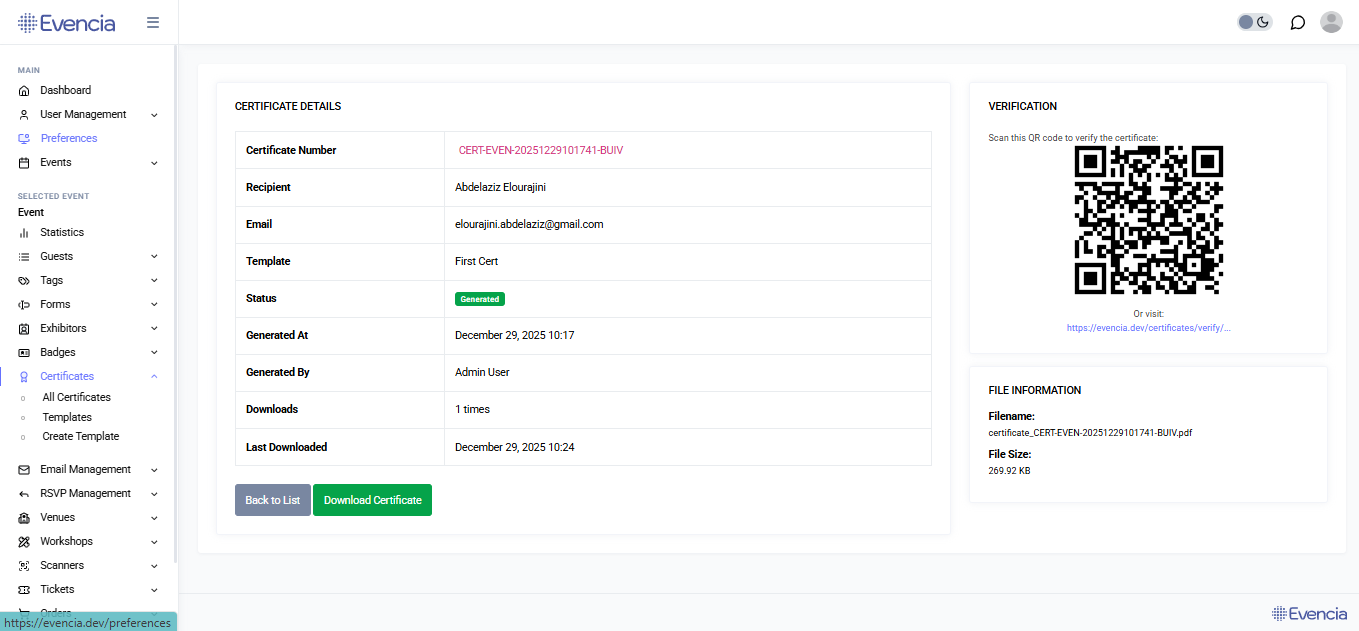
Certificate details page displaying all certificate information including the verification QR code, verification URL, and file information. Actions available: Back to List and Download Certificate.
Public verification page
- Title: "Certificate Verification".
- If valid: shows "Certificate Verified" with a green success icon.
- If revoked: shows "Certificate Revoked" with explanation and optional reason.
- If not found: shows "Certificate Not Found" and a helpful message.
Valid Certificate
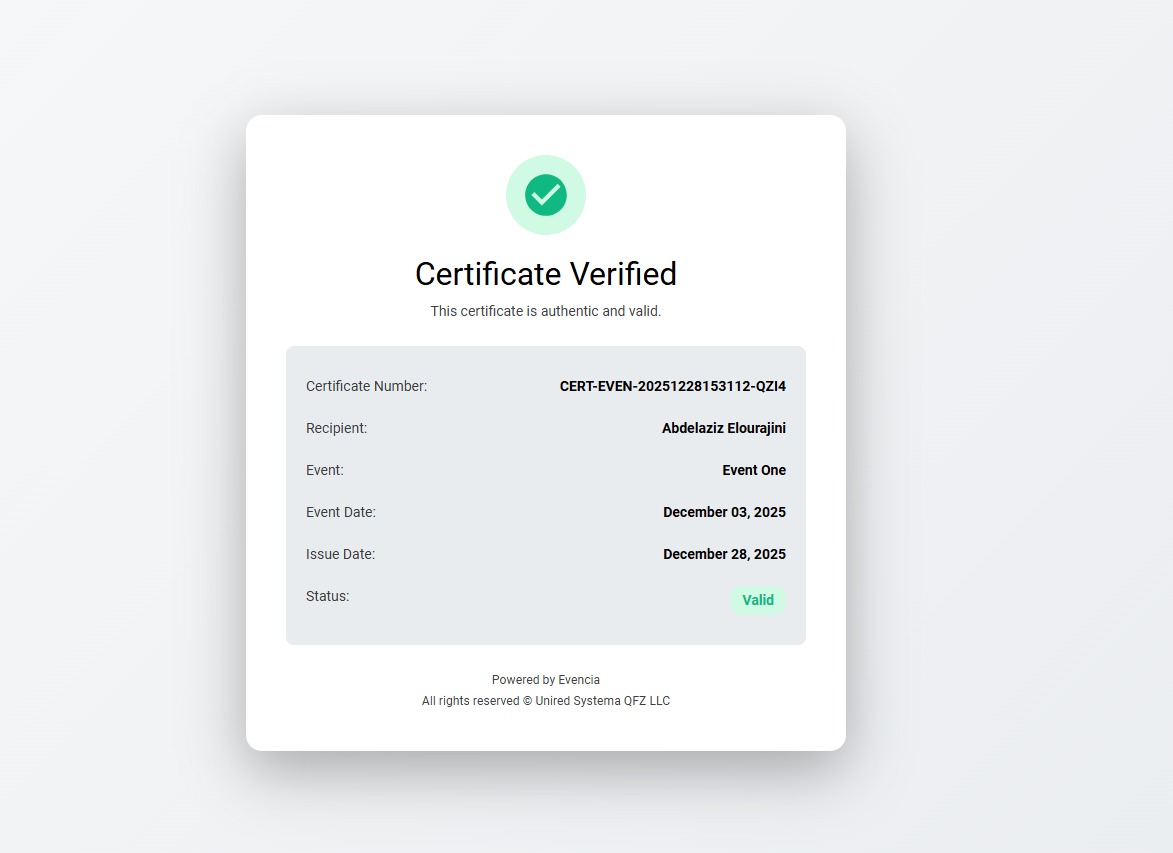
Public verification page showing a valid certificate with success status and certificate details.
Revoked Certificate
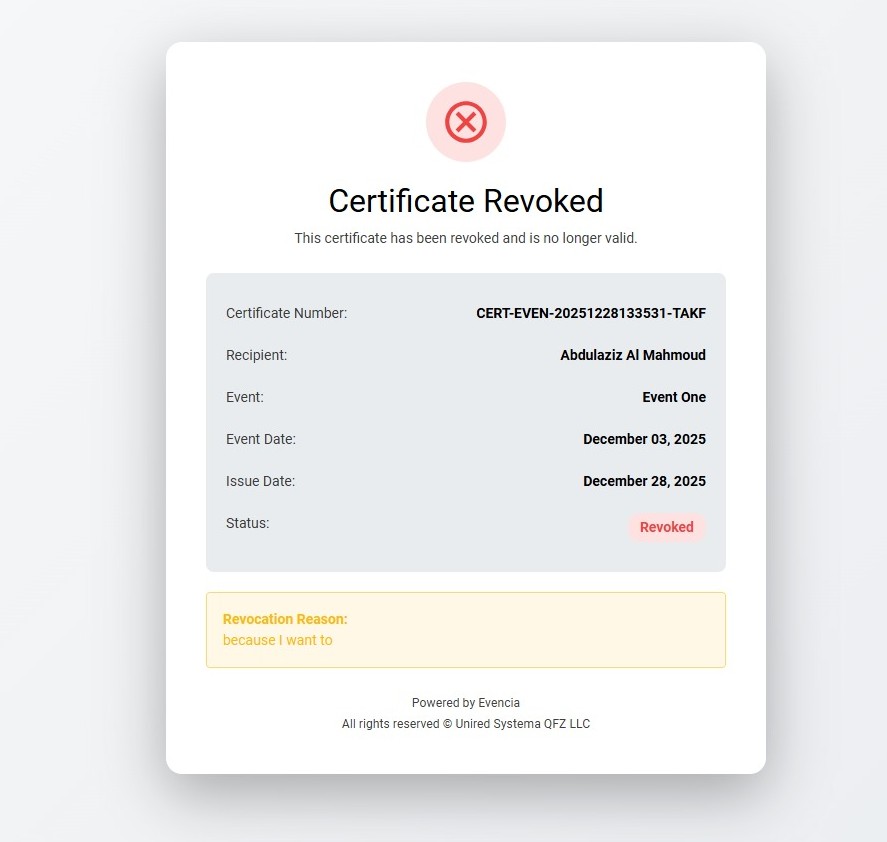
Public verification page showing a revoked certificate with revocation reason and details.
Permissions
| Action | Permission |
|---|---|
| View certificates list | certificate.viewAny |
| View certificate details | certificate.view |
| Generate certificates (single) | certificate.generate |
| Regenerate existing certificates | certificate.regenerate |
| Revoke certificates | certificate.revoke |
| Download certificates | certificate.download |
| Bulk-generate certificates | certificate.bulkGenerate |
| Bulk-download certificates (ZIP) | certificate.bulkDownload |
| Delete certificates (if not generated) | certificate.delete |
Templates
| Action | Permission |
|---|---|
| View templates list | certificate-template.viewAny |
| View / preview templates | certificate-template.view |
| Create templates | certificate-template.create |
| Edit templates | certificate-template.edit |
| Delete templates | certificate-template.delete |
Permanently deleting a template (force delete) requires an admin role.
FAQ & Troubleshooting
Q: I clicked Generate but the certificate is still Pending. What should I do?
A: Generation runs in the background. Small batches usually finish quickly; large batches may take minutes. Refresh the Certificates list after a minute. If generation never completes, contact your event organizer.
Q: A guest can't download their certificate — it says revoked.
A: The certificate has been revoked. Check the certificate details for the revocation reason and contact the organizer to request restoration.
Q: Preview failed or shows a blank area
A: Ensure images uploaded to the template are valid and not corrupted. Try re-uploading the background or logo. If preview still fails, contact support with the template name and a short description.
Q: Delete button on a template is disabled
A: Templates with existing certificates cannot be deleted. Either remove associated certificates (if appropriate) or create a new template and set it as default.
Q: I don't see action buttons like "New Template", "Save Template", or "Bulk Generate"
A: You likely lack the required permission. See the Permissions section and ask an admin to grant the necessary permissions.
Last updated: 2025-12-29