Exhibitor Profile
Overview
Public exhibitor profile with branding, rich description, contact links, and optional meeting availability. Exhibitors use this page to present their company and share updates with attendees.
Profile Components
- Cover Image (wide banner)
- Profile Image (avatar)
- About text
- Contact info (Email, Phone)
- Website + Address (optional)
- Assets (up to 6 downloadable files / documents / images / zip packages)
- Public Staff list (only staff marked Public)
- Posts feed (latest updates)
- Meeting Availability (if enabled)
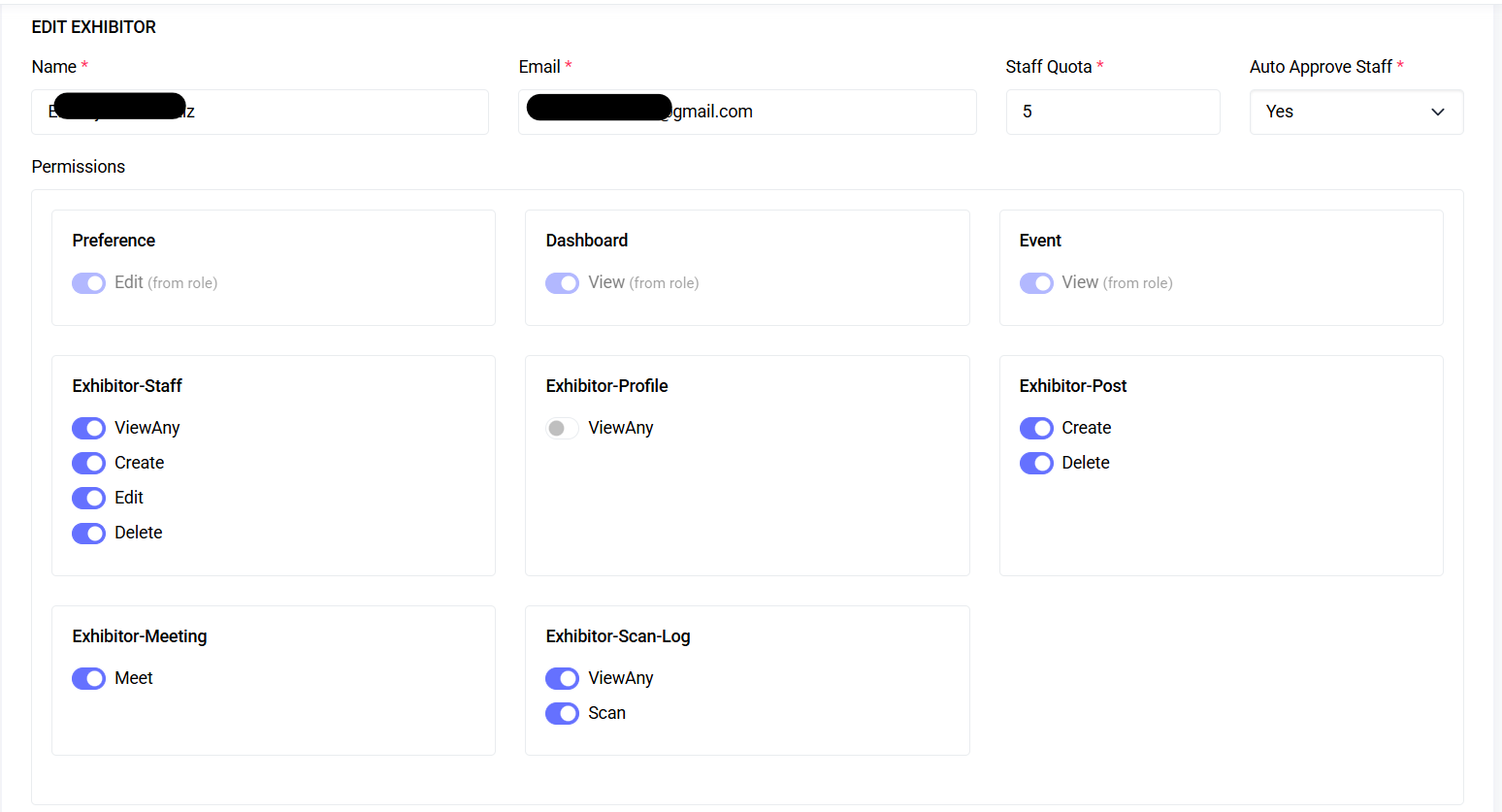 Profile overview (placeholder)
Accessing Your Profile
- Menu: Exhibitors → Public Profile (or direct link provided by admin)
- Edit (Wizard): From your profile cover top-right pencil button (visible if you have permission and are the owner/admin).
Permissions required to edit:
exhibitor-profile.viewAny(base visibility)- Owner OR Admin OR Created by (creator relationship) to access wizard.
Edit Wizard (3 Steps)
A guided sequence prevents partial saves and enforces required validation before assets upload.
Step 1: Profile Details
Fields & Validation
- About (required, text, max 500 chars)
- Email (required, RFC/DNS valid, max 255)
- Phone (required, string, max 15; digits + spaces + plus + dash allowed)
- Address (optional, max 255)
- Website (optional, max 255)
Client-side precheck:
- Button disabled until About non-empty, Email passes regex, Phone passes regex (>=7 chars permitted characters).
Step 2: Header Details
Uploads (optional):
- Profile Image (jpeg/jpg/png/webp, max ~3 MB)
- Cover Image (jpeg/jpg/png/webp, max ~3 MB)
Processing:
- Images converted to WebP (profile ~50 quality, cover ~70 quality) and stored at:
profiles/{user_id}/images/. - Previous images replaced on upload.
Step 3: Assets Upload
Slots: Asset 1–6 (each optional) Accepted types: jpeg,jpg,png,webp,pdf,doc,docx,xlsx,zip (max 5 MB each) Behavior:
- Existing asset replaced (old file deleted) if a new file is uploaded in the same slot.
- Stored path:
profiles/{user_id}/assets/asset_{n}_TIMESTAMP.ext - Stored metadata: original filename retained for display.
Submit Action:
- AJAX POST to update all fields & files in a single request.
- Success: SweetAlert confirmation; optional redirect back to event selection.
- Failure: Validation errors listed (422) or generic message.
 Edit wizard (placeholder)
Meeting Availability (Modal)
If meetings feature enabled and user has exhibitor-meeting.meet permission:
- Button: "Available meetings" shows modal with merged availability ranges.
- Badge displays count of free slots.
- Ranges derived from exhibitor’s configured availability minus booked sessions.
- Slot lengths (15, 30, or 60 min) aggregated into readable blocks.
Request a Meeting Form: Fields:
- Name (required)
- Email (required, valid email)
- Date (select populated days with availability)
- Time (select aggregated start times for chosen date)
- Phone (optional)
- Message (required)
Hidden: Combined datetime (date + time) posted as one field. Submission disabled until date/time chosen.
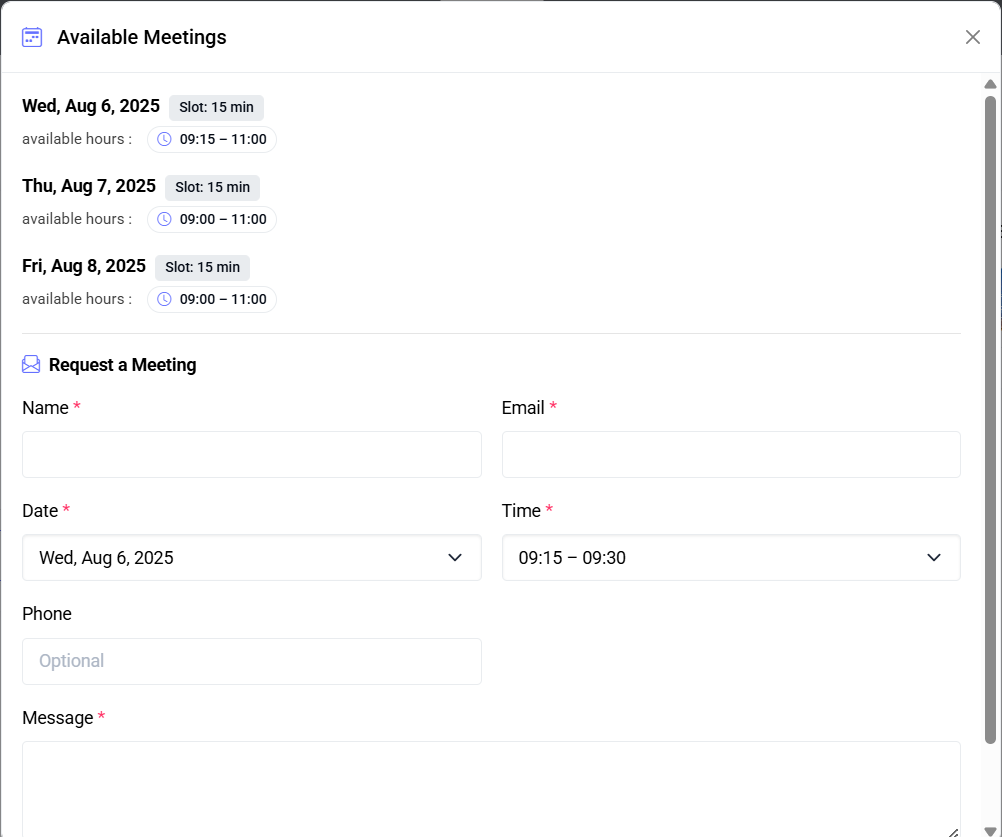 Meeting availability modal (placeholder)
Assets Panel
Displays list of uploaded assets with download links.
Visibility:
- Only files that still exist on storage disk are shown.
Security:
- Direct links served via public disk.
Staff Panel
Shows public staff:
- Avatar (or generic placeholder)
- Name, Email, Phone (if present)
Source:
- Staff records flagged Public.
Related: See Exhibitor Staff documentation for creating & approving staff.
Posts Feed (Read-only portion here)
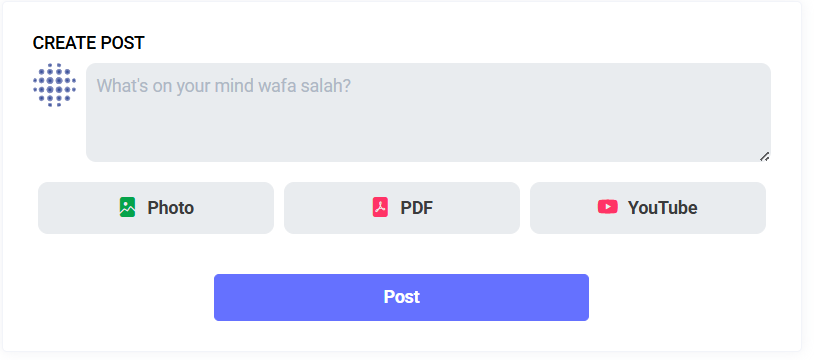
Latest posts paginated (5 per page). Infinite scroll enhances navigation.
Content types displayed:
- Text (description only)
- Image (WebP conversion handled at upload)
- PDF (embedded with iframe + View / Download buttons)
- YouTube (embedded player using extracted video ID)
Timestamp: Relative (e.g., "2 hours ago") with hover showing exact time + timezone.
Validation Summary (Server Side)
Profile Update:
about: required|string|max:500email: required|email:rfc,dns|max:255phone: required|string|max:15address: nullable|string|max:255website: nullable|string|max:255profile: nullable|image|mimes:jpeg,jpg,png,webp|max:3072 (KB)cover: nullable|image|mimes:jpeg,jpg,png,webp|max:3072 (KB)asset_n(1–6): nullable|file|mimes:jpeg,jpg,png,webp,pdf,doc,docx,xlsx,zip|max:5120 (KB)
Meeting Request (conceptual typical rules):
name: required|stringemail: required|emaildate: required|datetime (combined field)phone: nullable|stringmessage: required|string
Troubleshooting
| Problem | Cause | Action |
|---|---|---|
| Proceed button disabled in Step 1 | Failing regex or empty required field | Correct About, Email, Phone inputs |
| Images not updating | File too large or invalid mime | Compress image; ensure allowed extension |
| Asset missing after upload | Old file deleted, new file failed validation | Re-upload valid file; check size & type |
| Meeting times empty | No availability ranges configured | Configure availability; refresh page |
| YouTube embed not showing | Invalid or short URL / ID not extracted | Use full YouTube share or watch URL |
| Pagination links visible | First load before infinite scroll enhancement | Scroll to trigger load; duplicates removed automatically |
Tips
- Keep About concise and marketing-friendly.
- Use high-resolution but optimized images (reduce large originals before upload).
- Name assets descriptively (e.g., "Company Profile 2025.pdf").
- Regularly prune outdated assets.
- Maintain accurate meeting availability to prevent frustration.
Suggested Video Walkthrough (Placeholder)
Access profile, open edit wizard, upload assets, view staff, request a meeting (placeholder).
Download / Open Directly: Download the MP4
Summary
The Exhibitor Profile centralizes public data, marketing assets, staff visibility, and meeting scheduling, ensuring exhibitors can present themselves professionally and stay accessible.
Last updated: 2025-11-12