Exhibitor Staff
Overview
Add and manage staff members tied to an exhibitor with quotas and roles.
Quick Links
Who this is for
- Exhibitor Users: manage their own staff list.
- Event Admins: monitor staff quotas and statuses.
Prerequisites
- Exhibitor account exists with a Staff Quota > 0.
- Required permissions:
exhibitor-staff.viewAny(see staff list)exhibitor-staff.create(add staff)exhibitor-staff.edit(edit staff)exhibitor-staff.delete(remove staff)
- If quota is 0 or fully consumed, creation is blocked (HTTP 403).
Workflow at a Glance
- Open Exhibitors → Staff.
- Review existing members (paginated list).
- Click Create Staff Member.
- Fill form and submit.
- Staff entry saved with status (approved or pending).
- Optional: Edit or Delete entries.
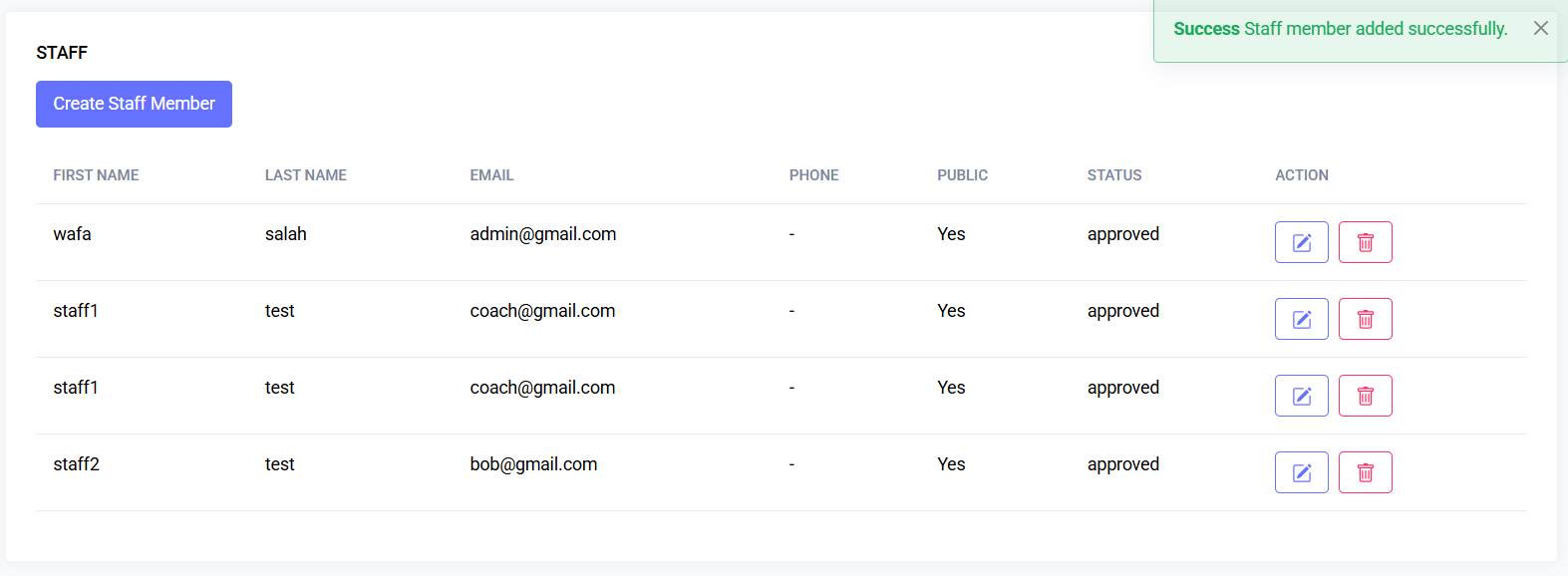
Staff List
Displays: First Name, Last Name, Email, Phone (or “–”), Public (Yes/No), Status, and Action buttons.
Pagination: 8 records per page.
Actions:
- Edit (if permitted)
- Delete (if permitted) – removes record and associated stored picture file.
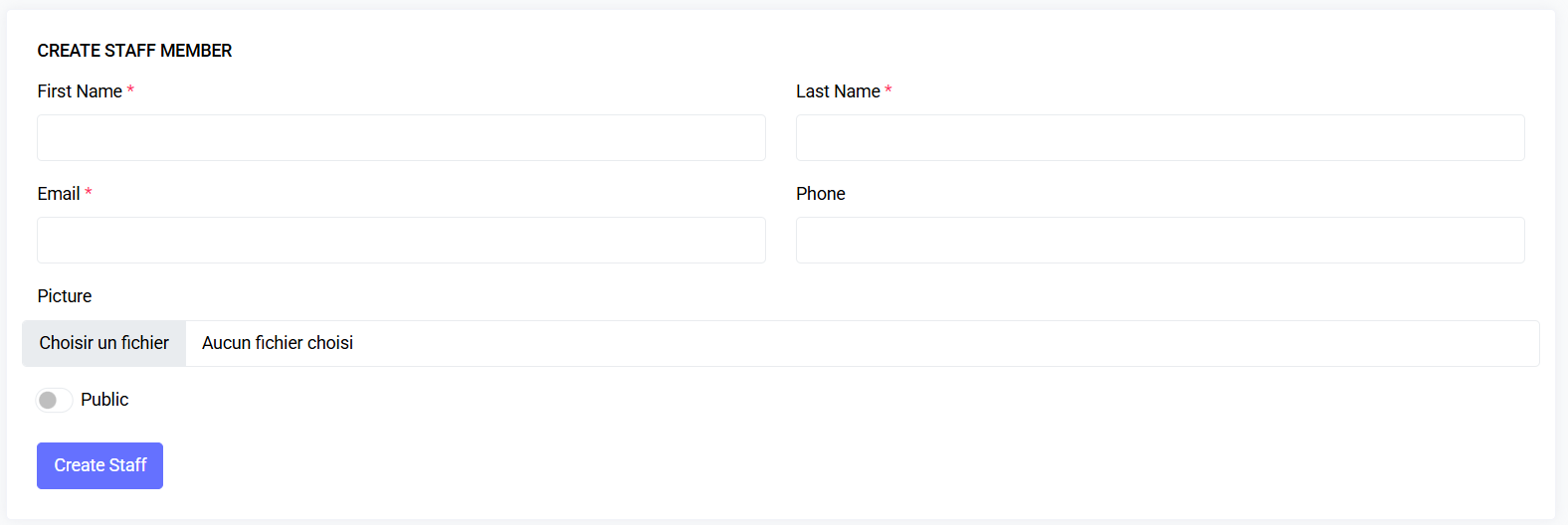
Create Staff Member Form
Fields:
- First Name (required, text, max 255)
- Last Name (required, text, max 255)
- Email (required, valid RFC/DNS email)
- Phone (optional, text, max 20)
- Picture (optional, image jpeg/jpg/png/webp, max 3 MB; converted to WebP internally)
- Public (boolean toggle; default off)
Validation Rules:
first_name: required | string | max:255last_name: required | string | max:255email: required | email:rfc,dnsphone: nullable | string | max:20public: required | booleanpicture: nullable | image | mimes:jpeg,jpg,png,webp | max:3072 (KB)
Quota Enforcement:
- If
quota == 0orquota <= current staff count→ 403 Forbidden
Status Assignment:
- If Auto Approve Staff enabled → status is approved
- Otherwise → status is pending
Picture Handling:
- Uploaded images converted to WebP (quality ~50)
- Stored under:
public/exhibitor/{exhibitor_user_id}/staff/picture_{staff_id}.webp - Deleted when staff member removed
Edit Staff Member
(Current placeholder implementation — same validations apply.)
Planned behavior:
- Open edit form with existing values
- Modify fields under same validation
- Replace picture (old file removed, new one saved)
Delete Staff Member
- Immediate deletion after confirmation.
- Picture file removed from storage (if exists).
- Redirects back with success message.
Public Flag
- Public: Yes — staff member appears on public exhibitor profile (if available).
- Public: No — hidden from public view.
Troubleshooting
| Problem | Cause | Action |
|---|---|---|
| Cannot access Staff menu | Missing permission exhibitor-staff.viewAny | Request proper role or permission |
| Create button missing | No exhibitor-staff.create or quota exhausted | Check quota / permissions |
| 403 on create form | Quota reached or 0 | Adjust quota |
| Email rejected | Invalid format or DNS | Check email address validity |
| Picture upload fails | File >3 MB or wrong type | Resize or convert image |
| Status always pending | Auto Approve disabled | Enable Auto Approve (admin) |
Tips
- Use professional headshots, optimized for small file size.
- Keep names consistent with badge printing formats.
- Encourage public visibility for better exhibitor representation.
- Periodically prune inactive or outdated staff entries.
User Story Video
Watch the walkthrough video – staff list view, creation, validation, status result, and deletion (placeholder).
Summary
Exhibitor Staff management enables exhibitors to self-manage team entries under quota and validation rules, ensuring organized, visible, and professional staffing for events.
Last updated: 2025-11-12