Forms
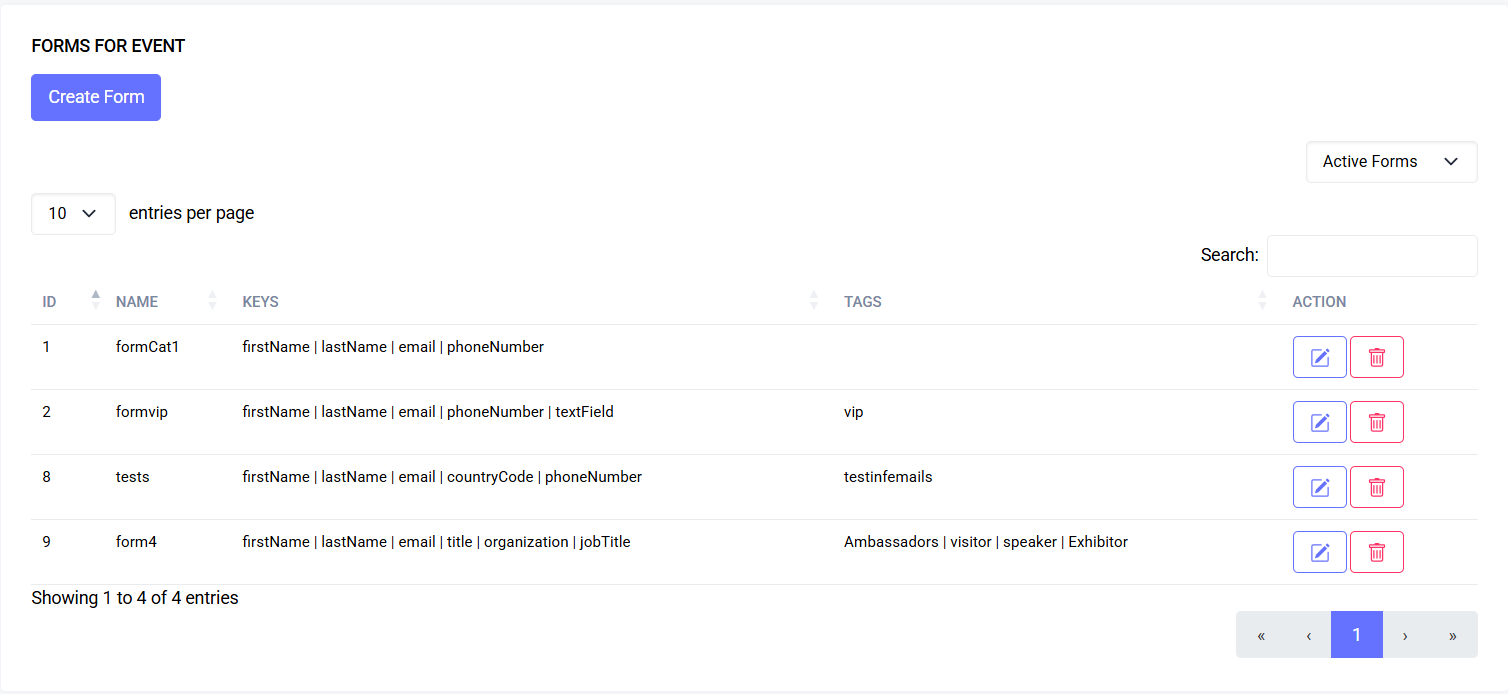
Turn requirements into structured data with validation and schema that travel. Tag scoping enforces one-form-per-tag, preventing conflicts and ensuring clean segmentation for public registration.
Build dynamic registration and data capture forms for events. Forms can collect additional attendee information beyond the basics and power public registration links.
Interface Preview
Quick Start
- Go to Events > Forms
- Create a form and add fields
- Save and preview
User Story
“As an event manager, I need to design forms, attach them to tags, and publish a public registration link with limits and spam protection.”
Key Capabilities
- Drag‑and‑drop builder with predefined fields
- Validation rules (required, email, regex)
- Tag-based assignment to scope registrations
- Public registration links with optional submission limits
- reCAPTCHA v3 spam protection (if enabled)
- JSON schema stored for portability
Workflow
1) Access Forms
Navigation: Events > Forms
2) Create a New Form
- Click Create Form
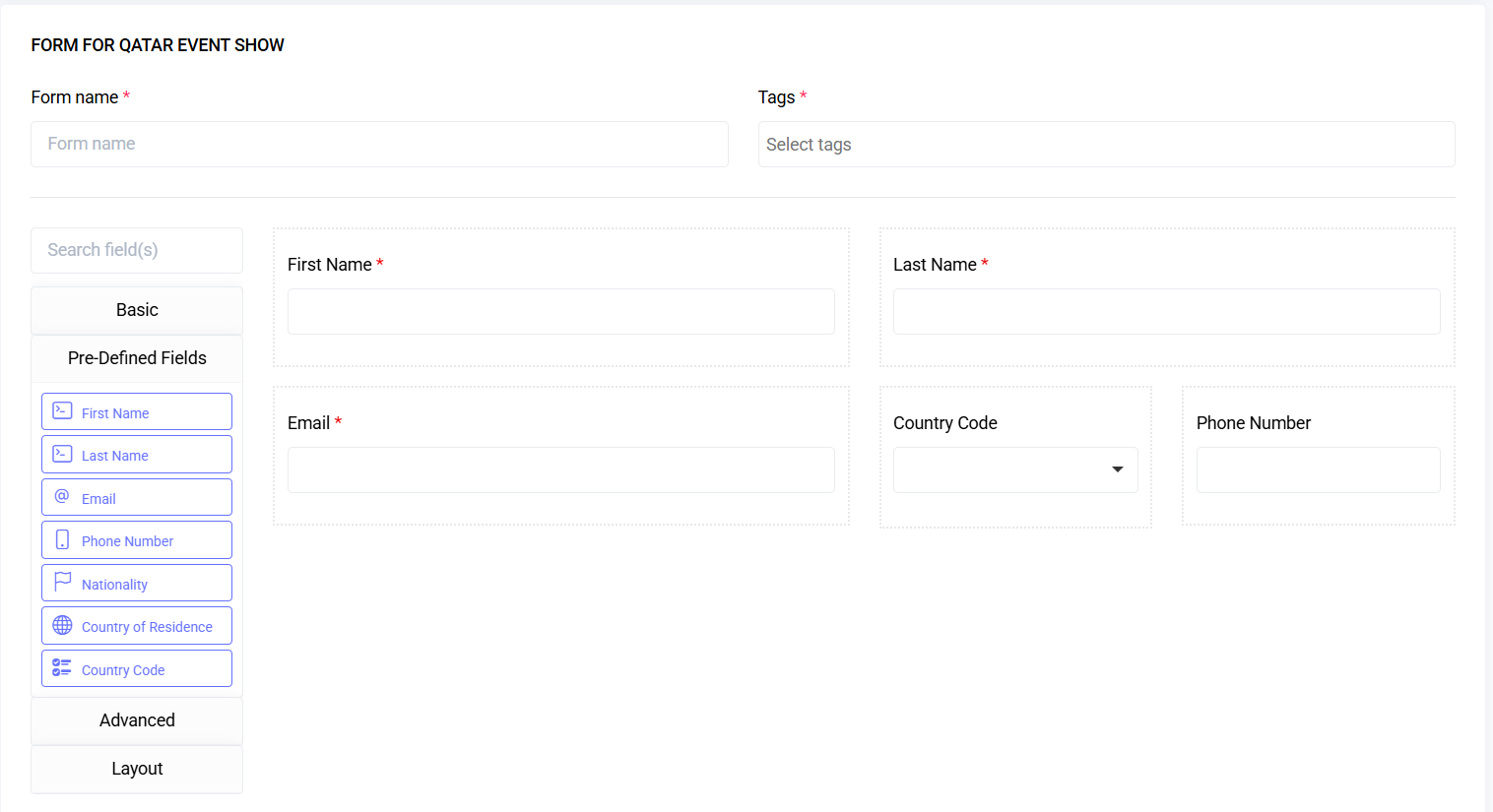
- Enter a form name
- Select one or more Tags to bind the form to
- Save to open the form builder
3) Build the Form
- Use Predefined Fields for standard inputs (First Name, Last Name, Email, etc.)
- Add other components as needed (Textfield, Textarea, Select, Radio, Checkbox, Date, Datetime)
- Configure each field’s label, placeholder, and validation
Required Fields:
firstName(textfield)lastName(textfield)email(email)
If any required field is missing or not marked required, saving will be blocked.
4) Predefined Fields Library (Optional)
Navigation: Events > Forms > Predefined Fields
- Create reusable field definitions (label, key, type, validation, options)
- These appear under Predefined Fields in the builder for fast reuse
5) Save & Validate
- Click Save Form to persist the JSON schema
- Validation ensures all required keys (
firstName,lastName,email) are present
6) Attach Forms to Tags
- Each form is linked to Tags; only one form per tag is allowed
- Tags already assigned to another form will not appear as selectable
7) Create a Public Registration Link
Navigation: Events > Forms > Public Forms
- Generate a link bound to a specific Tag (must already have a Form)
- Optionally set a submission limit; leave blank for unlimited
- Share the link with attendees
Public link behavior:
- Creates Guests under the linked Event and Tag
- Enforces unique email per event
- Tracks submission counts and enforces limits
8) Spam Protection (reCAPTCHA v3)
- When enabled, each submission requires a valid token
- Server verifies score and the action
public_register - Failed verification shows a validation error; users can retry
9) Dynamic Success Page (Optional)
- Success page templates can include placeholders:
{{ guest.first_name }},{{ guest.last_name }},{{ event.name }},{{ event.slug }},{{ tag.name }},{{ workshop_link }},{{ qr_code }}
- QR code image URL may be included for scannable confirmation
Data Model Snapshot
- forms: id, event_id, name, components (JSON)
- tags: id, event_id, name, form_id (nullable)
- public_forms: id, tag_id, name, submission_limit, submission_count
- guests: id, event_id, tag_id, first_name, last_name, email, formio_data (JSON)
Permissions
| Area | Action | Permission |
|---|---|---|
| Forms | View list/data | form.viewAny |
| Forms | Create | form.create |
| Forms | Edit | form.edit |
| Forms | Delete (soft) | form.delete |
| Forms | Restore | form.restore |
| Forms | Force delete | form.forceDelete |
| Predefined Fields | View | form-field.viewAny |
| Predefined Fields | Create | form-field.create |
| Predefined Fields | Edit | form-field.edit |
| Predefined Fields | Delete | form-field.delete |
| Public Forms | View | public-form.viewAny |
| Public Forms | Create | public-form.create |
| Public Forms | Edit | public-form.edit |
| Public Forms | Delete | public-form.delete |
Best Practices
- Keep field keys simple and stable (letters, numbers, underscores, hyphens; start with a letter/underscore)
- Mark essential fields as required; avoid overusing required on optional questions
- Use readable labels and stable values for Select/Radio options
- Test with long names and international characters
- For QR codes in success templates, ensure high contrast and adequate size
Troubleshooting
| Issue | Cause | Fix |
|---|---|---|
| Can’t save form | Missing required keys or not marked required | Ensure firstName, lastName, email exist and required=true |
| Tag not allowed | Tag already assigned to another form | Choose an unassigned tag or edit the existing form |
| Public link “limit reached” | Submission limit hit | Increase limit or remove limit |
| reCAPTCHA failed | Low score or invalid token | Retry; verify site/secret keys and min score |
| Duplicate email error | Email already registered | Use a different email or remove existing guest |
FAQ
-
Can I clone a form?
- Duplicate isn’t built-in; create a new form and reuse predefined fields
-
How do I change which tags a form applies to?
- Edit the form and update the tag selection (one-form-per-tag rule applies)
-
Can I export the schema?
- Form components are stored as JSON; copy from DB for migration
-
Can I add custom validation patterns?
- Yes, use the Regex Pattern field on predefined text inputs or configure in the builder
Last updated: 2025-10-09