Gaming
Add engagement and friendly competition to your events. The Games module lets you create multi-station games, control scoring rules, collect play logs, and publish leaderboards for attendees.
Overview
The Gaming feature provides tools to configure games for an event, define how they are scored, attach them to physical or virtual game stations, and capture play logs for reporting and leaderboards. Operators can run games at stations while admins control configuration and access.
Quick Start
- Go to Event > Games.
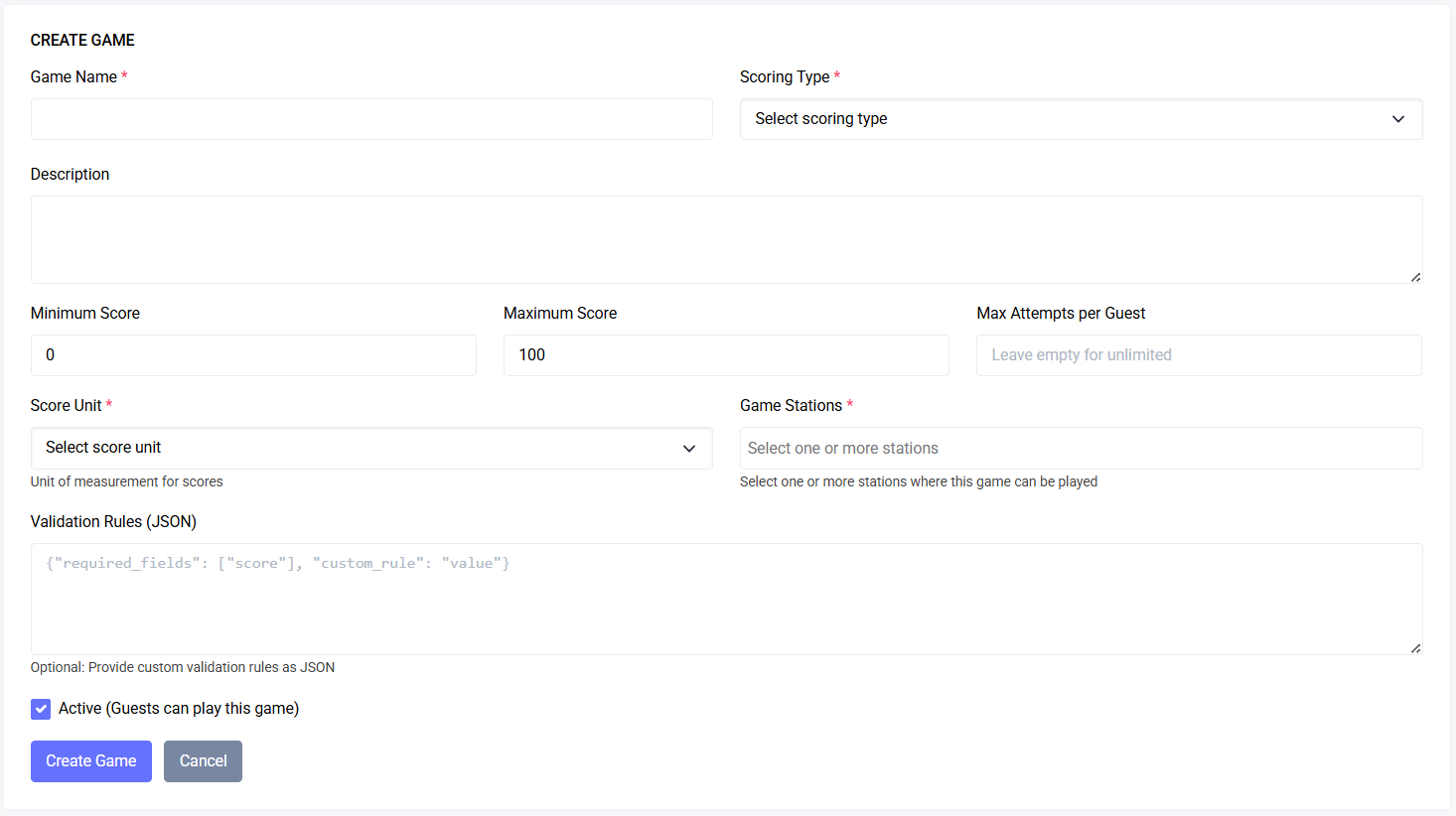
- Click Create Game and fill out the form (name, scoring type, score unit, stations, rules).
- Create one or more Game Stations under Event > Game Stations and assign them to games.
- From the Games list, enable the game and share station access to operators.
- View play logs and leaderboards under Event > Game Plays / Logs.
Navigation
- Manage games: Event > Games
- Create game: Event > Games > Create Game
- Manage stations: Event > Game Stations
- View play logs / leaderboards: Event > Game Plays (Logs)
Notes: Links above assume you have permission to view the relevant pages.
Create a Game
When creating a game you will typically provide the following:
- Name (required)
- Description (optional)
- Scoring Type (required): how points are calculated (see Scoring Types below)
- Score Unit (required): unit of the score (points, seconds, attempts, etc.)
- Min / Max Score (optional): enforce lower/upper scoring bounds
- Max Attempts (optional): limit how many times a single player can play
- Game Stations (required): one or more stations where the game runs
- Active toggle: enable or disable the game for play
- Rules / Instructions: free text to explain how the game works
Validation and behavior notes:
- If both Min and Max are provided, Min must be
<=Max. - A game must be attached to at least one station to accept plays.
- Unchecked boolean fields (e.g., Active) are treated as false by the form.
 Create a new game (placeholder)
Game Stations
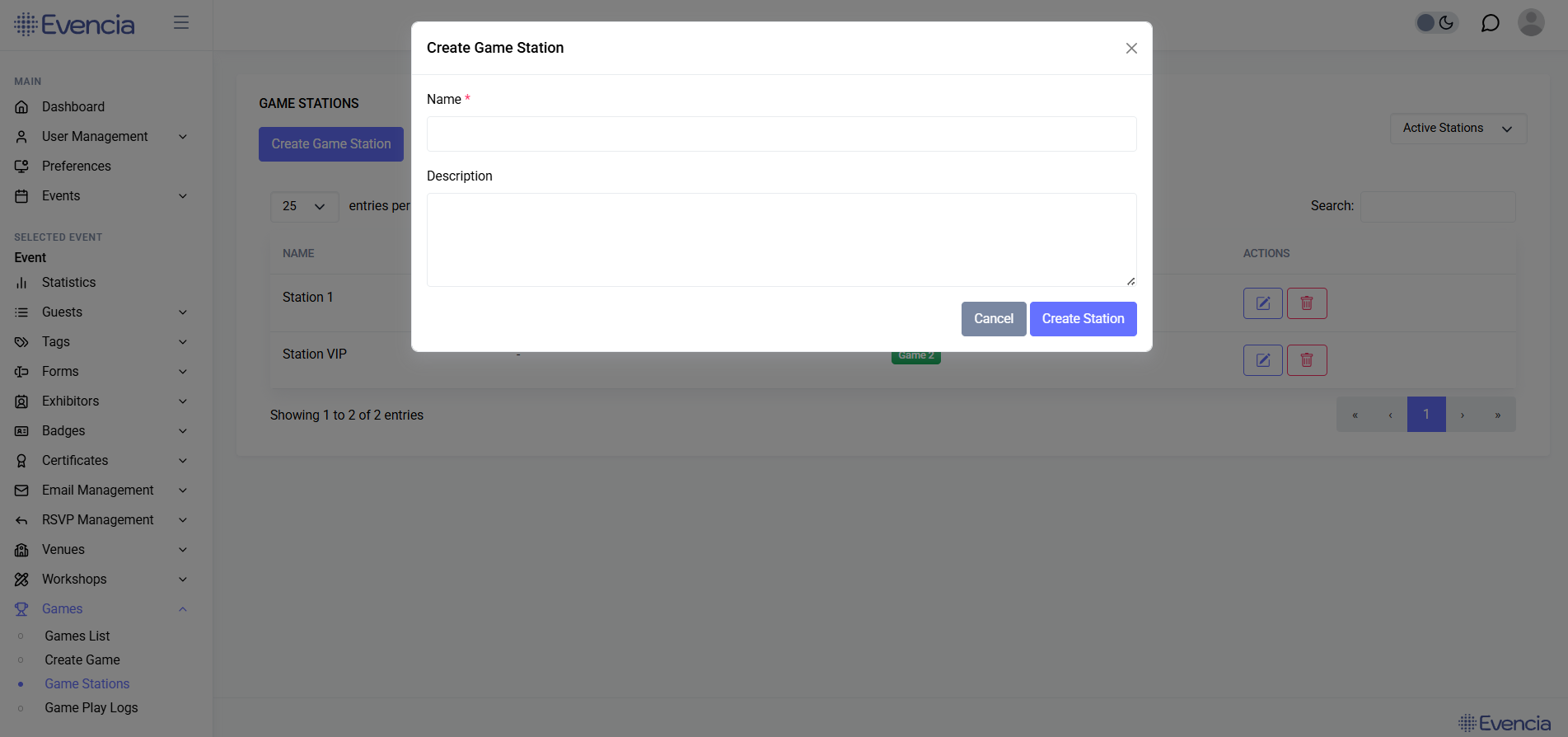
Game Stations represent physical or virtual endpoints where a game can be played. Typical uses:
- A kiosk/table with hardware and an operator
- A QR-enabled station where attendees scan to play
- A virtual station for online or remote play
Station fields:
- Name (required)
- Description (optional)
Station actions include Create, Edit, Soft Delete, Restore, and Permanently Delete. Stations are listed under Event > Game Stations.
 Game Stations (placeholder)
Running Games
Typical operator workflow:
- Select the event and station you are operating from.
- Choose the active game assigned to that station.
- Start a play session for a guest (scan badge, enter guest ID, or use the station UI).
- Record score according to the game's scoring rules.
- Save the play. The play is recorded in the logs and reflected in the leaderboard.
Behavior and constraints:
- Attempts may be limited per guest by the game's Max Attempts setting.
- Scores outside configured Min/Max may be rejected or clamped depending on configuration.
- Operators must have the
game-playviewing/creating permissions to log plays.
Scoring Types & Units
The system supports multiple scoring approaches. Common examples:
- Points: discrete numeric points awarded for actions or completion.
- Time-based: lower times are better (e.g., race / speed challenges).
- Attempts-based: count of successful attempts or failures.
Score Units describe the semantic unit used for the score (for display and sorting): points, seconds, attempts, etc.
When designing a game, pick a scoring type and unit that reflect how winners are determined (higher-is-better vs lower-is-better).
Logs & Leaderboards
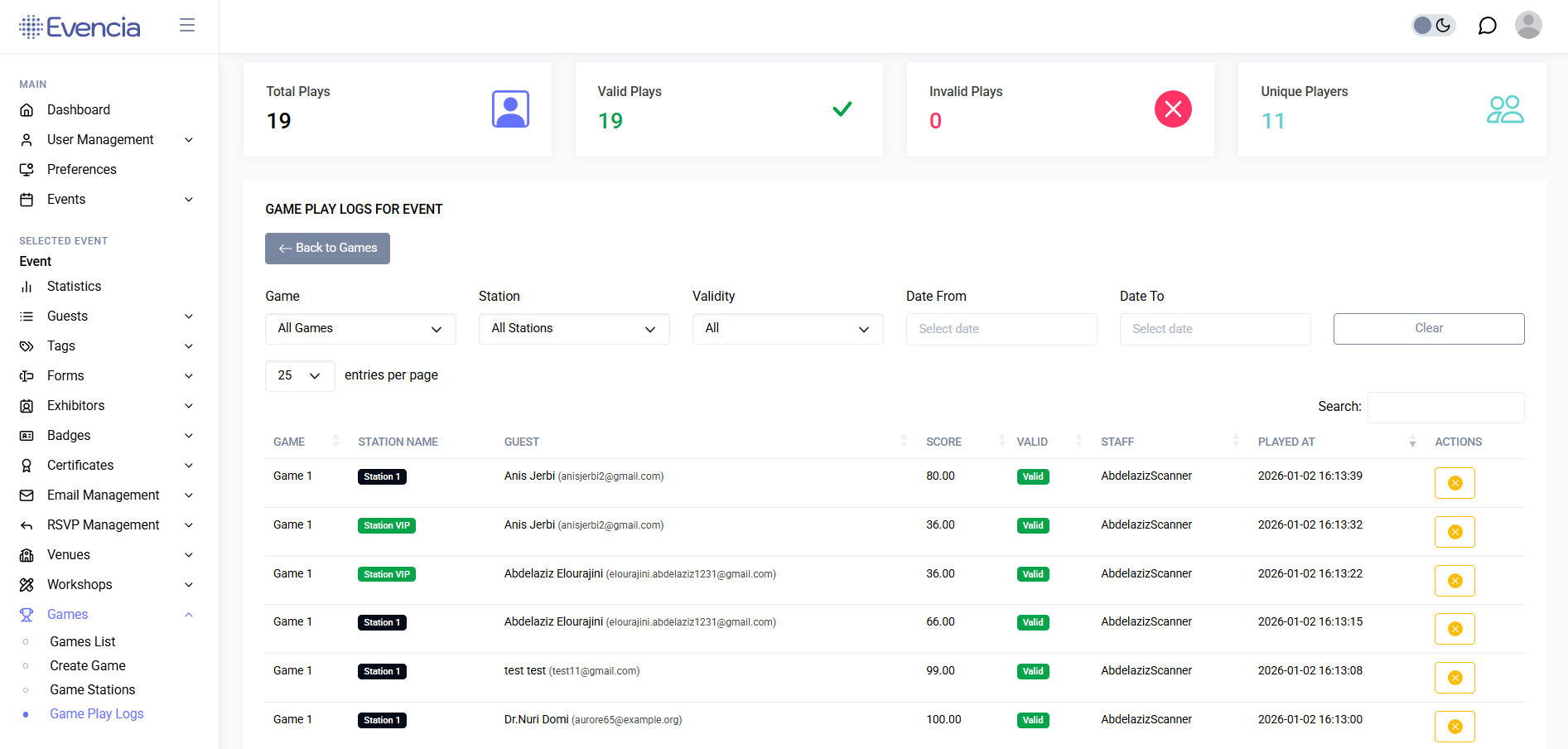
All plays are recorded as logs with metadata: player, station, game, score, timestamp, and optional extra fields. Use the Play Logs page to:
- Review individual plays and timestamps
- Filter by station, game, player, or date range
- Export logs for reporting
- View leaderboards generated by aggregating top scores
Leaderboards can be built from highest score, best average, or fastest time depending on the scoring type.
 Play logs and leaderboard (placeholder)
Permissions
| Action | Permission |
|---|---|
| View Games list | game.viewAny |
| Create Game | game.create |
| Edit Game | game.edit |
| Delete / Restore / Force Delete Game | game.delete, game.restore, game.forceDelete |
| Manage Game Stations | game-station.* (create/edit/delete) |
| View / Log Plays | game-play.viewAny, game-play.create |
Admins can assign these permissions to roles to control who can configure games vs who can operate them.
Troubleshooting
- Play not recording: ensure the station is assigned to the game and the game is active.
- Scores rejected: check Min/Max score values and the scoring type rules.
- Guest blocked from playing: verify Max Attempts and guest status (banned/blocked tags).
- Leaderboard not updating: confirm logs are being written and that the leaderboard query matches the scoring type (high vs low wins).
FAQs
Q: Can a guest play multiple games at once? A: Yes — if the games are separate and the station/game rules allow multiple concurrent attempts. Max Attempts per game still applies.
Q: How do I export play logs? A: Use the Play Logs page to filter the desired range and export as CSV or Excel (where available).
Q: Can I restrict a game to certain guest tags? A: You can gate access using event tags or custom eligibility rules where supported (check game configuration and event tag settings).
Who This Guide Is For
- Event admins: configure games, stations, and permissions.
- Operators: run games at stations and log plays.
- Data / reporting teams: export logs and build leaderboards.
Quick Reference (5 steps)
- Create stations (Event > Game Stations).
- Create a game and attach stations (Event > Games > Create Game).
- Enable the game and assign operators.
- Run plays at the station and record scores.
- Review logs and publish leaderboards.