Gates
Quick Links
📌 Why Gates?
Translate your floor plan into controlled entry points. Assignments plus logs give precise throughput and dwell insights; unique gate names eliminate operator confusion.
Define venue checkpoints and manage which scanners operate each gate. Gates control access and track attendee flow during events.
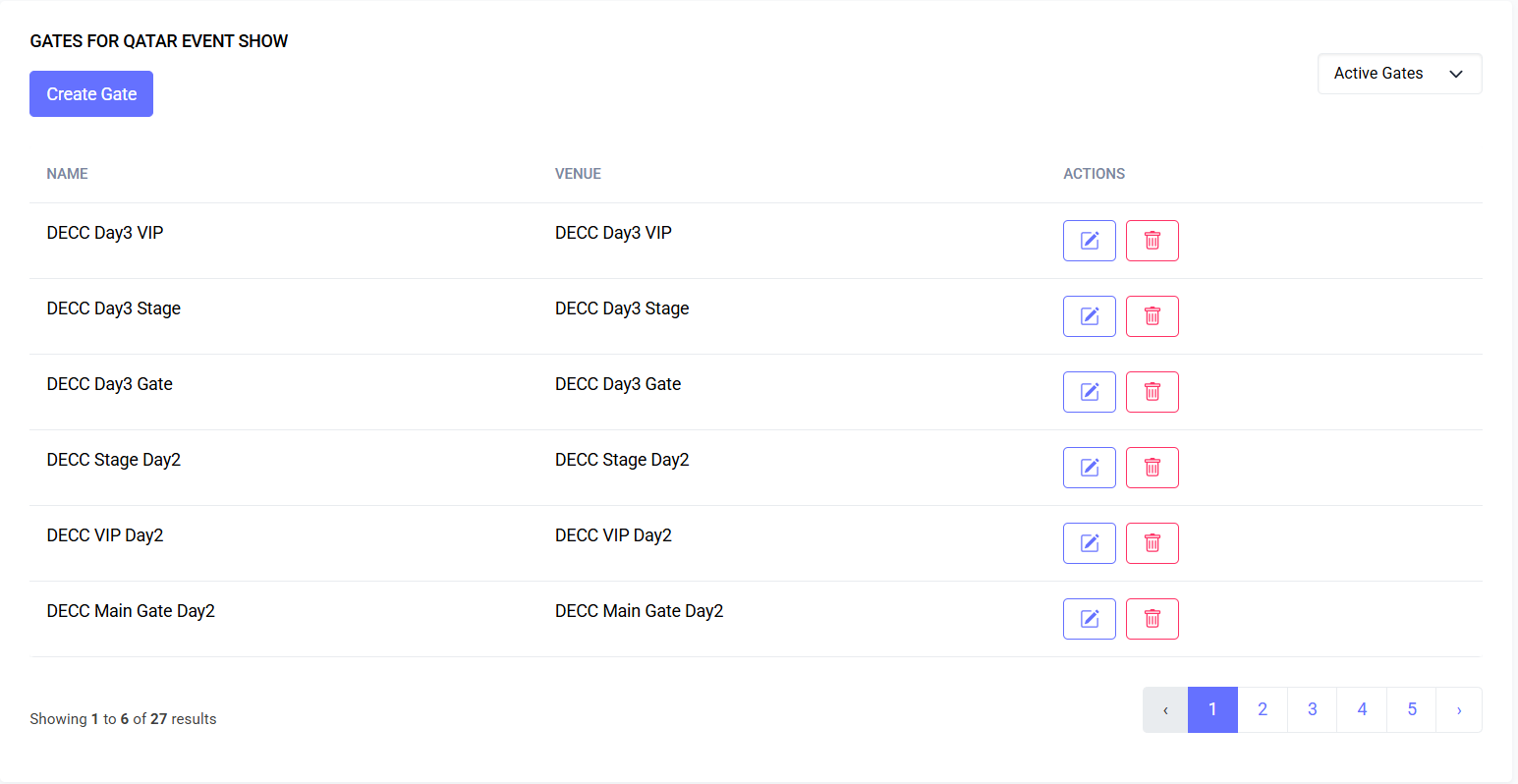
Interface Preview
Quick Start
- Go to Events > Gates
- Create a gate and set details
- Assign scanners as needed
What You Can Do
- Create, edit, and delete gates per venue
- Soft delete, restore, or permanently delete gates
- Filter by Active/Deleted/All
- Assign scanners to gates with time windows (via Gate Assignments)
- Enforce unique gate names per venue
Access
Navigation: Venues > Gates
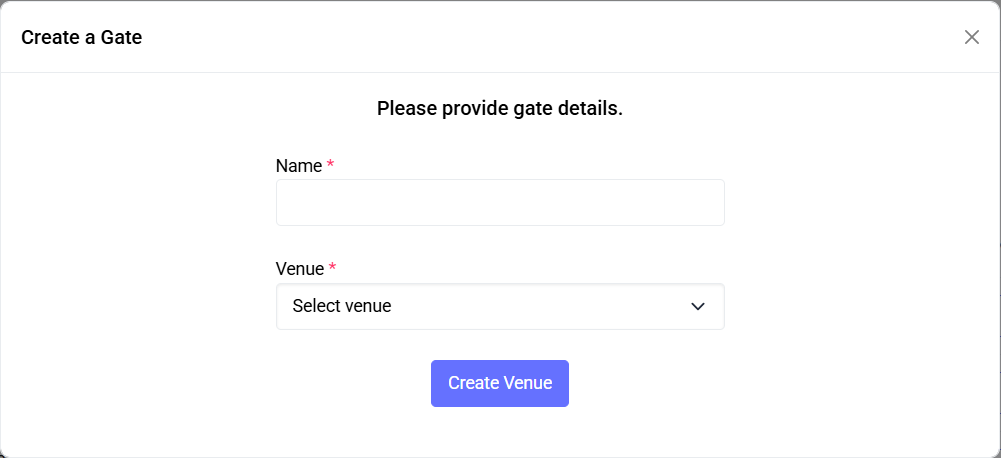
Create a Gate
- Click Create Gate
- Fill in:
- Name
- Venue
- Submit
Edit a Gate
- Click the edit icon, update Name or Venue, then Save
Delete / Restore / Permanently Delete
- Delete: moves the gate to trash (soft delete)
- Restore: brings back a trashed gate
- Permanently Delete: available only for trashed gates; irreversible
Gate Assignments (Assign Scanners to Gates)
Schedule which scanners work at which gate and when.
Access:
Navigation: Events > Gate Assignments (within a specific event)
Filters:
- Filter by Scanner
- Filter by Gate
Create Assignment:
- Click Assign Scanner to Gate
- Fill in:
- Scanners (multi-select)
- Gate (single-select)
- Start Time (date & time)
- End Time (date & time)
- Submit to queue the assignment(s)
Edit Assignment:
- Use the row action to open Edit, adjust Gate, Scanner, or Times, then Update
Unassign:
- Use the Delete/Unassign action and confirm
Notes:
- End Time must be after Start Time
- The Assign button is visible only to users with permission
Permissions
| Action | Permission |
|---|---|
| View Gates | gate.viewAny |
| Create Gate | gate.create |
| Edit Gate | gate.edit |
| Soft Delete Gate | gate.delete |
| Restore Gate | gate.restore |
| Permanently Delete Gate | gate.forceDelete |
| Assign Scanners to Gates | gate.assign |
| Unassign Scanners from Gates | gate.unassign |
Data Model Snapshot
- gates: id, venue_id, name, deleted_at, created_at, updated_at
- gate assignments (app-managed): gate_id, user_id (scanner), start_time, end_time, timestamps
Validation Rules
- Name: required, max 50 chars, unique per venue (ignores soft-deleted rows)
- Venue: must belong to the current event context
- Assignment: end_time must be after start_time
Best Practices
- Use location-based names (e.g., North Entrance, Hall B – Side Door)
- Avoid duplicate gates across venues
- Use time windows to rotate scanning staff
- Prefer soft delete to preserve historical associations
Troubleshooting
| Issue | Fix |
|---|---|
| Gate not visible | Check filter (Active/Deleted/All) and venue context |
| Assign button missing | Ensure your role has gate.assign permission |
| Can’t select a scanner | Ensure the user has Scanner role and event assignment |
| Duplicate name error | Names must be unique within the same venue; rename the gate |
| End Time validation fails | Ensure End Time is after Start Time and matches event timezone |
Related Features
- Venues: parent container for gates
- Scanners: user role for gate operations
- User Management: assign scanner roles and event access
Last updated: 2025-10-09