Ticket Payments
Plain-language guide for enabling ticket payments with SkipCash and Dibsy.
Overview
This guide shows you how to set up payments for your event and what attendees will see when paying using SkipCash or Dibsy.
:::
Who is this for?
- Event organizers who need to enable payments.
- Ticket buyers who want to know what to expect at checkout.
What you’ll need
- An event created in the system.
- A payment account with SkipCash or Dibsy.
- Your provider keys (from the provider dashboard).
1) Organizer setup
Follow these steps once per event to enable payments.
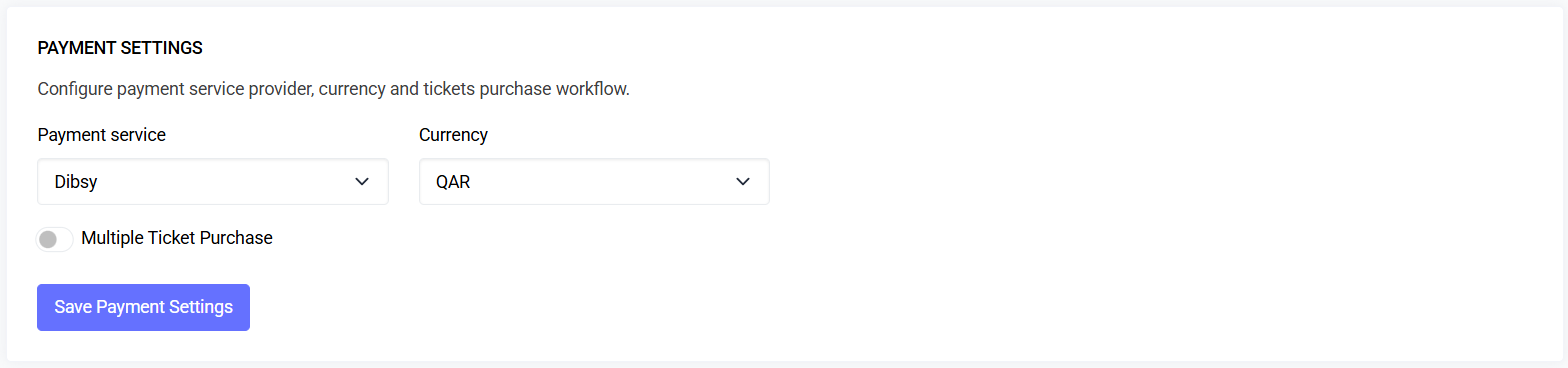
A. Open Payment Settings
- Go to your event dashboard.
- Open Settings.
- Select Payment Settings.
B. Choose provider and currency
- Pick a payment service: SkipCash or Dibsy.
- Choose the currency you accept (filtered by provider).
C. Enter your provider keys
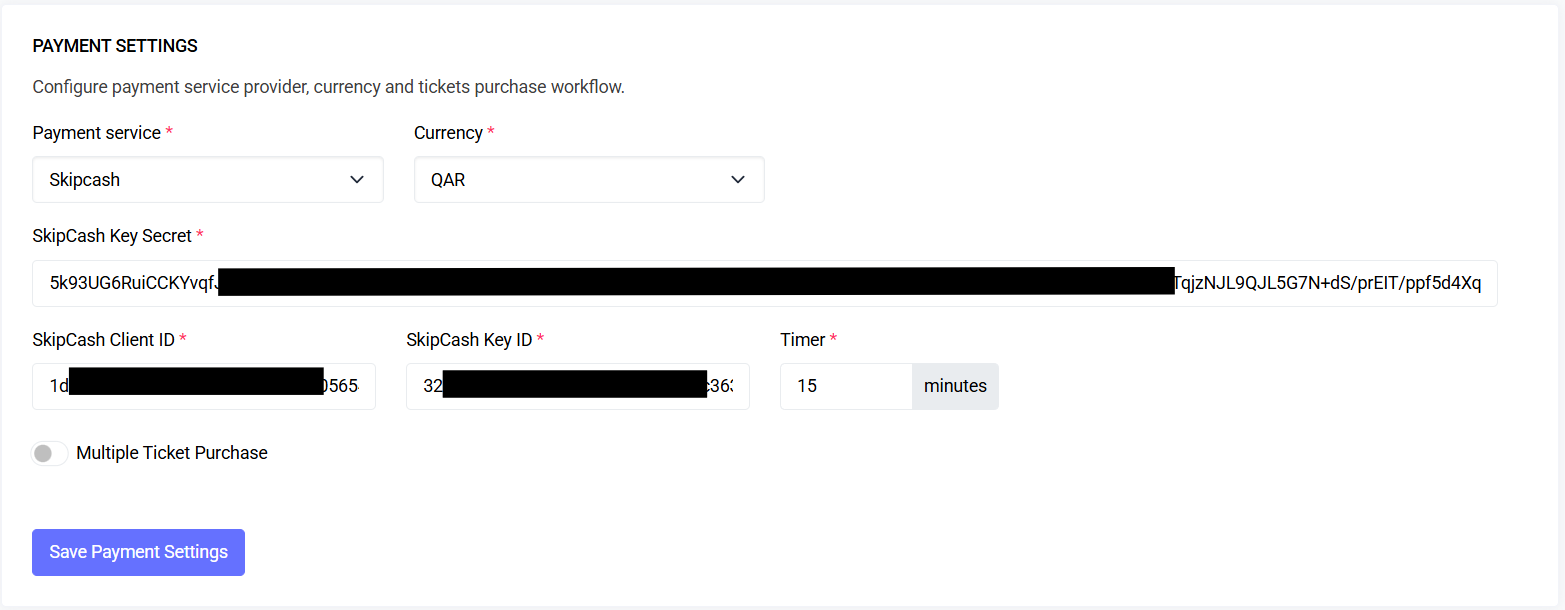
SkipCash fields:
- Key Secret
- Client ID
- Key ID
- Timer (minutes)
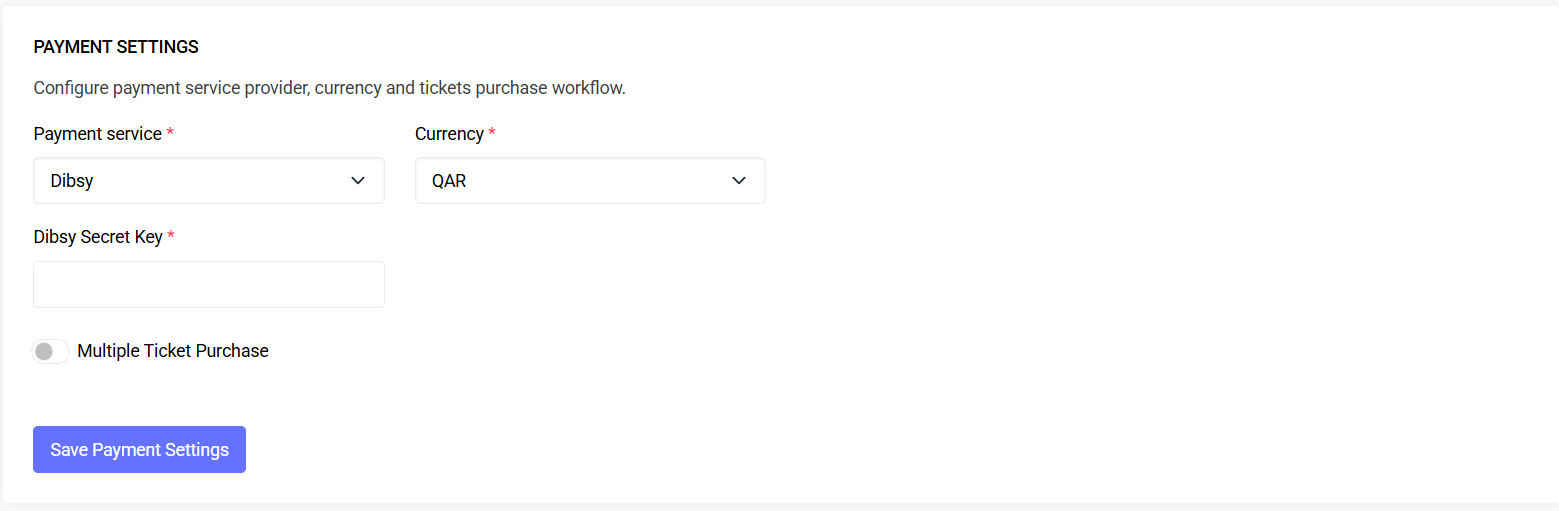
Dibsy field:
- Secret Key
Never paste production secrets into test/staging events. Rotate keys immediately if exposed.
D. Allow single tickets (optional)
Toggle Multiple Ticket Purchase OFF for a streamlined single-ticket flow.
E. Allow multiple tickets (optional)
Toggle Multiple Ticket Purchase ON to let buyers add different ticket types in one checkout.
F. Set the reservation timer
- SkipCash: choose a timer (minutes) for the payment session.
- Dibsy: uses a fixed 15‑minute session; cannot be changed.
G. Save your changes
Click Save on each settings page.
2) Buyer checkout (what attendees see)
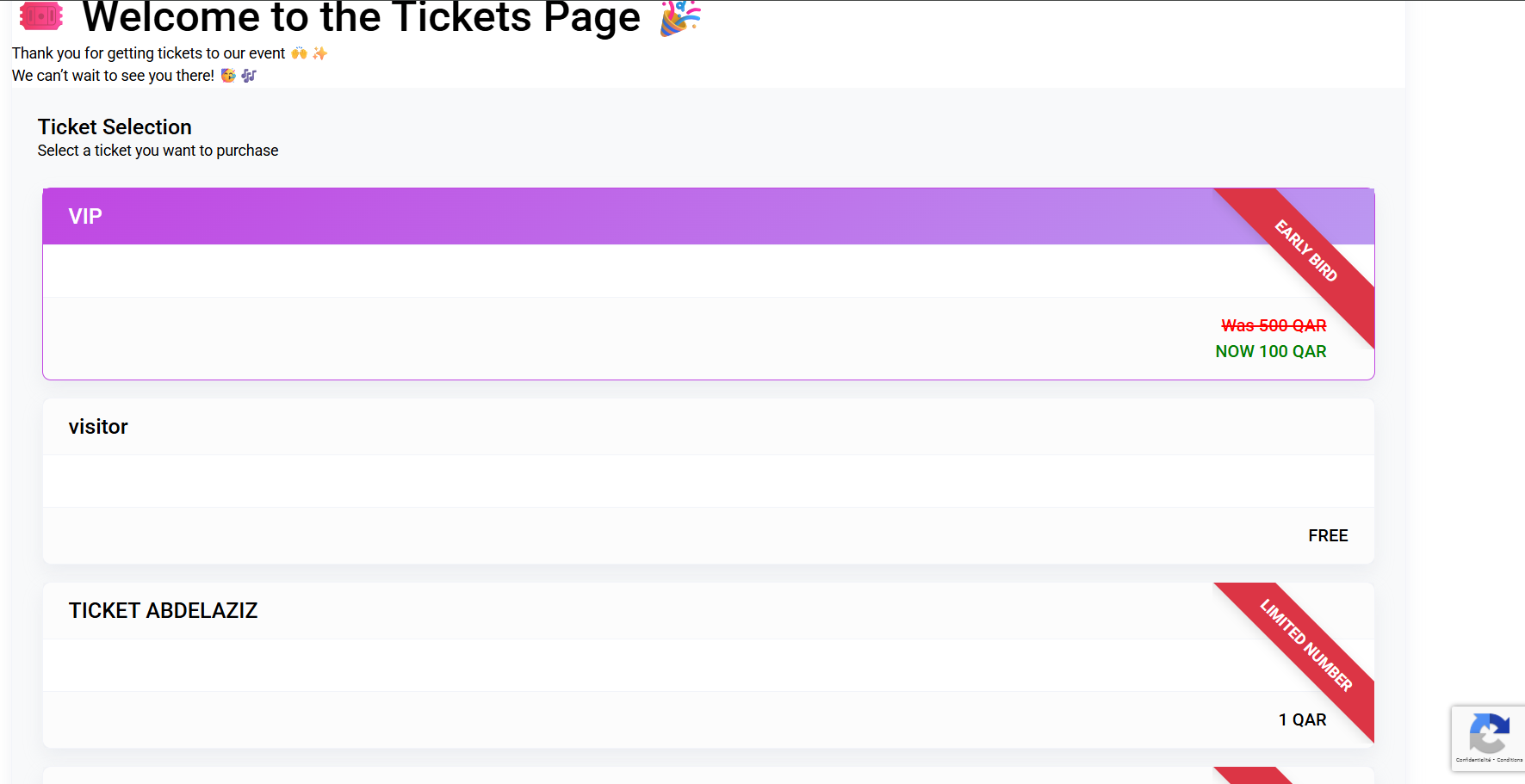
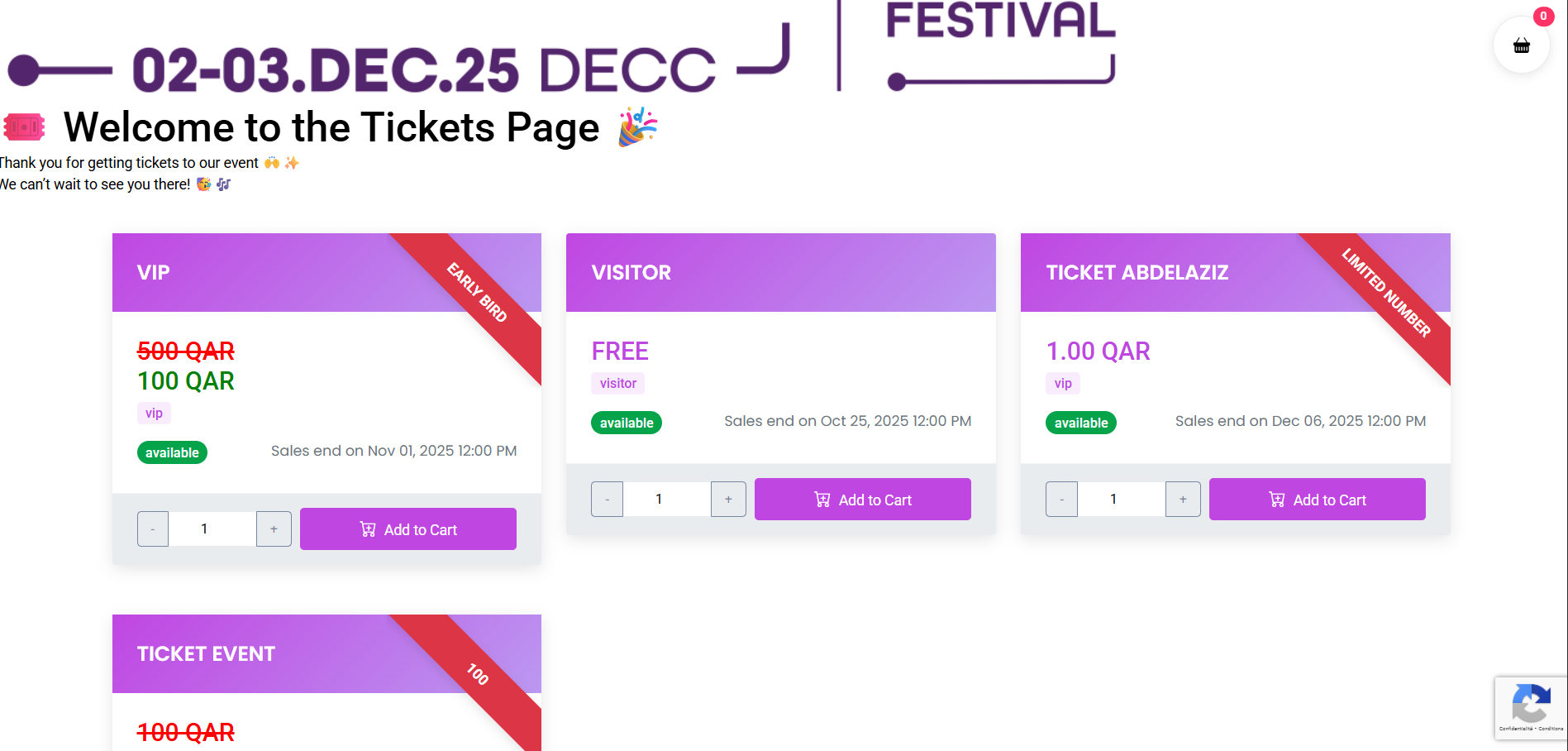
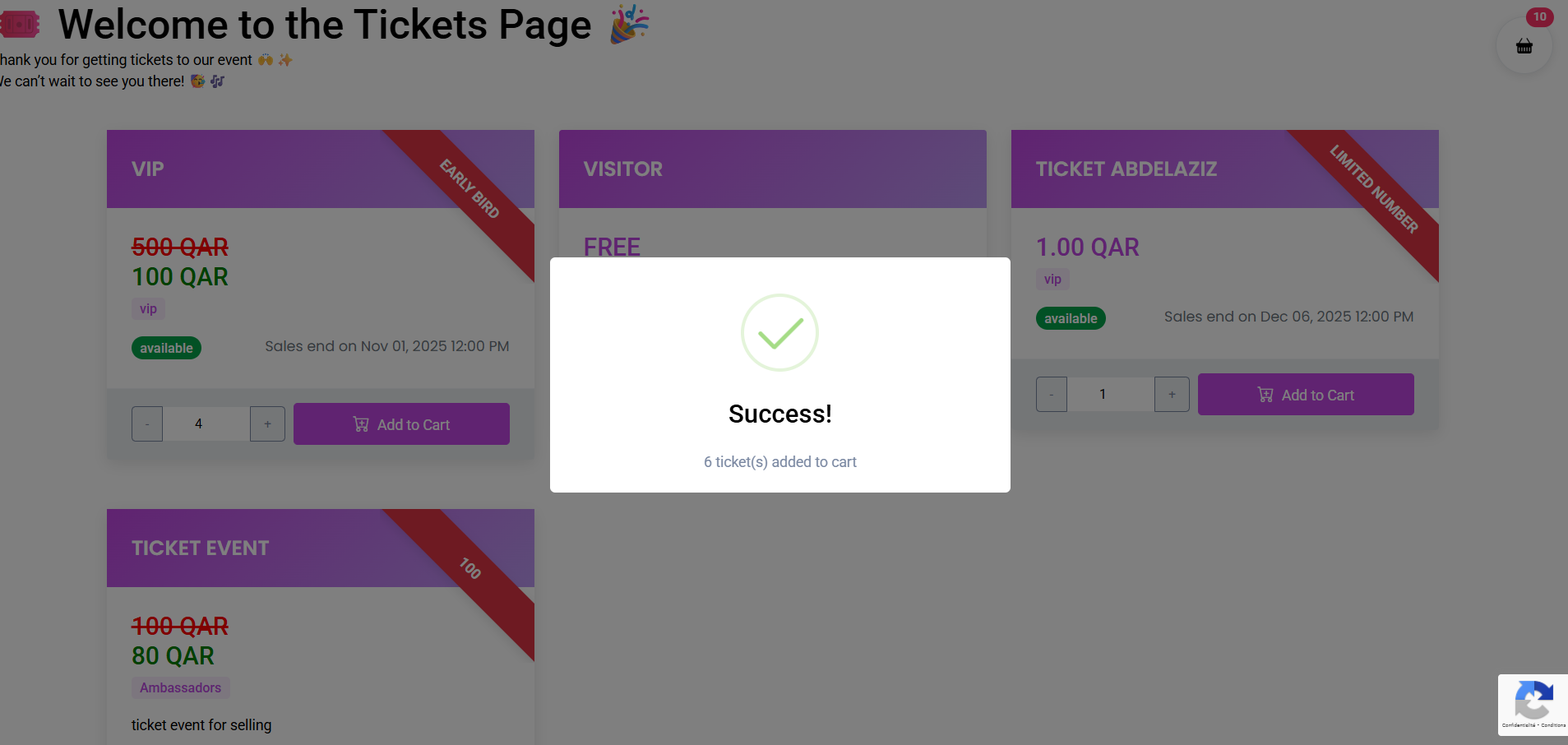
A. Add ticket(s) to cart
- Open the event’s ticket page.
- Choose a ticket and quantity, then click Add to cart.
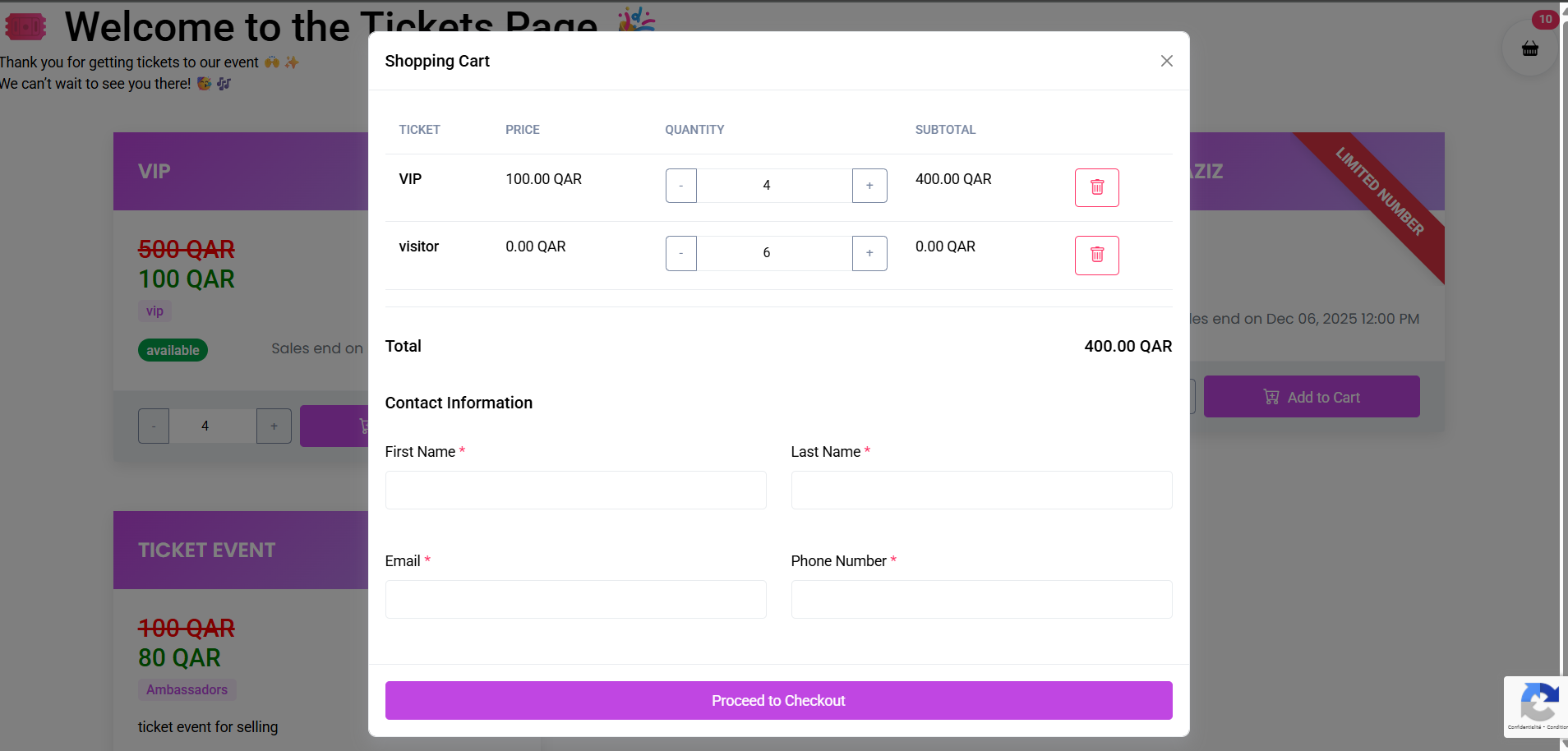
B. Review the cart
- Open the cart.
- Check tickets, quantities, and total.
- Fill buyer details.
- Click Checkout.
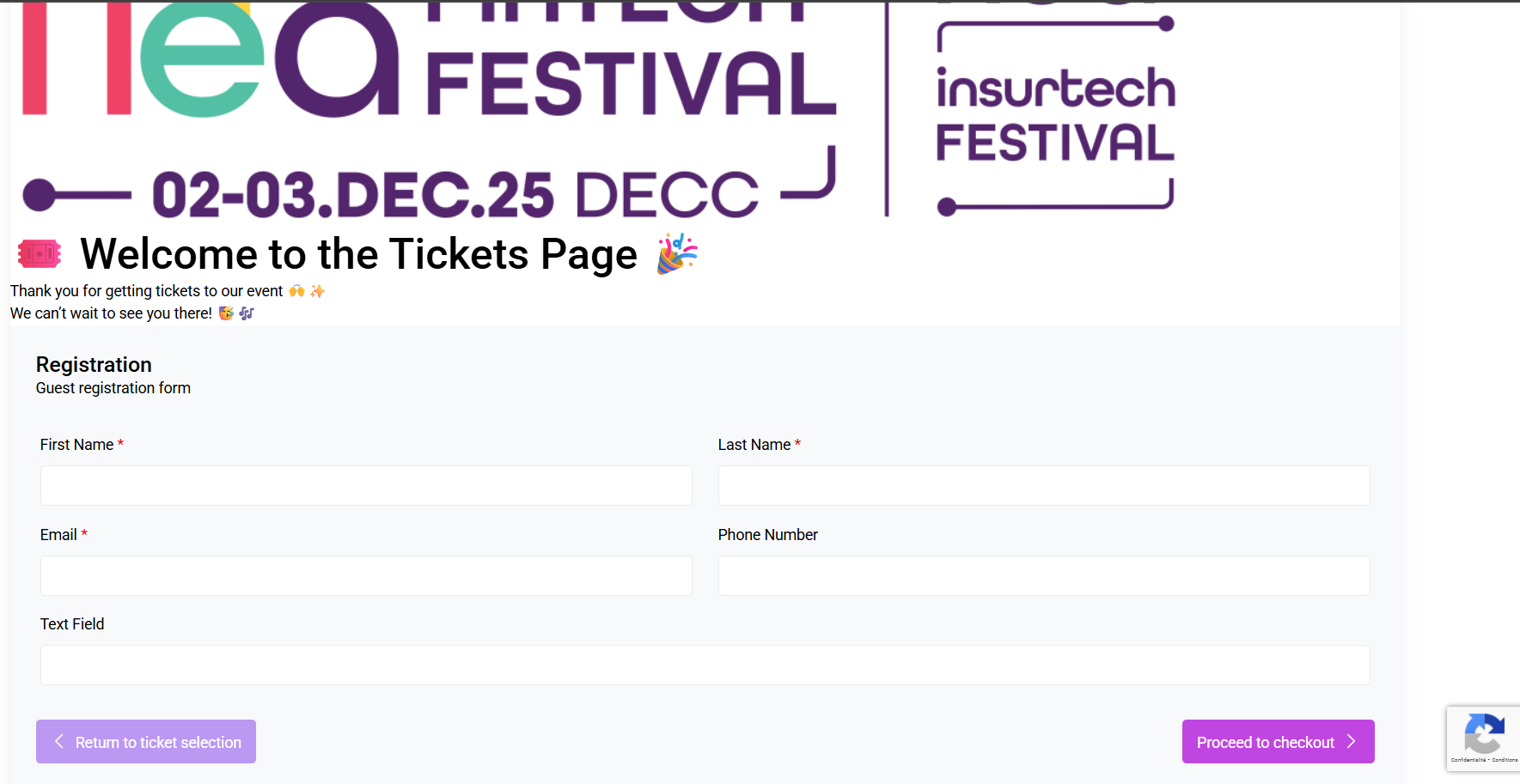
C. Enter buyer details
Fill first name, last name, email, and phone; verify if prompted; click Checkout.
D. Complete payment on provider page
Redirect occurs to SkipCash or Dibsy for secure payment.
| Provider | Redirect Placeholder |
|---|---|
| SkipCash | |
| Dibsy | |
E. See your payment summary
After payment, a summary shows status, amount, ticket details, and a shareable link.
If total amount is 0 (free ticket) you skip provider redirect and land directly on success.
3) Troubleshooting (quick fixes)
| Issue | Quick Fix |
|---|---|
| Payment failed | Retry; verify card or use another method |
| No payment page | Ensure you clicked Pay; refresh and retry |
| Status pending | Reopen summary link after 1–2 minutes |
| Closed tab | Use copied summary link or email confirmation |
| Verification blocked | Stable connection; pause 1 minute then retry |
Contact your event organizer or support for persistent issues.
FAQ
- Can I use both SkipCash and Dibsy?
One provider per event; you can switch later. - How long are tickets reserved?
Based on organizer’s timer. Re-add if time expires. - Where do I see my result?
On the Payment Summary page after checkout.
Privacy & Safety
- Organizers: never share payment keys publicly.
- Buyers: only enter payment details on official provider pages.
Last updated: 2025-11-11