Scanner Assignments
Quick Links
📌 Why Scanner Assignments?
Right people, right gate, right time. Avoid overlaps, ensure coverage, and coordinate shift changes with clear start/end windows.
Manage which scanners (users) are scheduled to operate gates or workshops and when. This page covers listing, filtering, creating, editing, and unassigning assignments, plus validation and permissions.
Interface Preview
Quick Start
- Go to Event > Scanner Assignments
- Create an assignment and select scanner, gate/workshop, and time
- Save and review the list
Who this is for
- Event Admins / Managers: schedule scanners
- Scanners: view their own upcoming assignments (My Scanner Assignments page)
Prerequisites
- User must have
gate.assignto create/edit assignments andgate.unassignto remove them - Scanners must have
scanner.scanpermission to perform actual scans - Gates and Workshops must already exist for the event
Workflow at a Glance (Admin)
- Open Event > Scanners > Assignments
- Filter existing assignments (scanner, gate)
- Click Assign Scanner
- Choose assignment type (Gate or Workshop)
- Select one or more scanners
- Provide Gate + Start/End Time OR Workshop (workshop times auto-derived)
- Submit and review the row in the table
- Use Edit / Unassign actions as needed
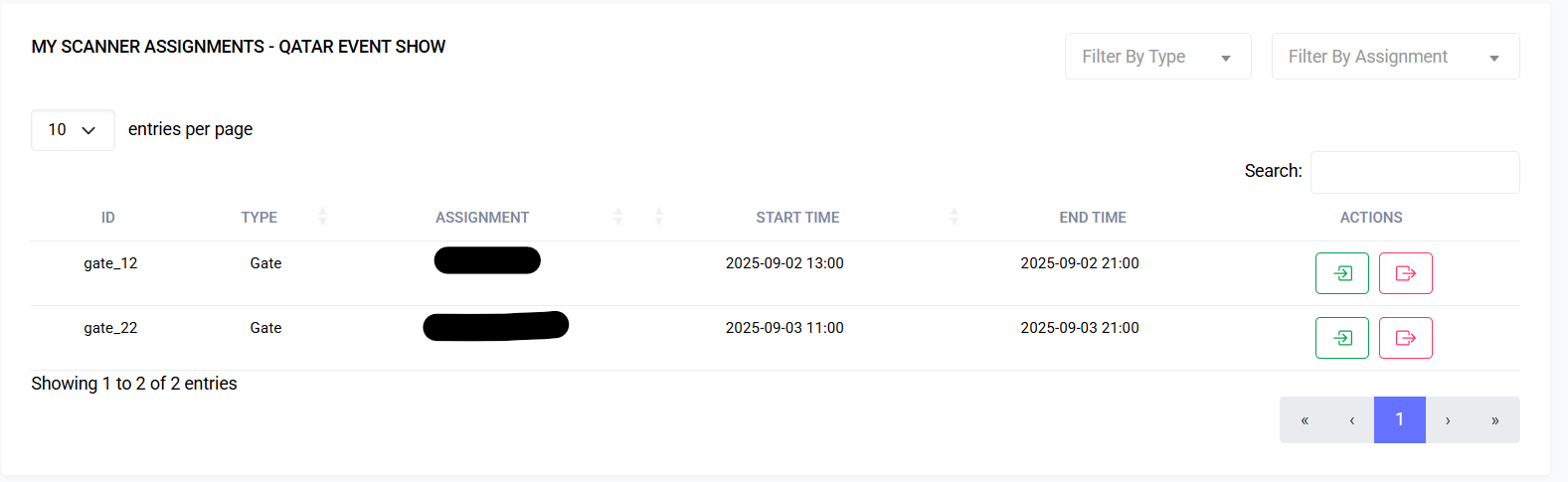
Assignments Table
Columns:
- Assignment: Gate name or Workshop title
- Scanner: User name(s) assigned
- Start Time / End Time: Scheduled window (workshop rows may show derived times)
- Actions: Edit (pencil), Unassign (trash) if you have permissions
Filtering:
- By Scanner (dropdown)
- By Gate (dropdown – shows only gate assignments)
Create Assignment Form (Modal)
Fields:
- Assignment Type: required, options:
gate | workshop - Scanners: required, multi-select, one or more user IDs
- Gate: required if type =
gate - Workshop: required if type =
workshop - Start Time: required if gate; hidden for workshop
- End Time: required if gate; hidden for workshop
Workshop Behavior:
- Selecting a workshop auto-captures its start/end times
- Manual time fields remain hidden to avoid overriding
Validation Rules:
assignment_type: required; must begateorworkshopscanner_ids: required; array; min length 1gate_id: required if type =gate; must exist for eventworkshop_id: required if type =workshop; must exist for eventstart_time: required if gate; valid datetime (Y-m-d H:i)end_time: required if gate; must be >= start_time
Error Handling:
- Modal reopens with inline field error messages
Edit Assignment Form
- Similar layout to creation
- Allowed changes: scanners, gate/workshop reference, times (for gate only)
- Workshop assignments: time fields hidden; workshop selection available
- Submission updates the underlying schedule row
Automatic checkout when assignment window ends
- When an assignment's scheduled End Time passes, the system may automatically checkout any active sessions associated with that assignment to keep data consistent and to reflect that the scanner is no longer on duty.
- Automatic checkouts are logged as system actions and include a "last updated" timestamp so admins can audit when the system changed the session state.
- The system uses the event's configured timezone to determine assignment end boundaries; the UI converts and displays times in the viewer's timezone but audit logs include the event timezone for clarity.
Unassigning
- Clicking trash opens a confirmation dialog
- Gate: "Unassign from Gate"; Workshop: "Unassign from Workshop"
- After confirmation, the row is removed from the table
Permissions Summary
gate.assign: create/edit both gate and workshop assignmentsgate.unassign: remove existing assignmentsscanner.scan: needed by scanner users to perform scans
Best Practices
- Keep assignment windows tight for accurate active status tracking
- Assign multiple scanners only when necessary for high throughput
- Avoid overlapping assignments for the same scanner unless intentional (backup coverage)
Troubleshooting
| Issue | Cause | Action |
|---|---|---|
| Missing Assign Scanner button | No gate.assign permission | Adjust role / permissions |
| Workshop not appearing | Not linked to this event or missing venue | Verify workshop setup |
| Times rejected | Incorrect format or end before start | Use provided picker and ensure order |
| Scanners list empty | No users with scanning role/permission | Grant scanner.scan or add scanners |
| Modal closes after error | Auto-reopen logic failed | Reopen manually; re-enter data |
Summary
Scanner Assignments orchestrate who scans where and when. Correct assignment setup ensures only authorized scanners operate gates or workshops with consistent scheduling.
Last updated: 2026-01-12