SMS
Time-sensitive outreach when email is missed: confirmations, gate changes, and urgent notices with delivery checks and audit trails.
The SMS module lets you send one-off or bulk messages to guests and review delivery outcomes. Use the built-in status checker to refresh delivery state from your provider. No code is required.
Overview
- Send SMS messages to guests
- Monitor delivery and failure logs
- Refresh status from your provider
Who This Is For
- Event Admins / Managers: Monitor and audit SMS activity
- Operators (with permission): Check delivery status on demand
Navigation
- Event > SMS > Logs (SMS Logs)
Tip: Page labels may vary slightly depending on your theme; look for “SMS Logs”.
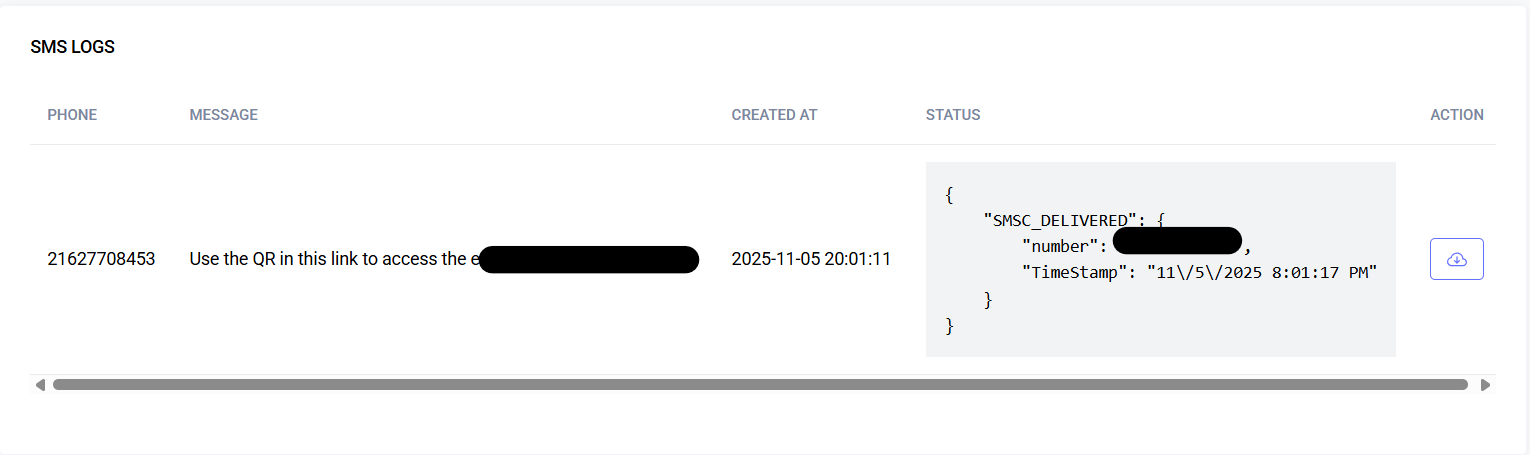
SMS Logs
A paginated table showing messages sent for the event.
Columns:
- Phone: Recipient’s number
- Message: Text body sent
- Created At: When SMS was created/sent (shown in user timezone; hover shows timezone)
- Status: Last known provider status (JSON or human-readable)
- Action: Check Status button to refresh delivery info
Behavior:
- Pagination: 4 items per page (Next/Previous)
- Sorting: newest first
- Timezone: uses user preference
Check Status (Refresh Delivery)
Click the cloud-arrow icon in the Action column.
Flow:
- Click Check Status on a row
- System queries the SMS provider using the transaction ID
- Feedback appears: success or error message
Possible Messages:
- Success: “SMS status checked successfully.”
- Error: “SMS status check failed.”
- Error: “Transaction ID is required.”
Validation:
- Transaction ID must exist
- Only users with proper permission can perform the action
Sending SMS (If Enabled)
The platform provides a simple form for sending SMS. Exact fields may vary.
Fields and Constraints:
- Phone (required):
- Must be valid; international format recommended (+974…)
- No letters; only digits and "+"
- Message (required):
- Non-empty, concise
- Long texts may split into multiple segments
User Feedback:
- Inline validation errors displayed next to fields
- On submit, log entry is created and queued for delivery
Best Practices:
- Keep messages concise; avoid URL shorteners flagged by carriers
- Test on small groups first
- Respect local opt-out and SMS regulations
Permissions
- View SMS Logs:
sms.sms-logs - Check Status:
sms.sms-logs(button hidden if lacking permission)
Tip: If access is denied, ask an admin to adjust your role.
Troubleshooting
| Problem | Likely cause | Action |
|---|---|---|
| “Check Status” not available | Missing permission | Request sms.sms-logs access |
| Status doesn’t change | Provider hasn’t updated yet | Try again later; check provider dashboard |
| Created At shows wrong time | Timezone preference | Set your timezone in Preferences |
| “Transaction ID is required.” | No transaction ID on row | Verify the message was sent via platform |
| Long message billed as multiple | Carrier segmentation | Keep messages short or accept multi-segment billing |
Last updated: 2025-11-10