Tickets
Quick Links
📌 Why Tickets?
Your access model and revenue plan in one place—inventory, price strategy, and public display that align with forms and tags.
Tickets define purchasable or assignable access types for an event (e.g., General Admission, VIP, Staff Pass). They control pricing, capacity, access zones, and registration form requirements.
Overview
- Define ticket types, set prices, and configure purchase behavior
- Manage public display and inventory
- Support single-ticket and multi-ticket purchase flows
- Preview customer-facing ticket pages
Interface Preview
Quick Start (Admin)
- Go to Event > Tickets
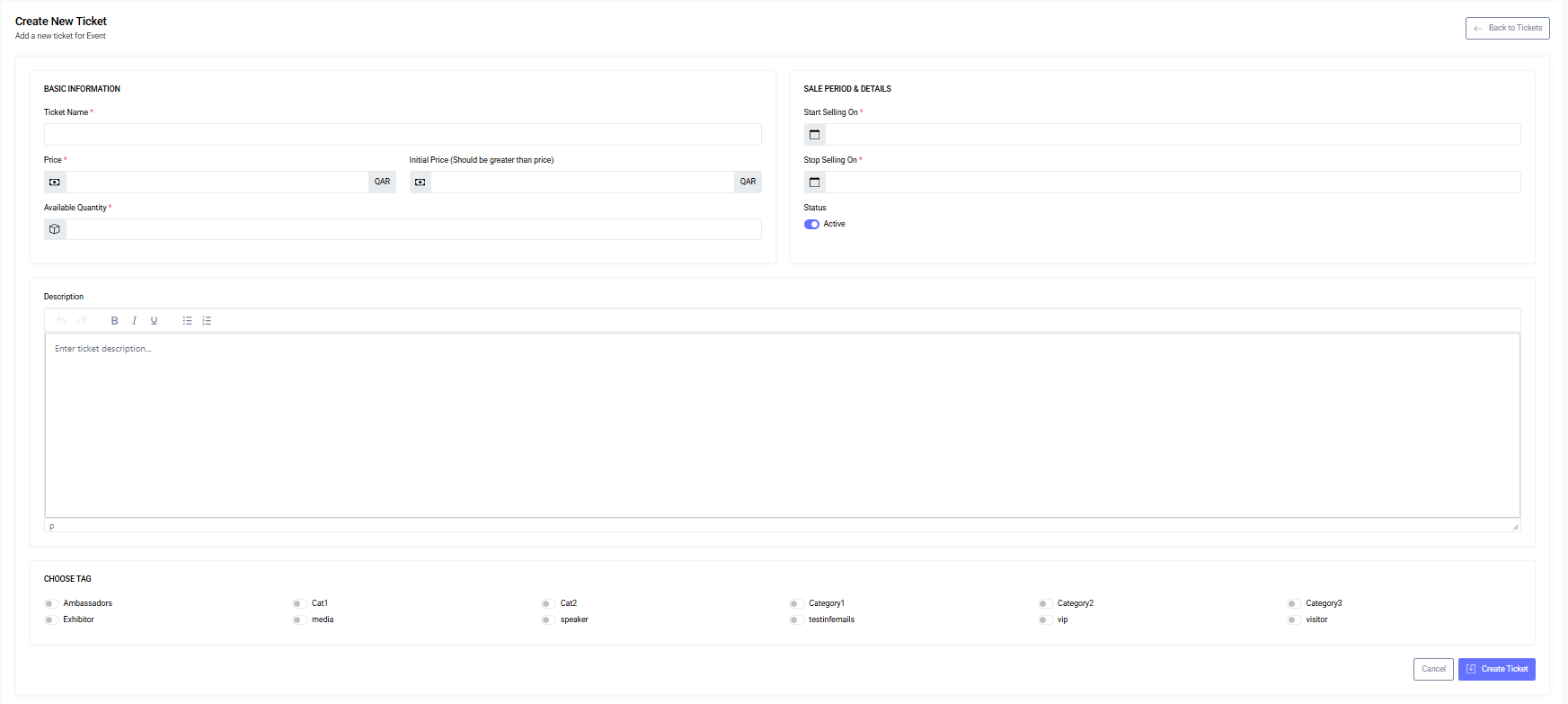
- Click Create New Ticket
- Fill in:
- Name (required)
- Description (optional)
- Price and Initial Price (optional; struck-through if > Price)
- Quantity (capacity)
- Sale window (Start/Stop Selling)
- Status: Active toggle
- Tag: choose exactly one
- Save
- Optional: configure Display Settings and preview
- Share the public ticket link
Modes of Sale
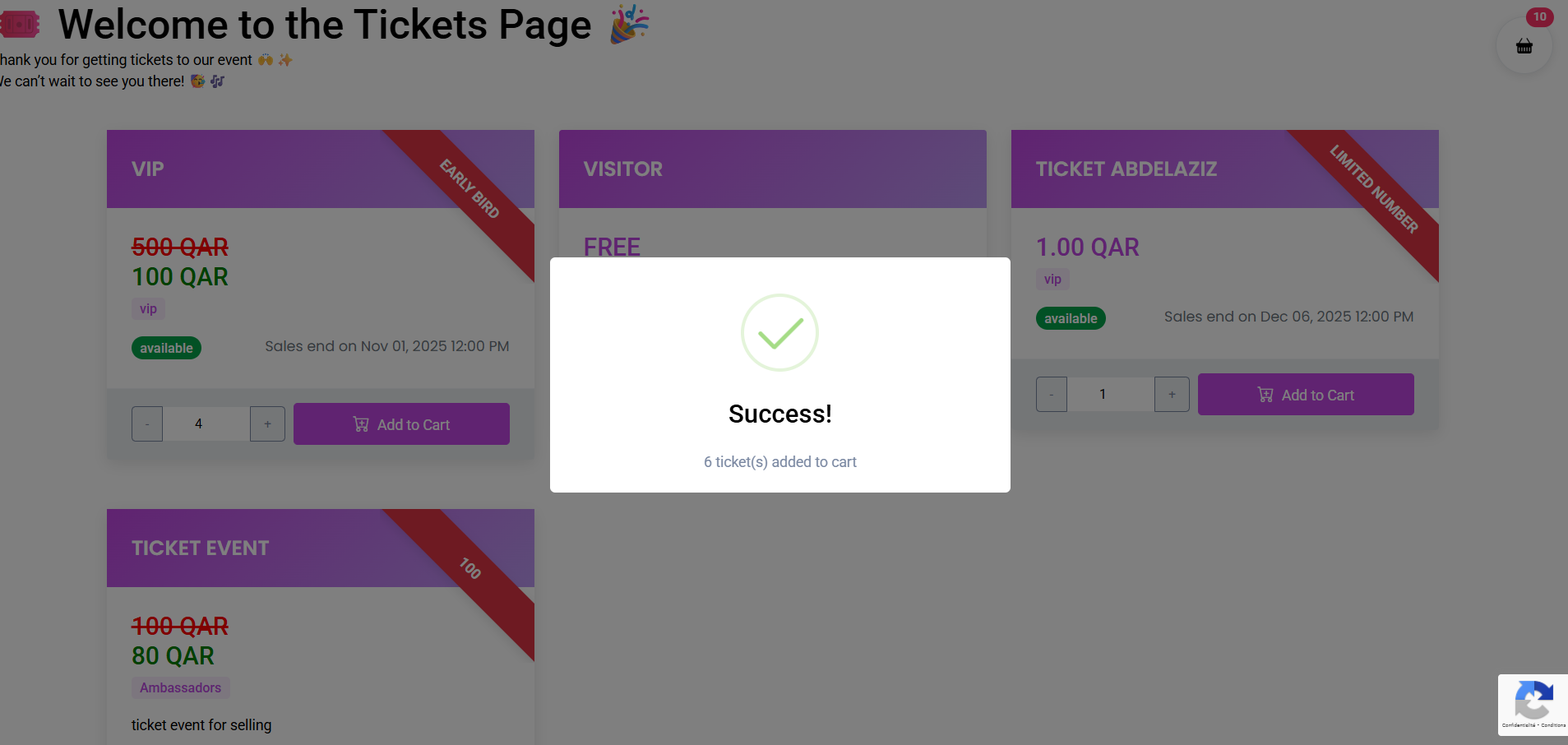
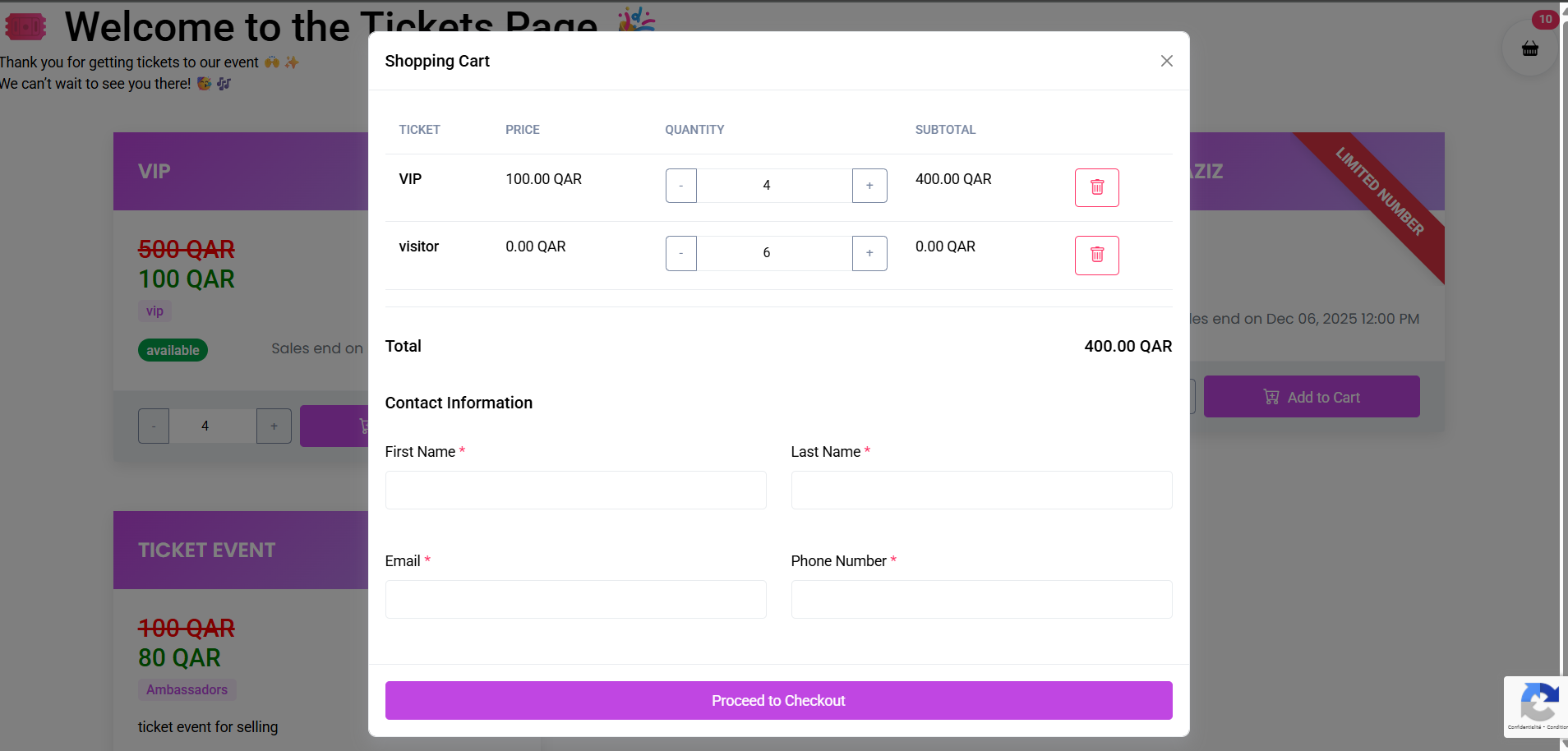
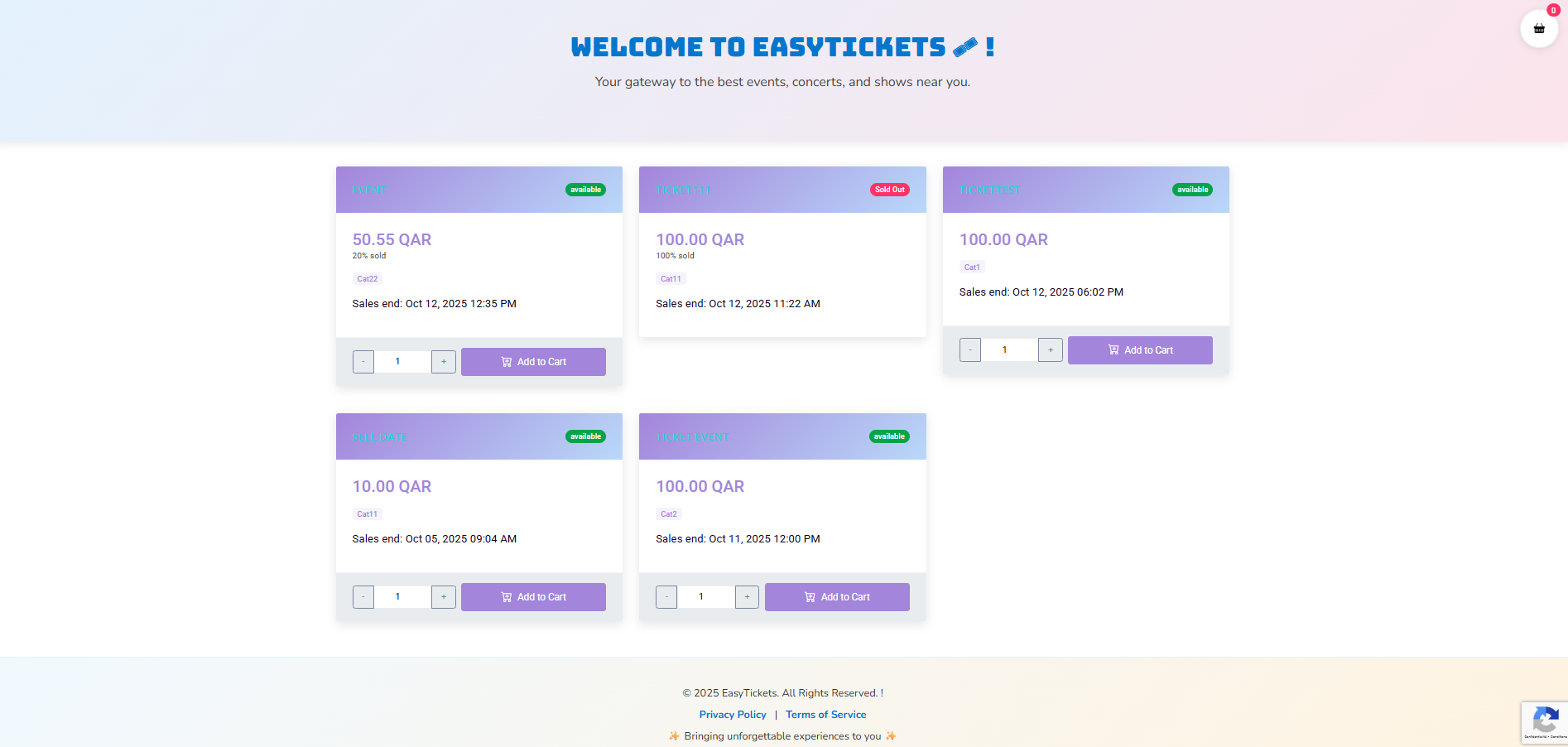
- Multiple Tickets Mode: catalog view, Add to Cart, quantity controls, cart modal, checkout with contact info
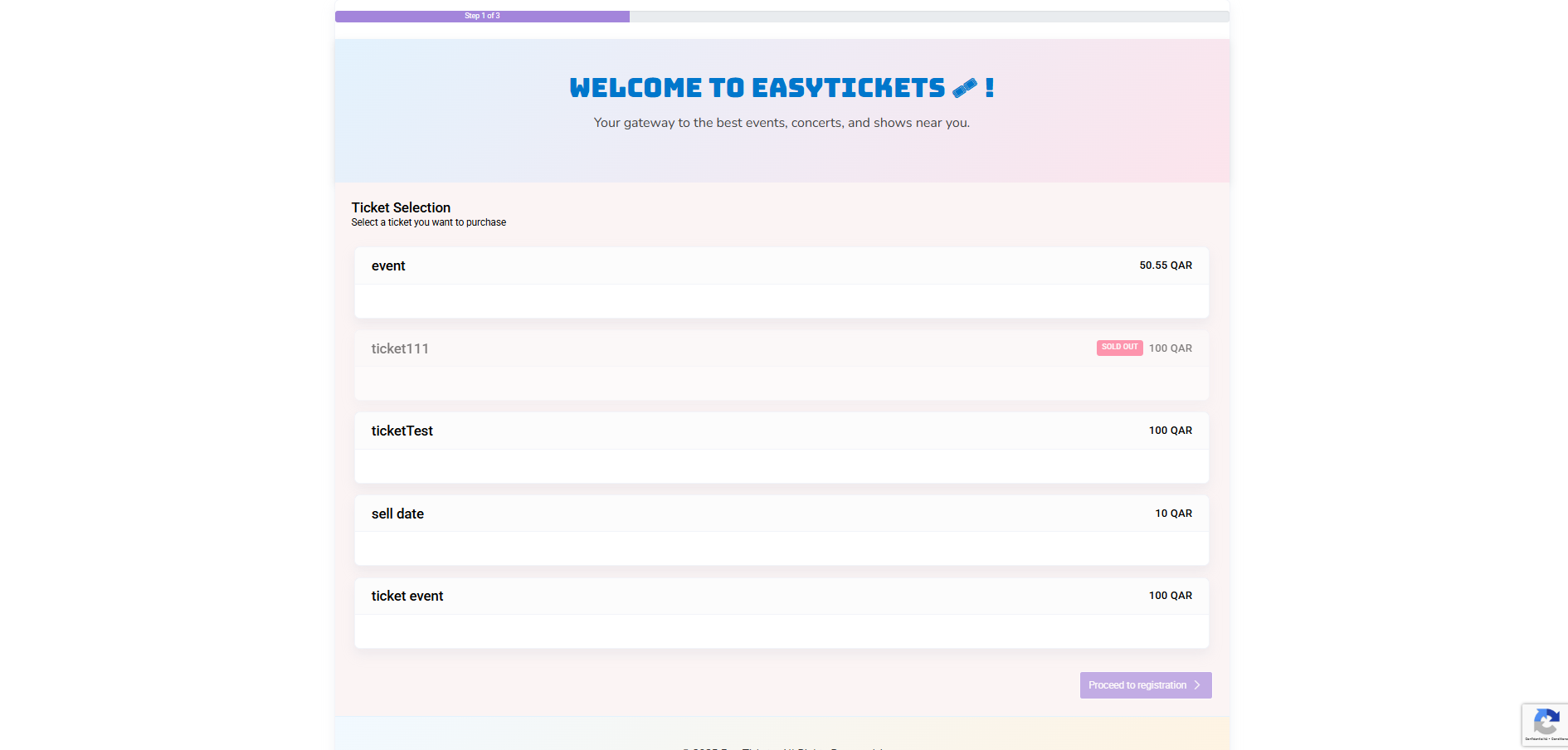
- Single Ticket Mode: guided 3-step flow (Ticket Selection → Registration Form → Checkout)
- Toggle controlled via event setting
multiple_ticket_purchase
Admin: Create and Manage Tickets
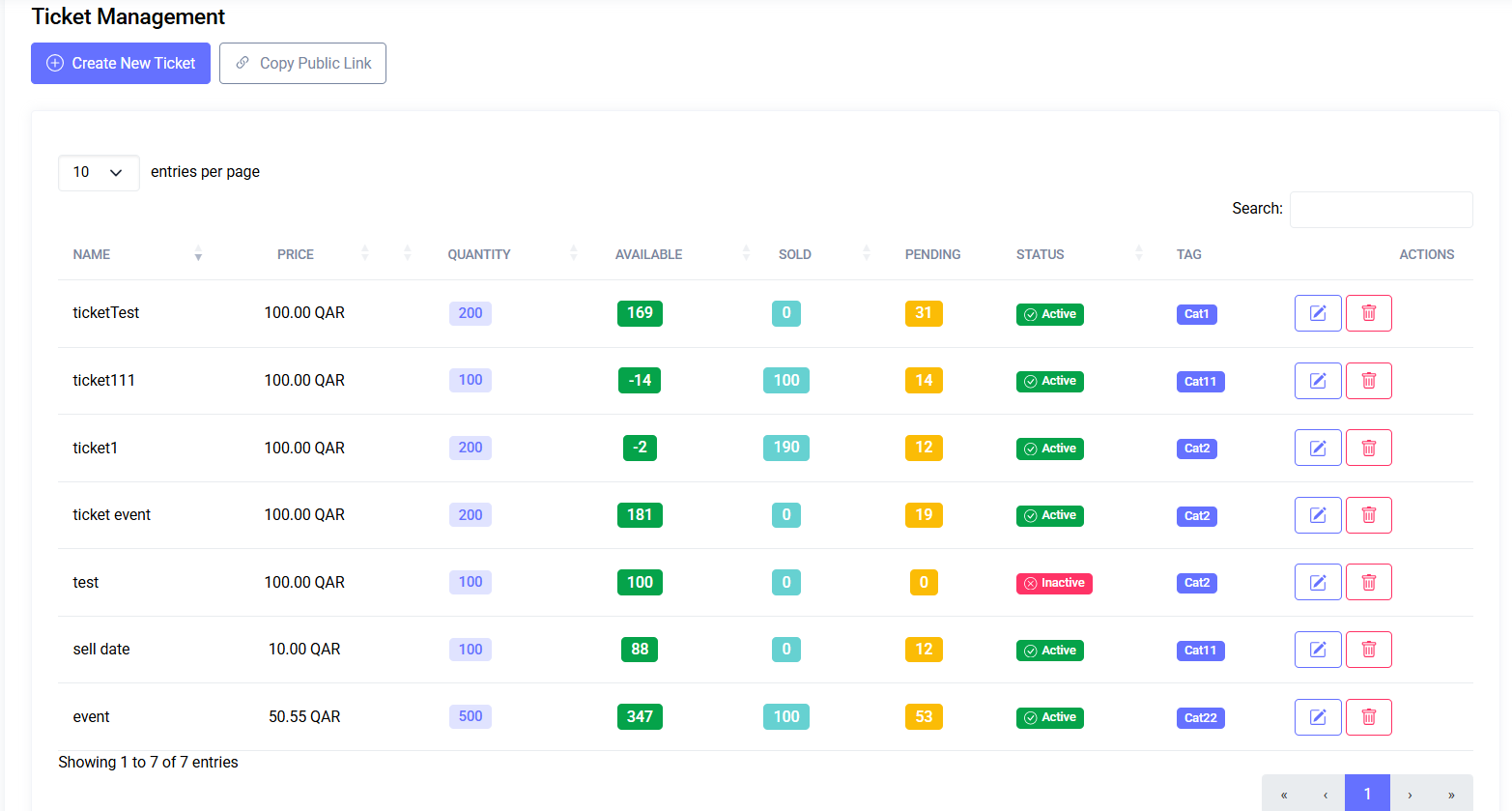
Ticket List
Navigation: Event > Tickets (scoped to current event)
Create Ticket
- Click Add Ticket
- Fill fields as described in Quick Start
- Optional: Advanced display and styling via Display Settings
Edit / Delete
- Edit: pencil icon in Actions
- Delete: trash icon (soft-delete; confirmation required)
Inventory & Availability
- A ticket is visible publicly if:
is_active = true- Current time is within sale window
- Remaining stock > 0
- Remaining =
quantity - (sold + pending_cart + pending_transaction)
Admin: Public Display Settings
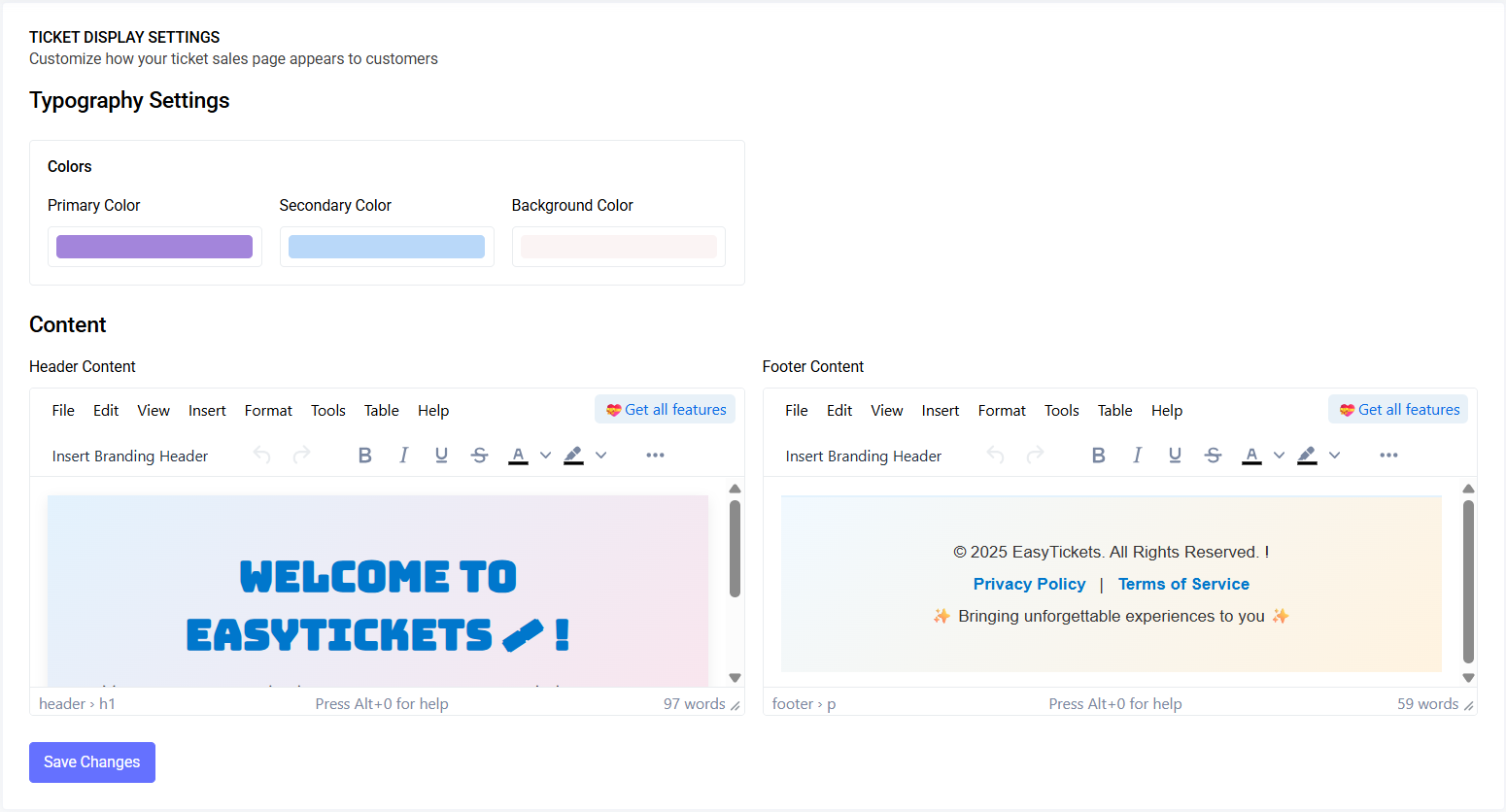
Customize appearance of public ticket pages:
- Content: header_content, footer_content (TinyMCE editor)
- Colors: primary, secondary, background
- Card design: hover transform, spacing, shadow
- Typography: ticket name, sale date font/color
- Preview: opens public listing with
?preview=1applying unsaved overrides
Public Purchase Flows
Multiple Tickets (Catalog + Cart)
- Add tickets to cart; adjust quantity
- Checkout collects:
- First Name, Last Name, Email, Phone
- reCAPTCHA v3 validation
- Payment redirect or free ticket instant success
- Quantity is held during checkout
Single Ticket (3-Step Guided)
- Choose ticket card (available only)
- Registration Form (from Tag’s public Form.io form)
- Checkout:
- reCAPTCHA v3 validation
- Payment or auto-success for free tickets
Public Ticket Pages
Mode depends on multiple_ticket_purchase setting
Behavior:
- Only active tickets in sale window appear
- Sold-out tickets displayed as Sold Out or hidden
- Initial Price shows struck-through if > current Price
- Admin Preview applies temporary style overrides
Sharing Public Link
- Copy from Tickets page using Copy Public Link
Permissions
| Action | Permission |
|---|---|
| View Tickets | ticket.viewAny |
| Create Ticket | ticket.create |
| Edit Ticket | ticket.edit |
| Delete Ticket | ticket.delete |
| Display Settings View | ticket-style.viewAny |
| Display Settings Edit | ticket-style.edit |
Best Practices
- Align sale windows with marketing campaigns
- Use Initial Price to show discounts clearly
- Avoid too-low quantities; rely on pending hold logic
- Preview Display Settings before saving visual changes
Troubleshooting
| Issue | Fix |
|---|---|
| Ticket not visible publicly | Ensure Active, within sale window, remaining stock > 0 |
| “Requested quantity not available” | Inventory low or pending holds exist; try smaller quantity or later |
| Checkout reCAPTCHA failure | Retry; ensure network allows Google; contact support if persistent |
| Styling not updating | Save Display Settings; Preview is temporary |
| Wrong currency on public page | Check Event Settings → currency |
FAQ
- Show multiple ticket types on one page? Enable
multiple_ticket_purchaseand create separate tickets - Free tickets? Price 0 auto-completes in single-ticket flow; multi-ticket requires payment redirect if amount > 0
- Forms tied to tickets? Each ticket linked to one Tag; Tag may have a public registration form
- Preview public page without going live? Use Preview in Display Settings; temporary styling only
Last updated: 2025-10-09