
Automated Emails
System emails sent automatically based on guest activity.
Overview
Automated Emails are messages that Evencia sends on your behalf without you having to do anything — they are triggered automatically when something happens for a guest, such as completing registration, getting approved, or receiving a travel update.
Each automated email comes with a default design that you can customise to match your event branding. You can also create different versions of the same email for specific guest groups (tags).
Where to find it
Go to Email Management, then select the Automated Emails tab.
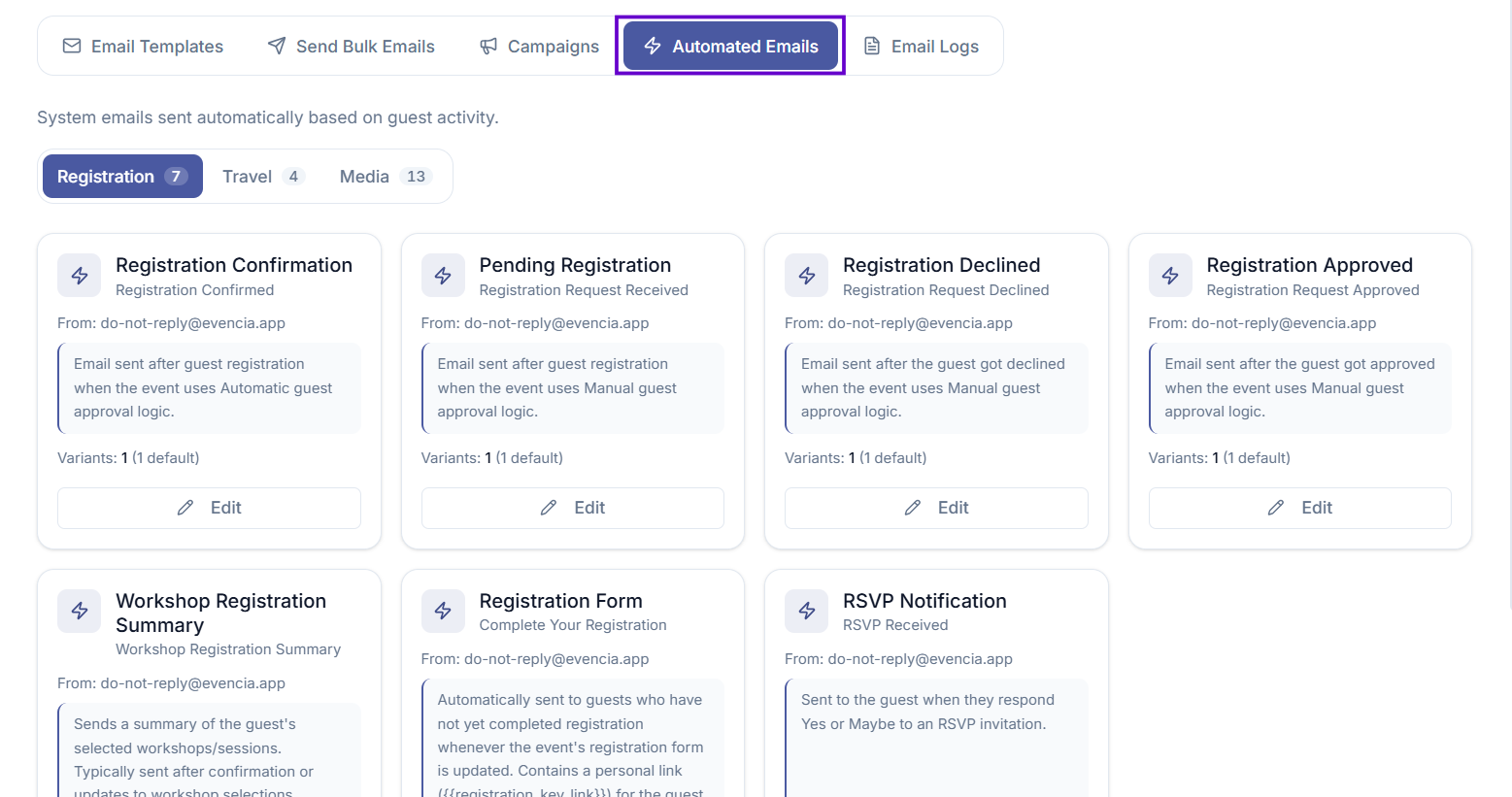
The seven automated emails
Evencia provides seven pre-configured automated emails for every event:
| When it is sent | |
|---|---|
| Registration Confirmation | Sent immediately after a guest registers, when the event uses automatic approval. |
| Pending Registration | Sent immediately after a guest registers, when the event requires manual approval. |
| Registration Approved | Sent when an organizer approves a guest's registration request (manual approval events only). |
| Registration Declined | Sent when an organizer declines a guest's registration request (manual approval events only). |
| Workshop Registration Summary | Sent after a guest selects workshops or sessions, summarising their choices. |
| Registration Form | Sent automatically whenever the event's registration form is updated. Contains a personal link for the guest to complete or update their details. |
| Travel Details | Sent automatically whenever a guest's travel details are updated. Contains a personal link to view the travel summary. |
How to edit an automated email
Step 1 — Open the email
On the Automated Emails page, find the card for the email you want to edit and select Edit.
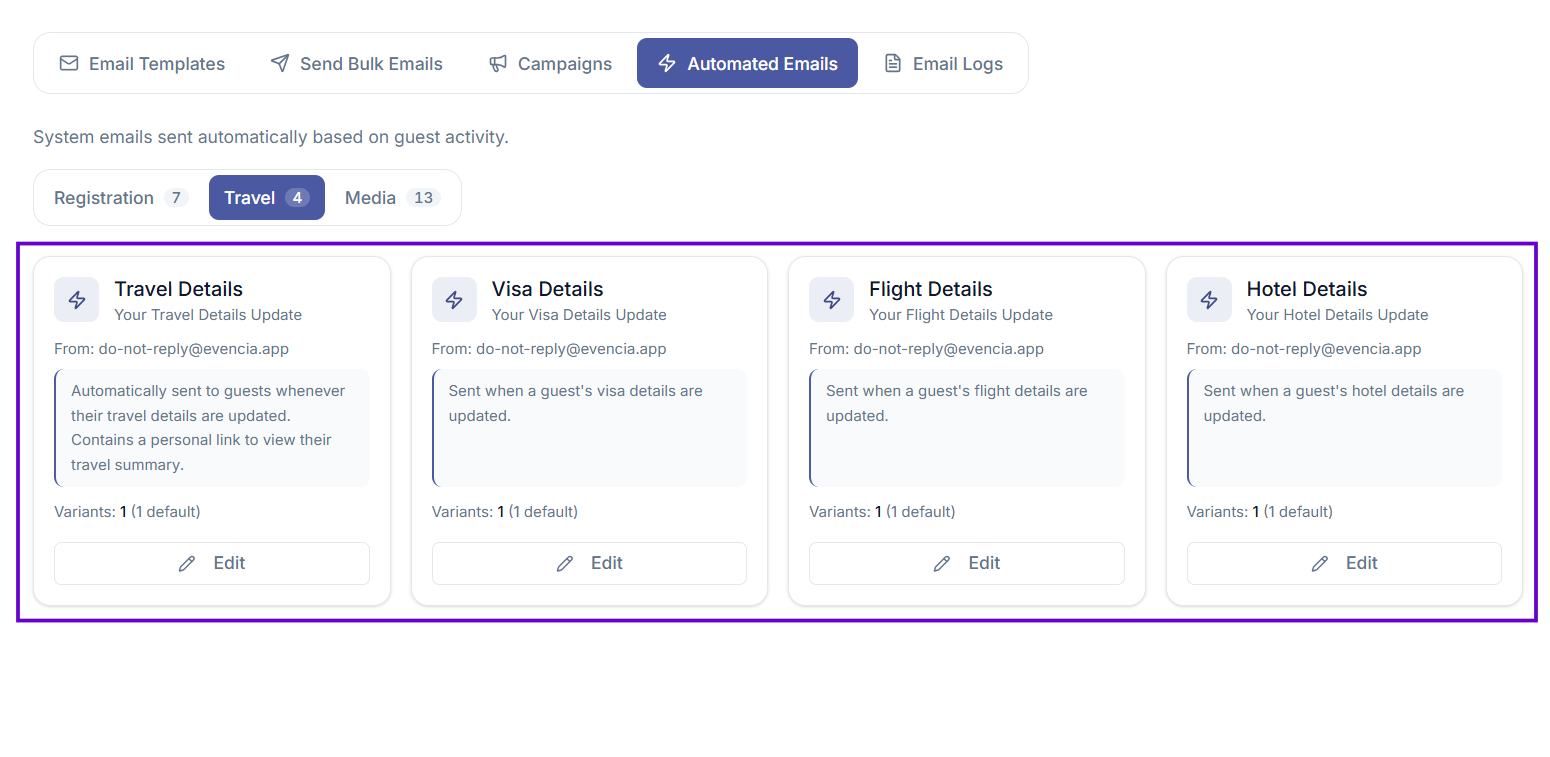
Step 2 — Update the email settings
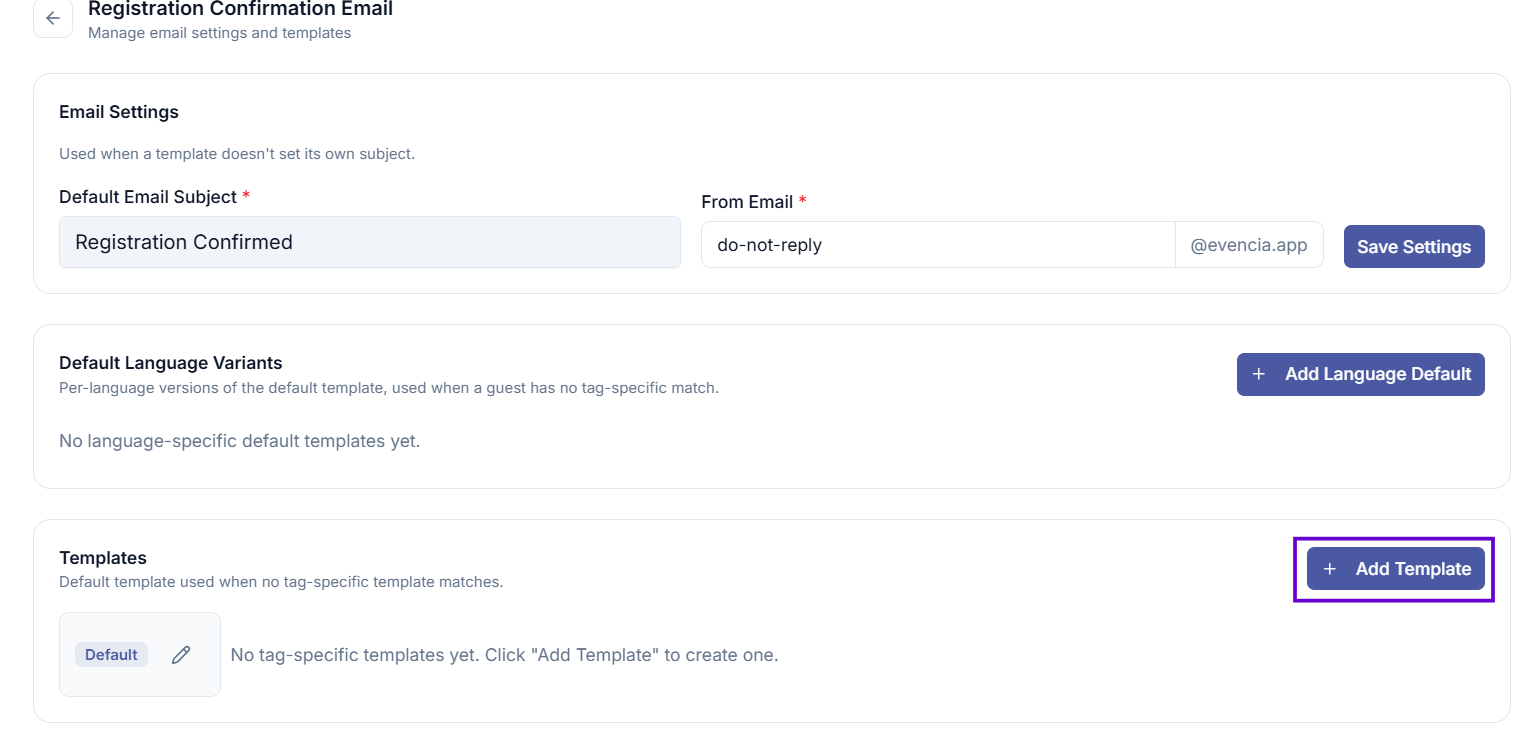
At the top of the edit page, you can update two settings that apply to all templates for this email:
| Field | What it means |
|---|---|
| Email Subject | The subject line guests will see in their inbox. |
| From Email | The sender address. Only the part before the @ can be changed — the domain is fixed. |
Select Save Settings to apply any changes.
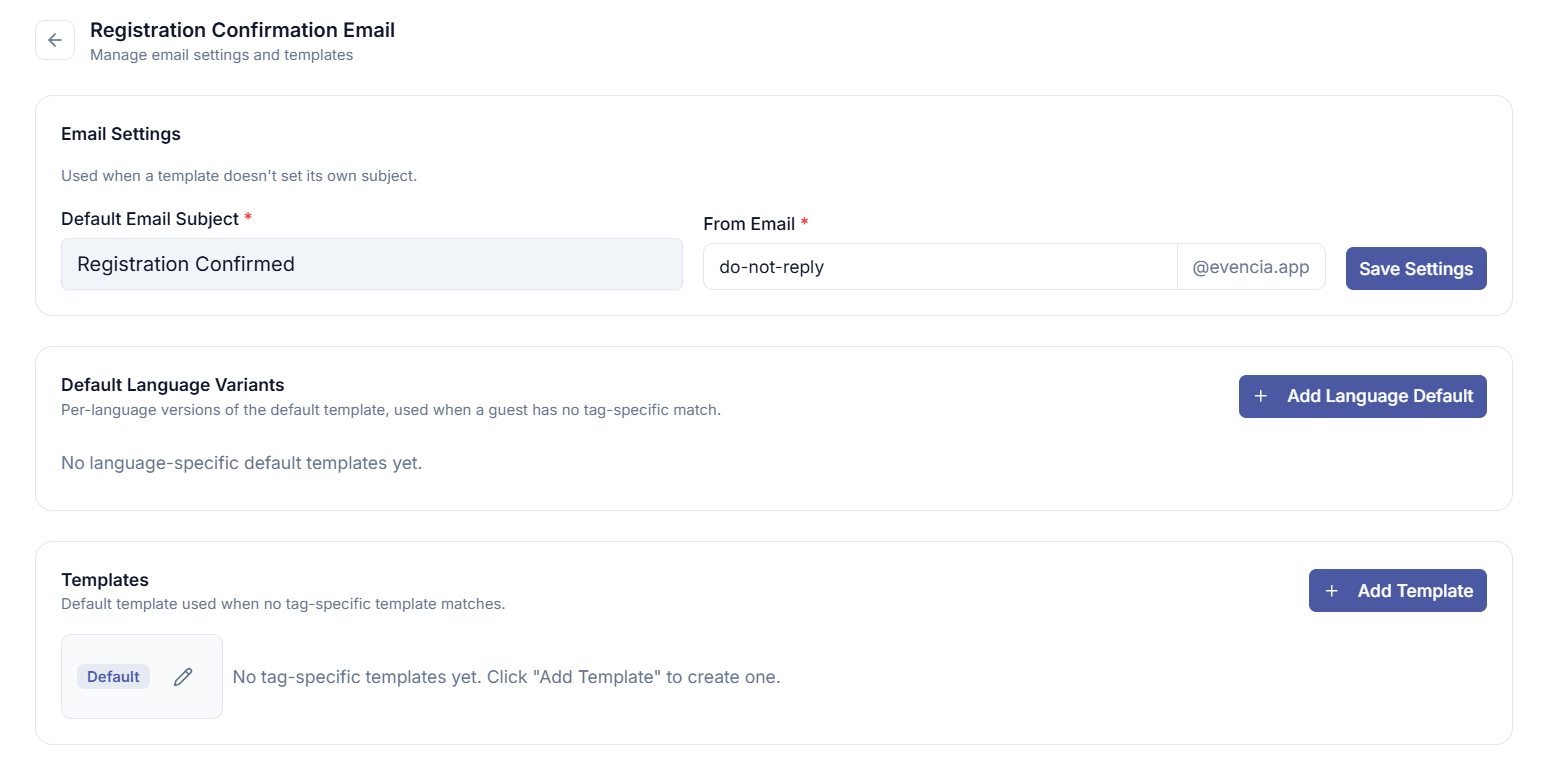
Step 3 — Edit the default template
Every automated email has a Default template — the design sent to all guests unless a tag-specific version exists.
Select the pencil icon on the Default badge to open the email builder for the default template.
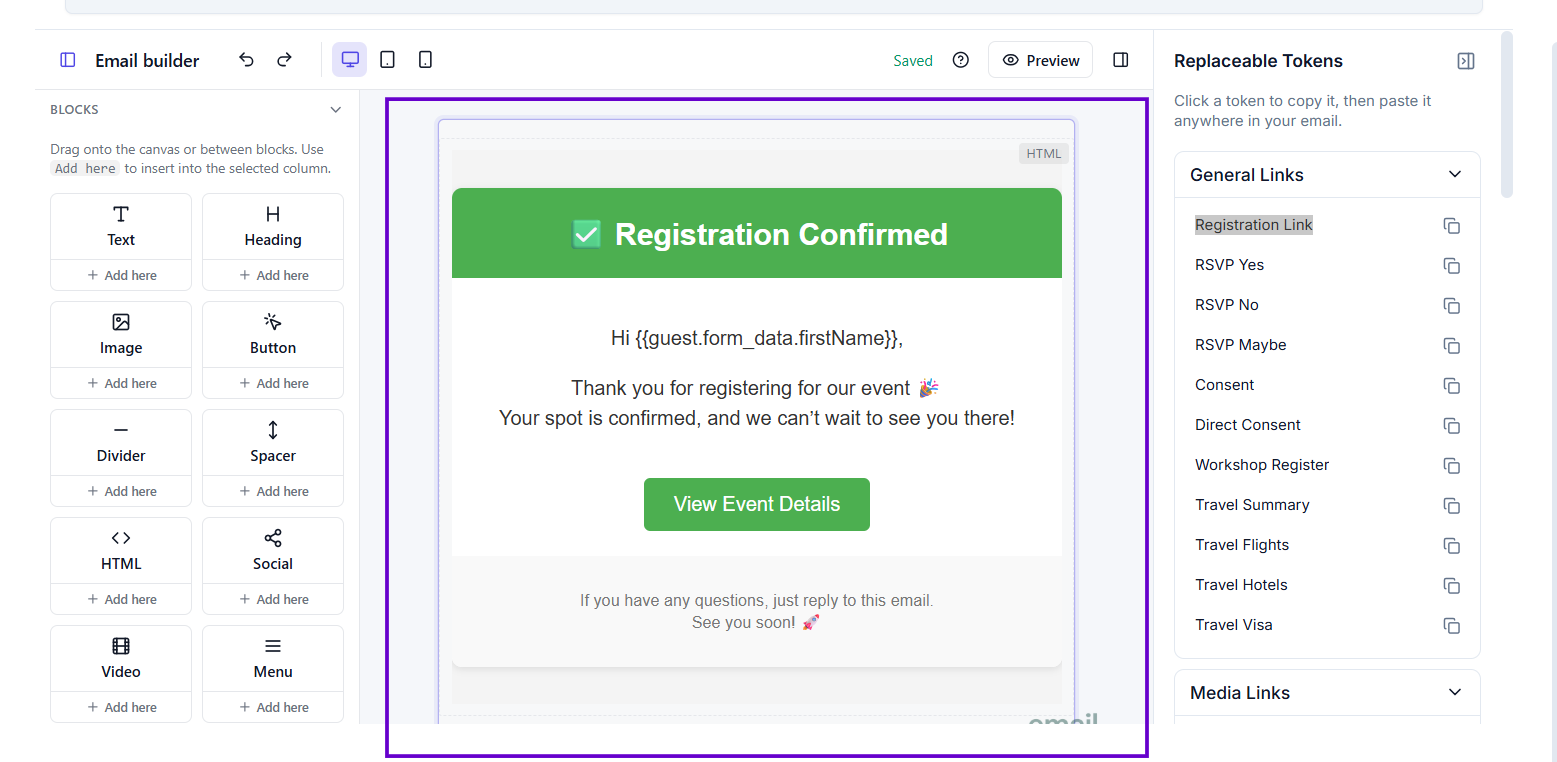
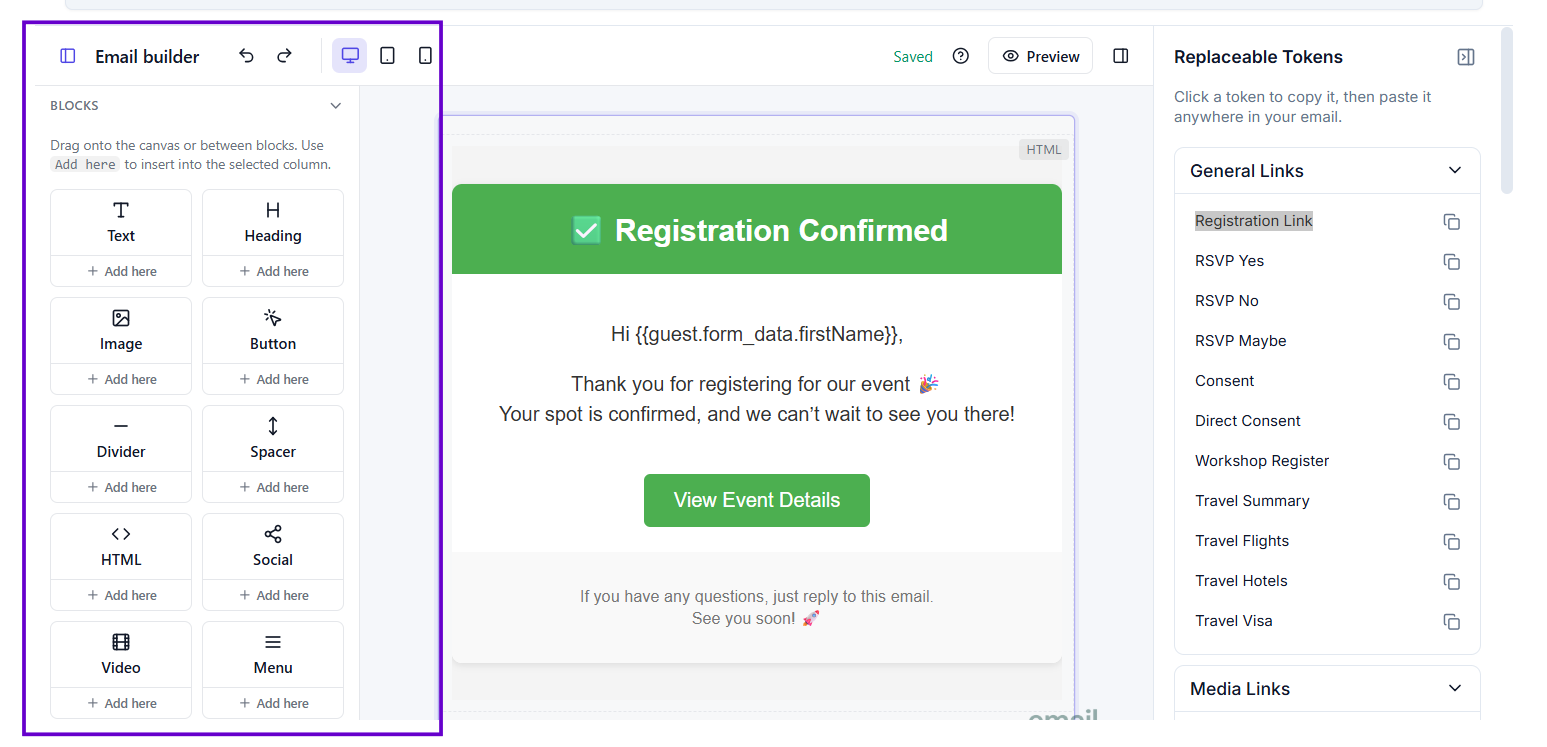
Step 4 — Design the email
You can use replaceable tokens to personalise the email. For example, {{guest.tag_name}} inserts the guest's group name.
Select Save when finished.
Tag-specific templates
If you have guests in different groups (tags) who should receive a different version of the same automated email, you can create a tag-specific template.
For example, you might want VIP guests to receive a more personalised Registration Confirmation than standard guests.
Creating a tag-specific template
- On the automated email edit page, select Add Template.
- In the editor that opens, choose one or more tags in the Tags field.
- Design the email content.
- Select Save.
When the automated email is triggered, Evencia will use the tag-specific template for matching guests and the default template for everyone else.
Deleting a tag-specific template
Select the trash icon next to the tag-specific template. The default template cannot be deleted.
Language-specific templates
If your event has guests registering in different languages, you can create a different version of the Default template for each language, and also language-specific versions of a tag-specific template.
When an automated email is triggered, Evencia picks the best match for the guest, in this order:
- A tag-specific template matching both the guest's tag and language.
- A tag-specific template matching the guest's tag (no language set).
- A default template matching the guest's language.
- The global default template.
Creating a default template for a language
- On the automated email edit page, find the Default Language Variants section and select Add Language Variant.
- Choose the language from the Language field.
- Design the email content.
- Select Save.
Adding a language to a tag-specific template
When creating or editing a tag-specific template, use the Language field to restrict that template to guests who registered in that language. Leave it empty to use the template for guests in any language (as long as the tag matches).
Each tag can only have one template per language — you cannot create two tag-specific templates for the same tag and language combination.
Common issues
I cannot see an Edit button
You do not have permission to edit automated emails. Contact your administrator.
My changes to the default template are not visible
Make sure you selected Save inside the email builder, and also selected Save Settings if you changed the subject or sender address. These are two separate saves.
A tag-specific template is not being used
Check that the guest's tag matches the tag assigned to the template. Only an exact tag match will trigger the tag-specific version.
Some tags are not available when creating a tag-specific template
A tag that is already assigned to another tag-specific template for the same email cannot be used again. Each tag can only be assigned to one template per automated email.
A language variant is not being used
Tips
- Customise the Registration Confirmation email to make a great first impression on guests right after they sign up.
- Use the Registration Form email carefully — it is sent automatically whenever the registration form changes. Make sure the email content stays relevant as the form evolves.
- Tag-specific templates are useful for multilingual events or events with different guest tiers (VIP, General, Staff).
- For multilingual events, prefer a default language variant unless you also need different content per guest tier — it is simpler to maintain than combining tags and languages.