
Campaigns
Schedule or automate recurring email sends for your event.
Overview
Campaigns let you send emails at a specific time or on a repeating schedule. Instead of sending immediately, you can set an email to go out next Tuesday at 9 AM, or automatically every Monday morning for the duration of your event.
Use Campaigns when you want to plan your communications in advance or keep guests updated on a regular schedule.
Where to find it
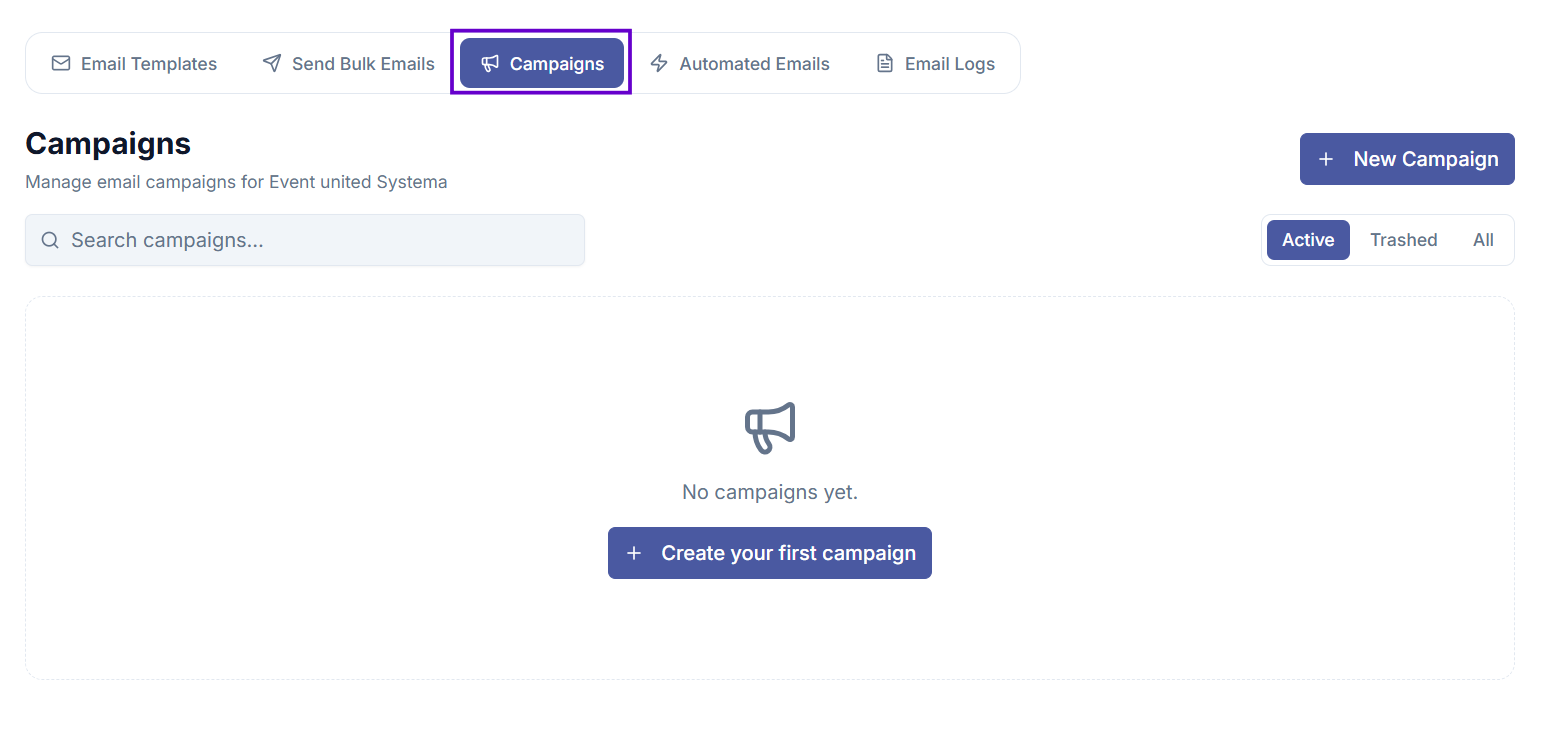
Go to Email Management, then select the Campaigns tab.
Before you start
- You need the Campaign: View permission to see campaigns.
- You need the Campaign: Create permission to create a new campaign.
- At least one Email Template must exist for this event.
- Your guests must be organised into Tags (guest groups).
How to create a campaign
Step 1 — Open Campaigns
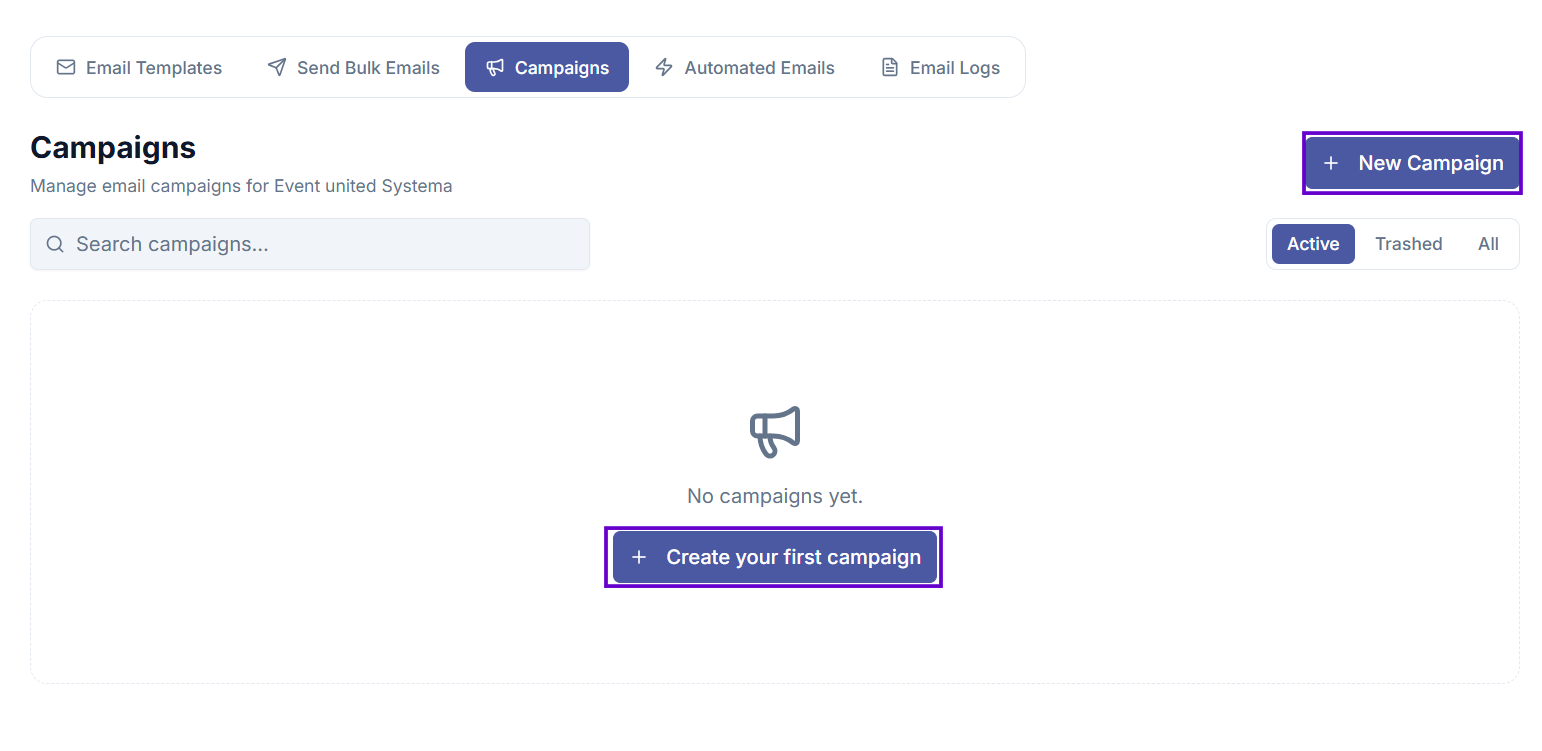
Go to Email Management → Campaigns and select New Campaign.
Step 2 — Name the campaign
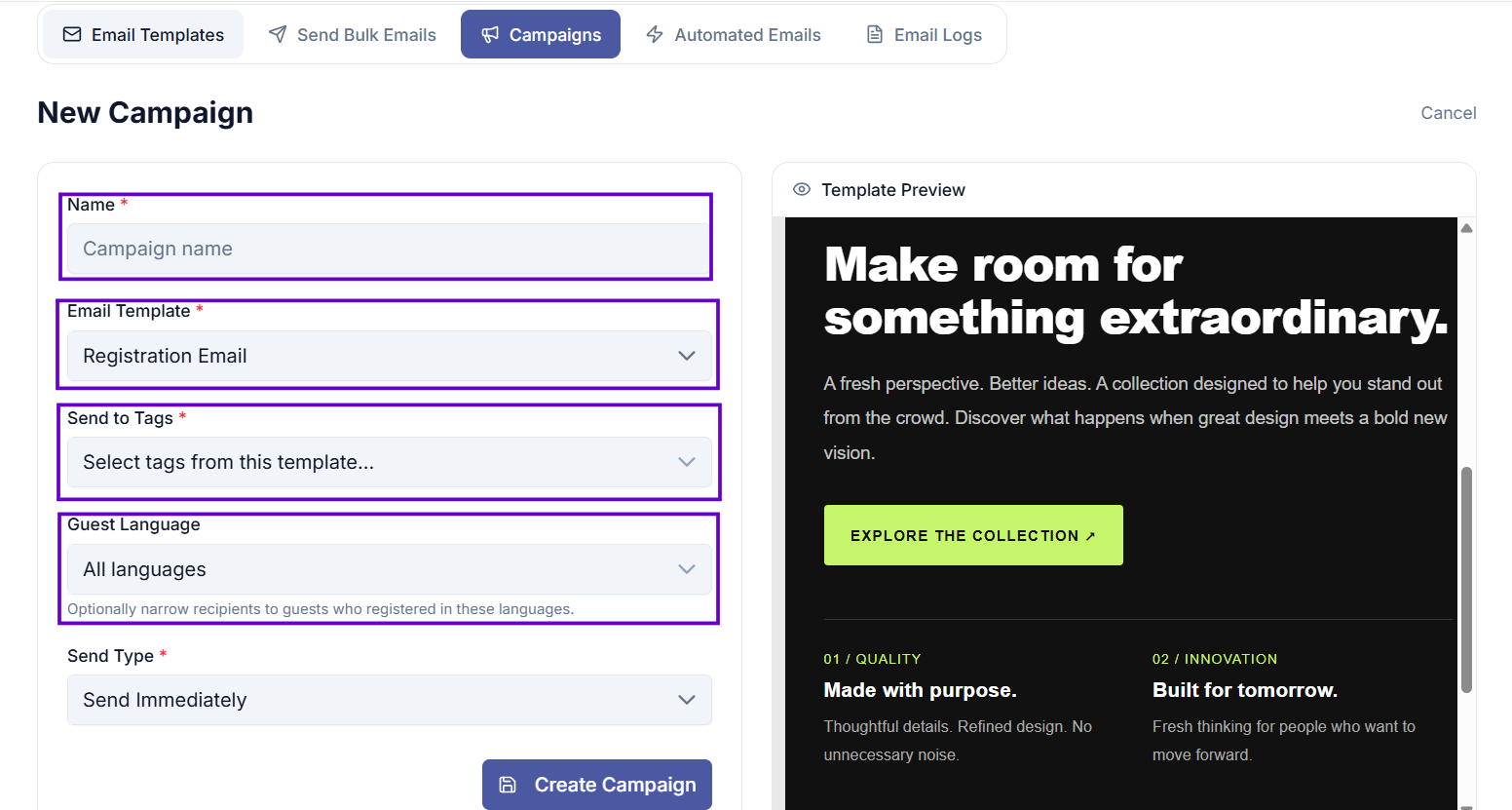
Enter a name in the Name field. This is for internal use — guests will not see it.
Step 3 — Select a template
Choose an existing email template from the Email Template dropdown. A preview will appear on the right.
Step 4 — Choose the recipient groups
In the Send to Tags field, select one or more guest groups who should receive this campaign.
Step 5 — Filter by language (optional)
If your event has guests registered in multiple languages, use the Language field to limit the campaign to guests who registered in specific languages. Leave it empty to send to guests in all languages.
This is useful when combined with a template that only exists in certain languages — filtering ensures guests only receive content they can read.
Step 6 — Choose the send type
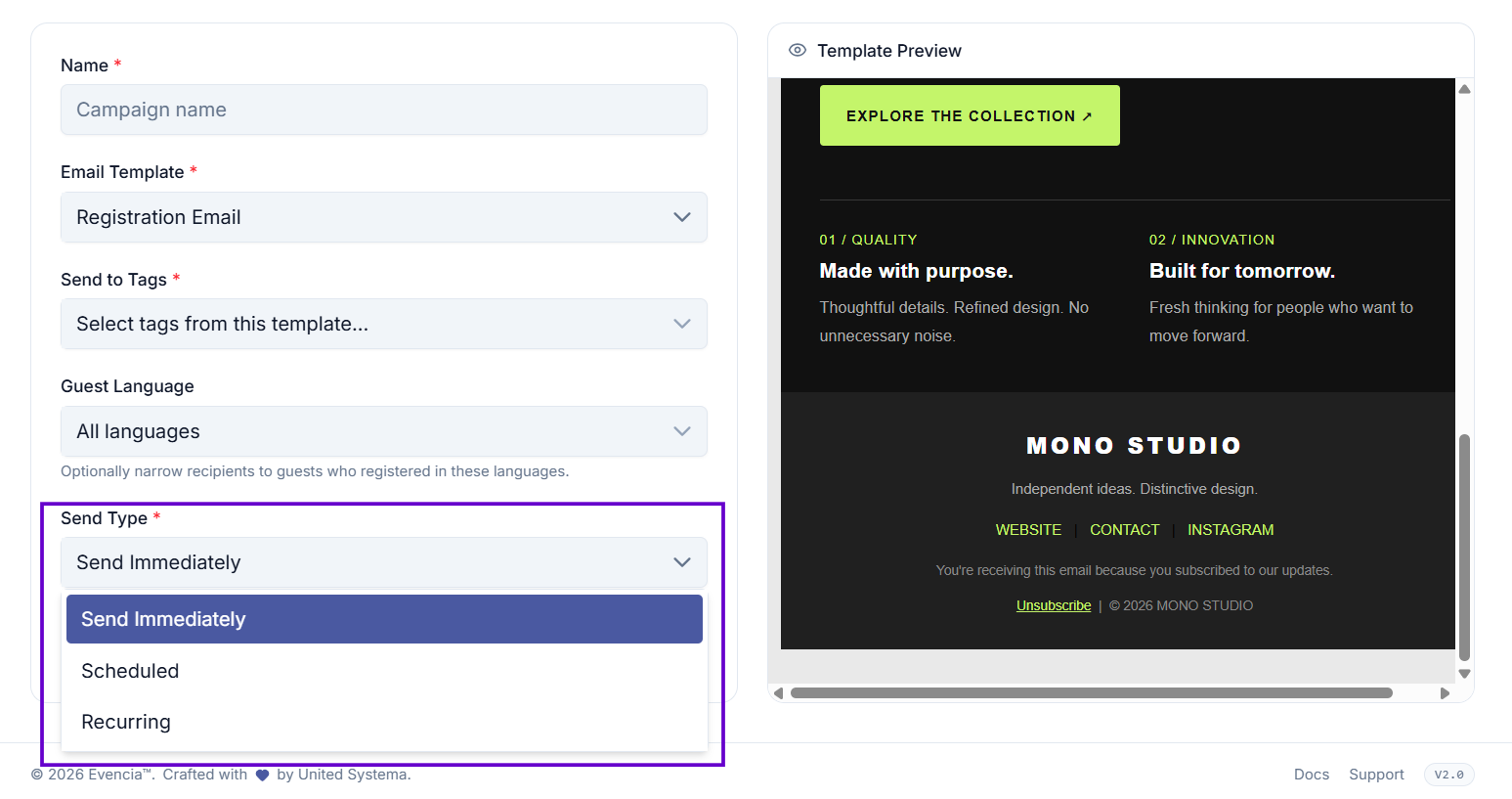
Select how you want the campaign to be sent:
| Send Type | What it does |
|---|---|
| Send Immediately | The email is sent as soon as you create the campaign. |
| Scheduled | The email is sent once at a date and time you specify. |
| Recurring | The email is sent automatically on a repeating schedule. |
Scheduled campaigns
If you choose Scheduled, enter the date and time in your event's timezone.
Recurring campaigns
If you choose Recurring, you will need to set:
| Field | What it means |
|---|---|
| Frequency | How often the email repeats: Daily, Weekly, or Monthly. |
| Time | The time of day the email should be sent (in 24-hour format, e.g. 09:00). |
| Day of Week | (Weekly only) Which day of the week to send, e.g. Monday. |
| Day of Month | (Monthly only) Which day of the month to send, e.g. the 1st. |
Step 7 — Create the campaign
Select Create Campaign. The campaign will be created and scheduled according to your settings.
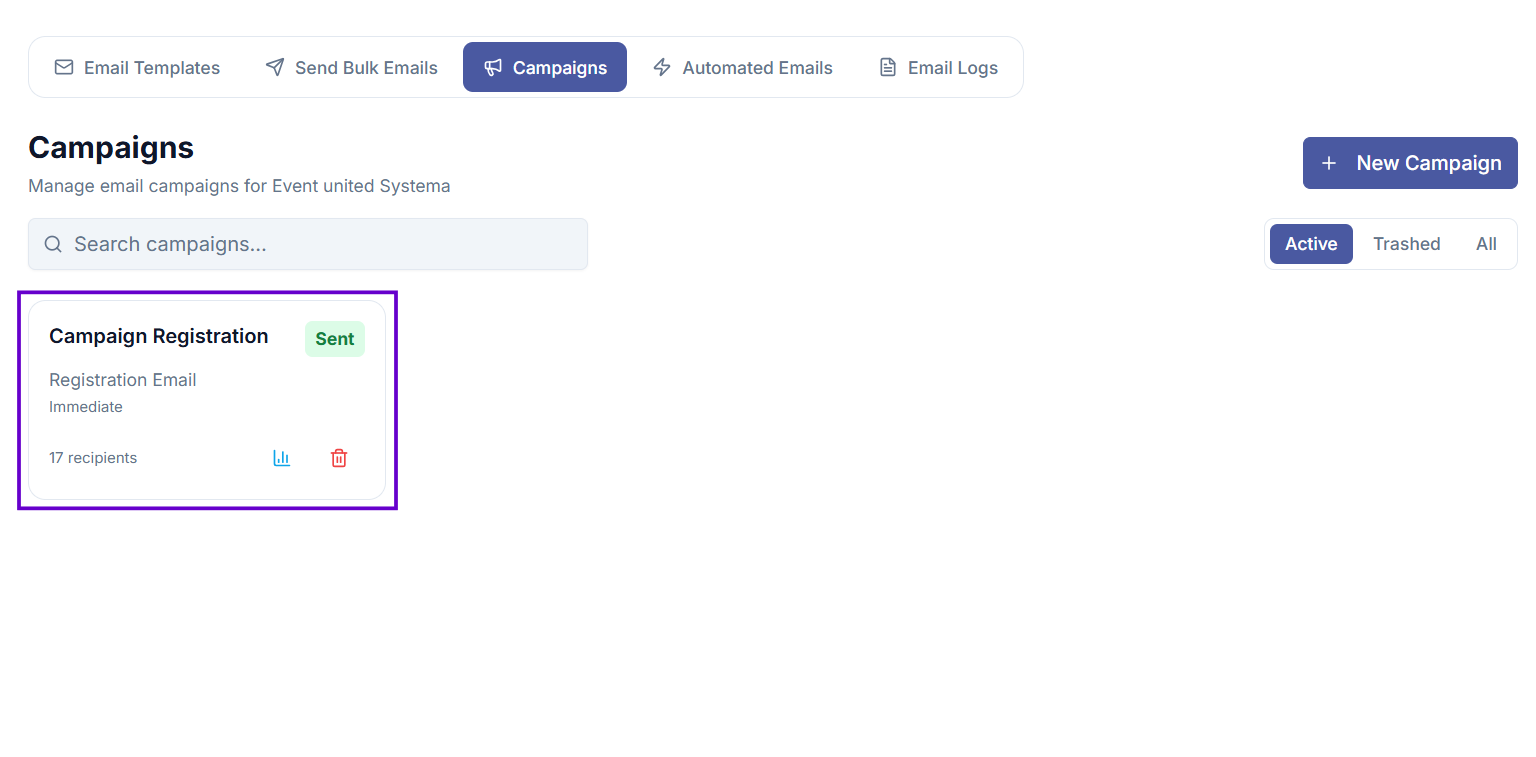
Campaign statuses
Once created, each campaign shows a status badge:
| Status | What it means |
|---|---|
| Draft | Created but not yet active. |
| Scheduled | Waiting to be sent at the specified time. |
| Sending | Currently being sent to guests. |
| Sent | Sending is complete. |
| Paused | The campaign has been paused manually. |
| Cancelled | The campaign was cancelled and will not send. |
| Failed | An error occurred during sending. |
Managing campaigns
Pausing a campaign
If a scheduled or recurring campaign has not yet been sent, you can pause it by selecting the pause icon on its card. The campaign will stop until you resume it.
Resuming a campaign
Select the play icon on a paused campaign to resume it.
Cancelling a campaign
Select the cancel icon (X circle) on a campaign to cancel it. Cancelled campaigns cannot be restarted.
Editing a campaign
Select the pencil icon on a campaign card to edit it. Only campaigns that have not yet been sent can be edited.
Deleting a campaign
Select the trash icon to move a campaign to the trash. Trashed campaigns are not permanently removed — you can restore them.
To see trashed campaigns, use the Trashed filter at the top of the page.
Permanently deleting a campaign
Switch to the Trashed filter, then select the permanent delete icon on the campaign card.
Searching campaigns
Use the search bar at the top to filter campaigns by name or template name.
Common issues
The campaign is stuck on "Sending"
The email is being processed in the background. Refresh the page after a few moments — the status updates automatically. Large lists may take more time.
I cannot edit my campaign
Only campaigns with a Draft or Scheduled status can be edited. If the campaign is already sending or has been sent, it cannot be changed.
I cannot see the "New Campaign" button
You do not have the Campaign: Create permission. Contact your administrator.
Tips
- For recurring campaigns, check the Email Logs regularly to make sure emails are being delivered successfully.
- Pausing a campaign does not cancel it — it simply holds it until you are ready to resume.
- Name your campaigns clearly (for example, "Weekly Update — Week 1") so you can find them easily later.