
Email Logs
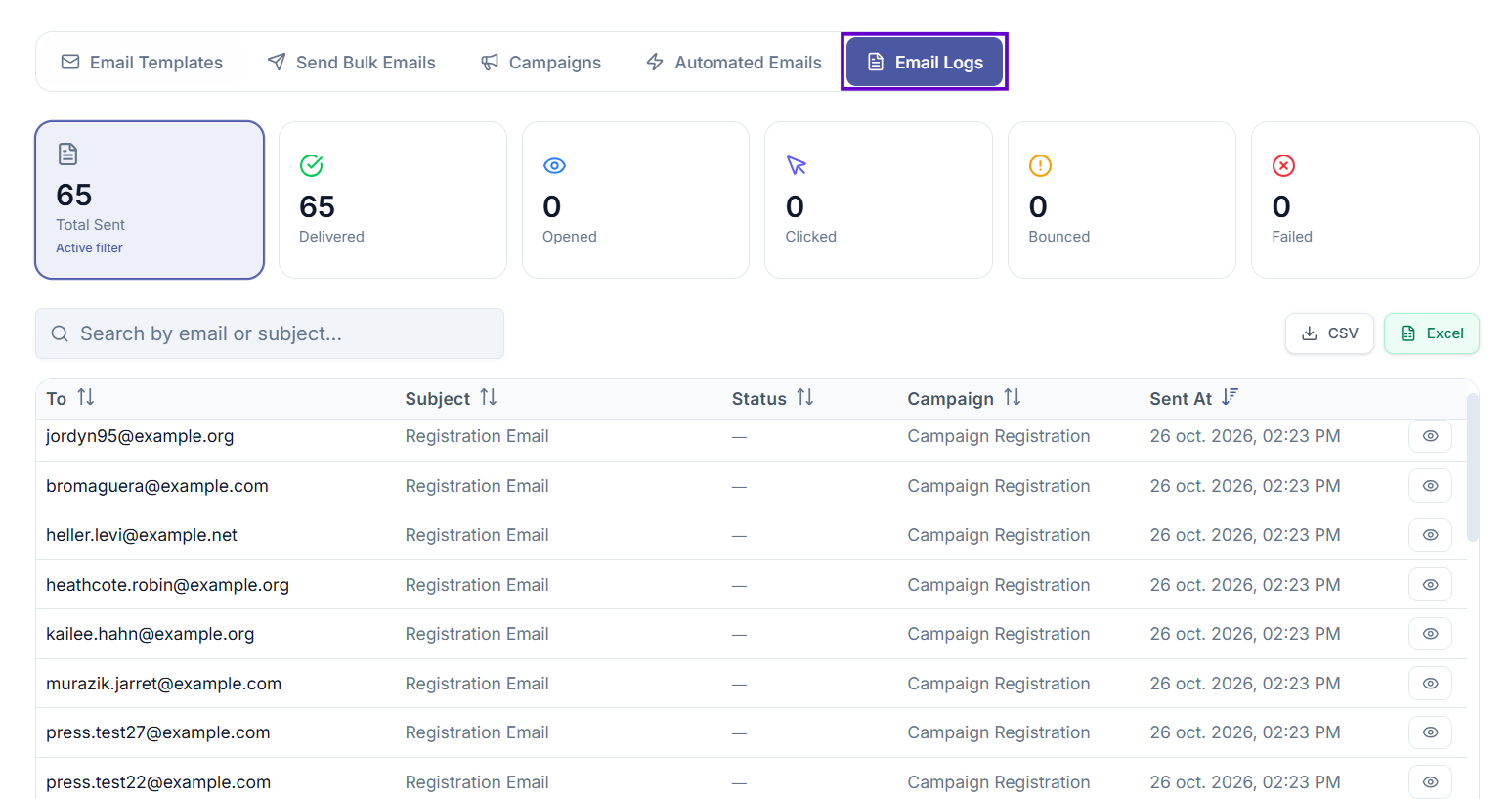
Review every email sent for your event and track delivery status.
Overview
Email Logs gives you a complete record of every email sent for your event — whether from a bulk send, a campaign, or an automated email. You can see who received each email, whether it was delivered, and whether the guest opened it or clicked a link.
Use Email Logs to troubleshoot delivery issues, confirm that important messages reached your guests, and understand how guests are engaging with your emails.
Where to find it
Go to Email Management, then select the Email Logs tab.
The statistics panel
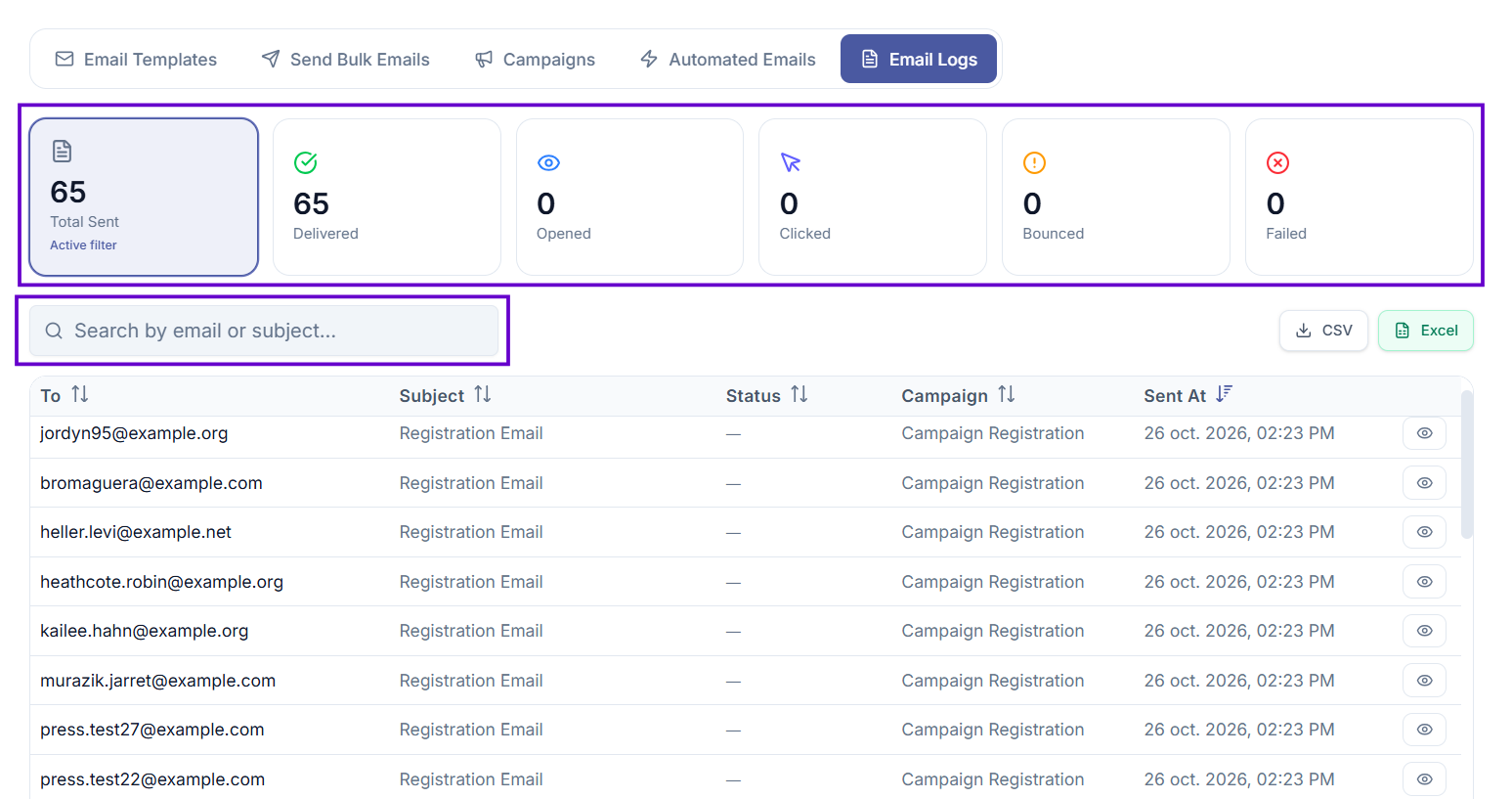
At the top of the page, six cards give you a quick summary of all emails sent for this event:
| Statistic | What it means |
|---|---|
| Total Sent | The total number of emails sent. |
| Delivered | Emails that reached the guest's inbox. |
| Opened | Emails that the guest opened. |
| Clicked | Emails where the guest clicked a link. |
| Bounced | Emails that could not be delivered (invalid address or full inbox). |
| Failed | Emails that failed to send due to an error. |
Searching the log
Use the search bar below the statistics panel to filter logs by email address or subject line. Results update as you type.
The email log table
The table shows one row per email sent, with the following columns:
| Column | What it shows |
|---|---|
| To | The guest's email address. |
| Subject | The subject line of the email. |
| Status | The last known delivery status (see below). |
| Campaign | The campaign name, if this email was sent through a campaign. Blank for bulk sends and automated emails. |
| Sent At | The date and time the email was sent. |
| Action | A button to preview the email that was sent. |
Email statuses
| Status | What it means |
|---|---|
| Sent | The email has been sent and is on its way. |
| Delivered | The email reached the guest's inbox. |
| Open | The guest opened the email. |
| Click | The guest clicked a link in the email. |
| Bounce / Bounced | The email could not be delivered. |
| Failed / Error | The email failed to send. |
| Blocked / Dropped | The email was rejected before it could be sent. |
| Deferred | Delivery was delayed — the system will retry. |
| Spam | The email was marked as spam by the recipient's provider. |
| Unsubscribe | The guest unsubscribed from emails. |
Previewing an email
To see the exact email that was sent to a guest:
- Find the row in the table.
- Select the eye icon in the Action column.
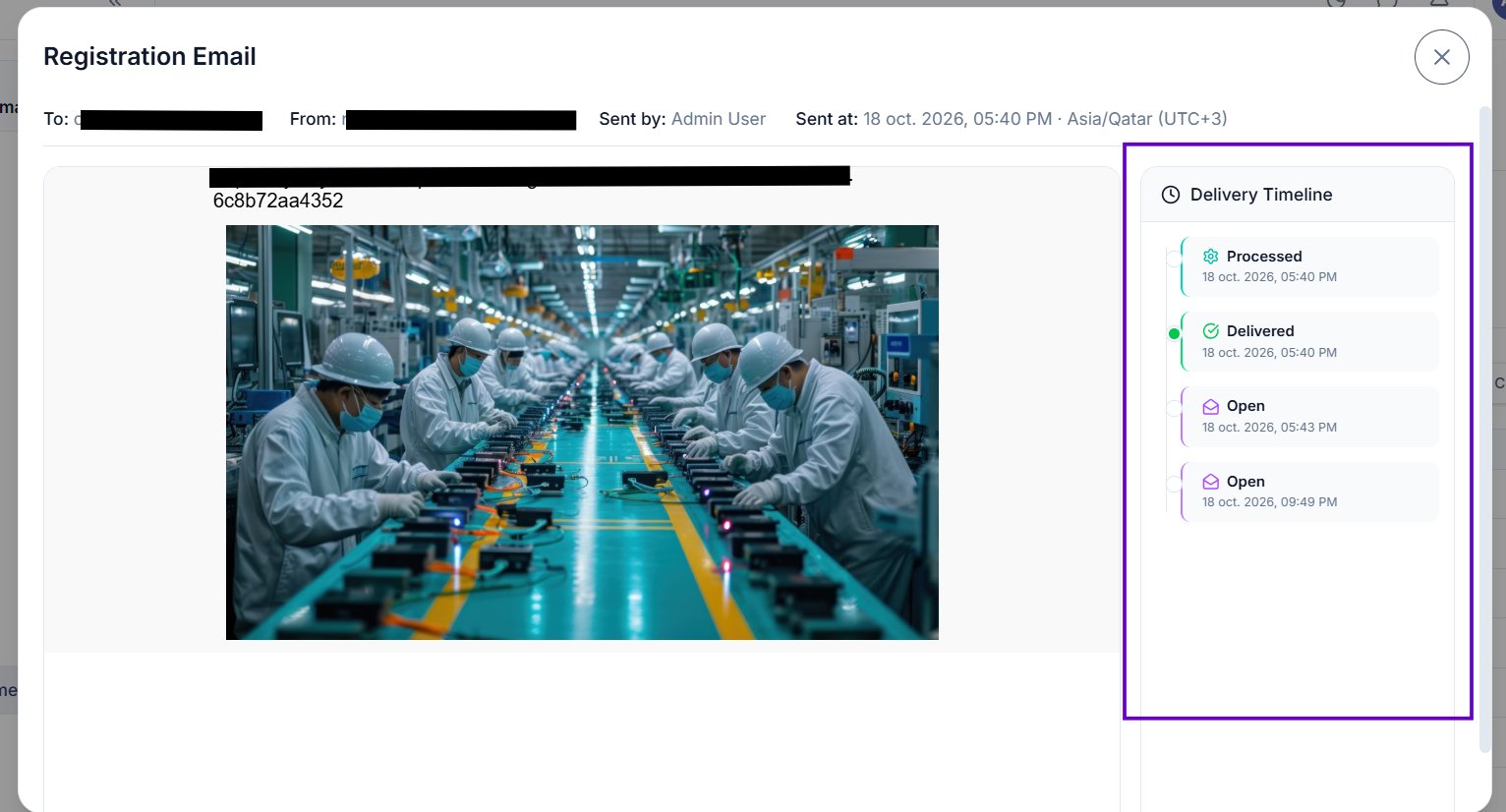
- A preview panel will open showing the full email content.
The preview panel also includes a Delivery Timeline on the right, showing each status event in order (for example: Sent → Delivered → Open → Click).
Pagination
If there are many logs, the table is split into pages of 50 rows. Use the Previous and Next buttons at the bottom to navigate between pages.
Common issues
I cannot see any logs
Either no emails have been sent for this event yet, or your search filter is too narrow. Clear the search bar and check again.
An email shows as "Sent" but the guest says they did not receive it
"Sent" means the email left Evencia's systems — it does not guarantee inbox delivery. Ask the guest to check their spam folder. If the status later changes to "Bounce" or "Failed", the delivery failed at the recipient's mail provider.
I cannot see the Email Logs tab
You do not have the Email Log permission. Contact your administrator.
Tips
- Check the logs after every bulk send or new campaign to make sure there are no unexpected bounces or failures.
- A high number of bounced emails may indicate that guest email addresses need to be updated.
- Use the Delivery Timeline in the preview panel to understand exactly what happened to a specific email.