
Email Templates
Create and manage reusable email designs for your event.
Overview
Email Templates are the designs you use to send emails to your guests. Each template has a subject line, a sender address, and a visual email body that you build using a drag-and-drop editor. Once a template is created, you can reuse it for bulk sends, campaigns, or automated emails.
Where to find it
Go to Email Management, then select the Email Templates tab.
How to create a template
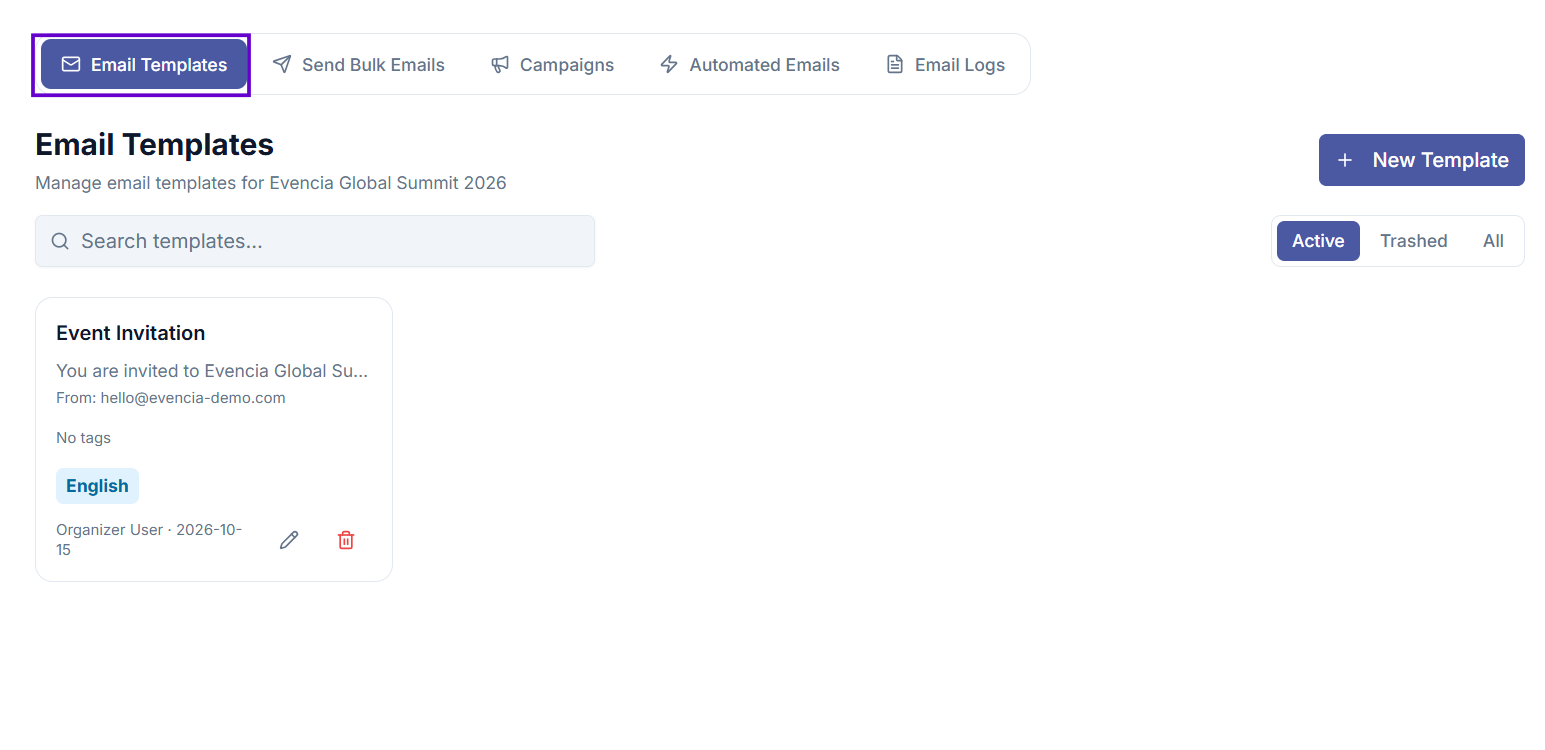
Step 1 — Open Email Templates
Go to Email Management → Email Templates.
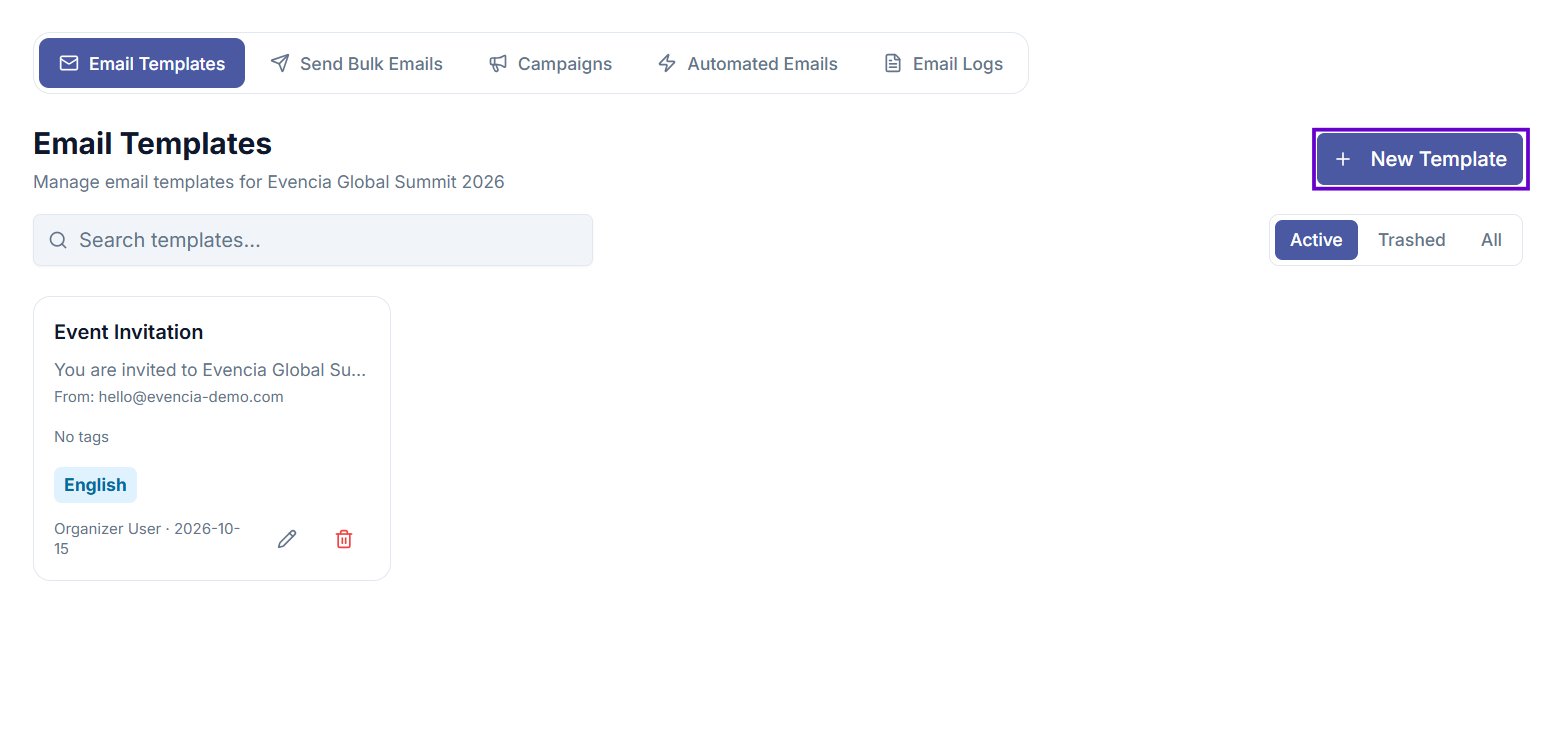
Step 2 — Start a new template
Select New Template in the top-right corner.
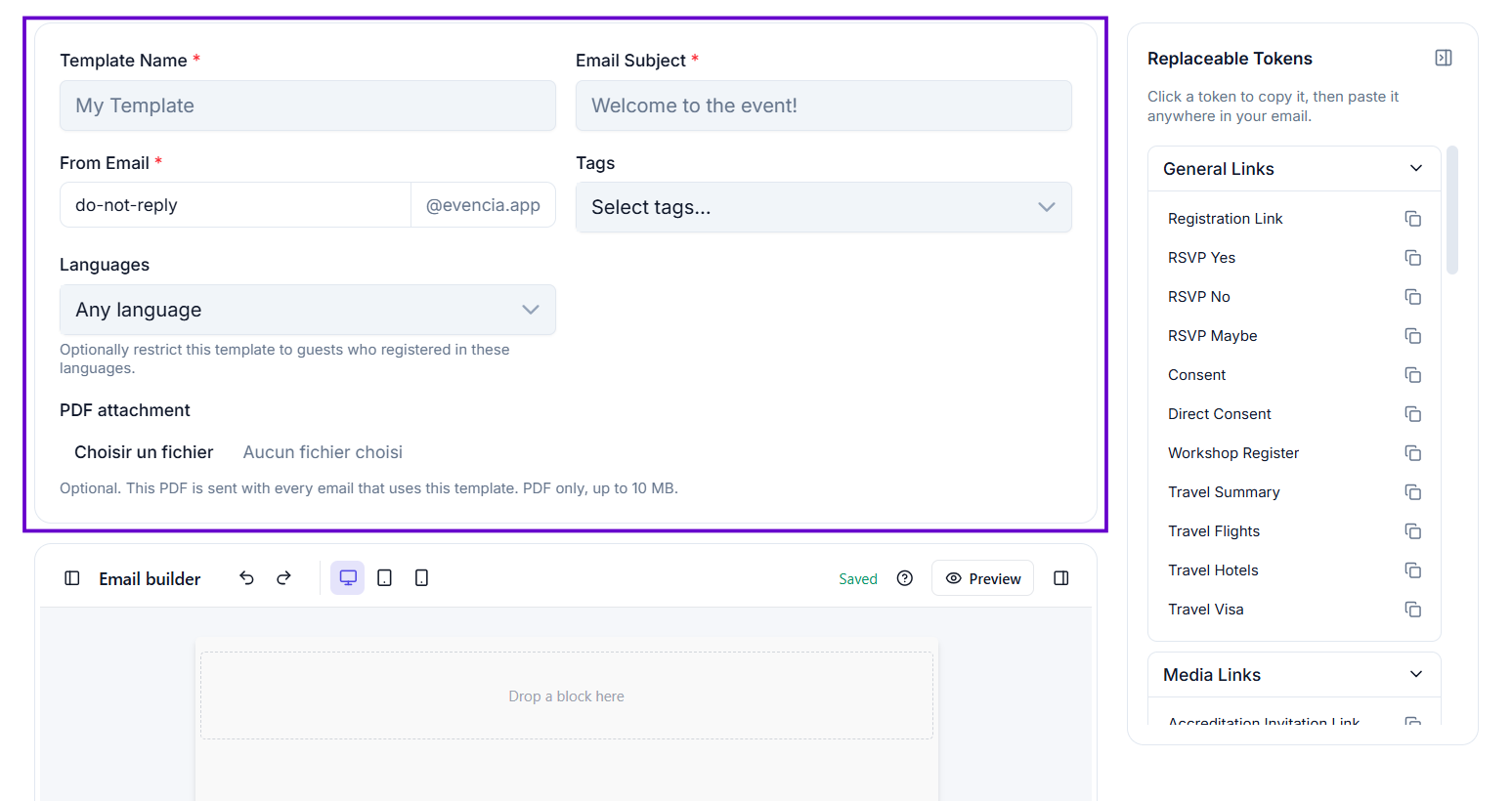
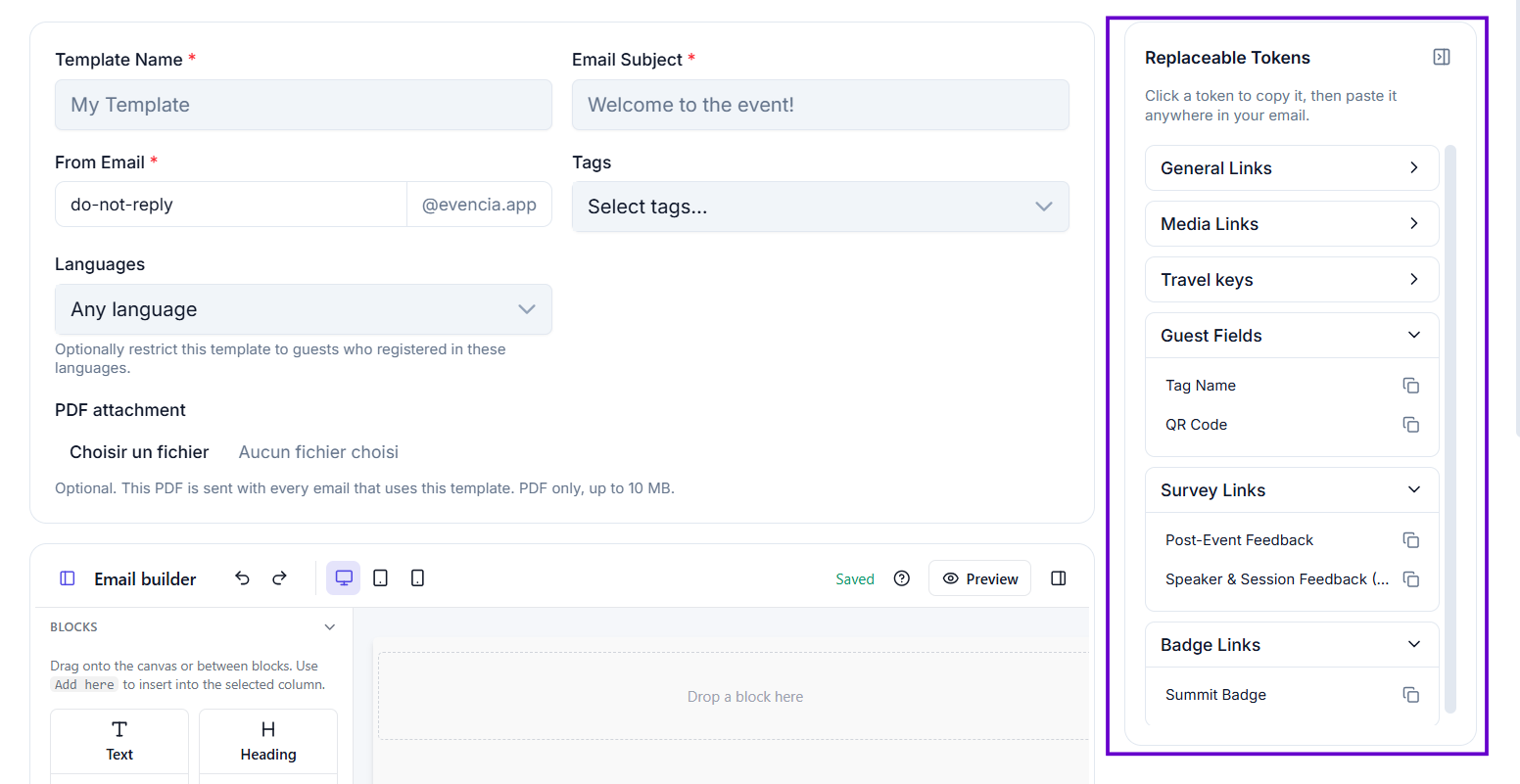
Step 3 — Fill in the template details
Complete the fields at the top of the page before designing the email body.
| Field | What it means |
|---|---|
| Template Name | An internal name to identify this template. Guests do not see this. |
| Email Subject | The subject line that guests will see in their inbox. |
| From Email | The email address the message is sent from. Only the part before the @ can be changed — the domain is fixed by your account. |
| Tags | Optional. If you add tags here, this template will only be available for guest groups with those tags. Leave empty to make it available for all groups. |
| Languages | Optional. If you select one or more languages, this template can only be sent to guests who registered in one of those languages. Leave empty to make it available regardless of language. |
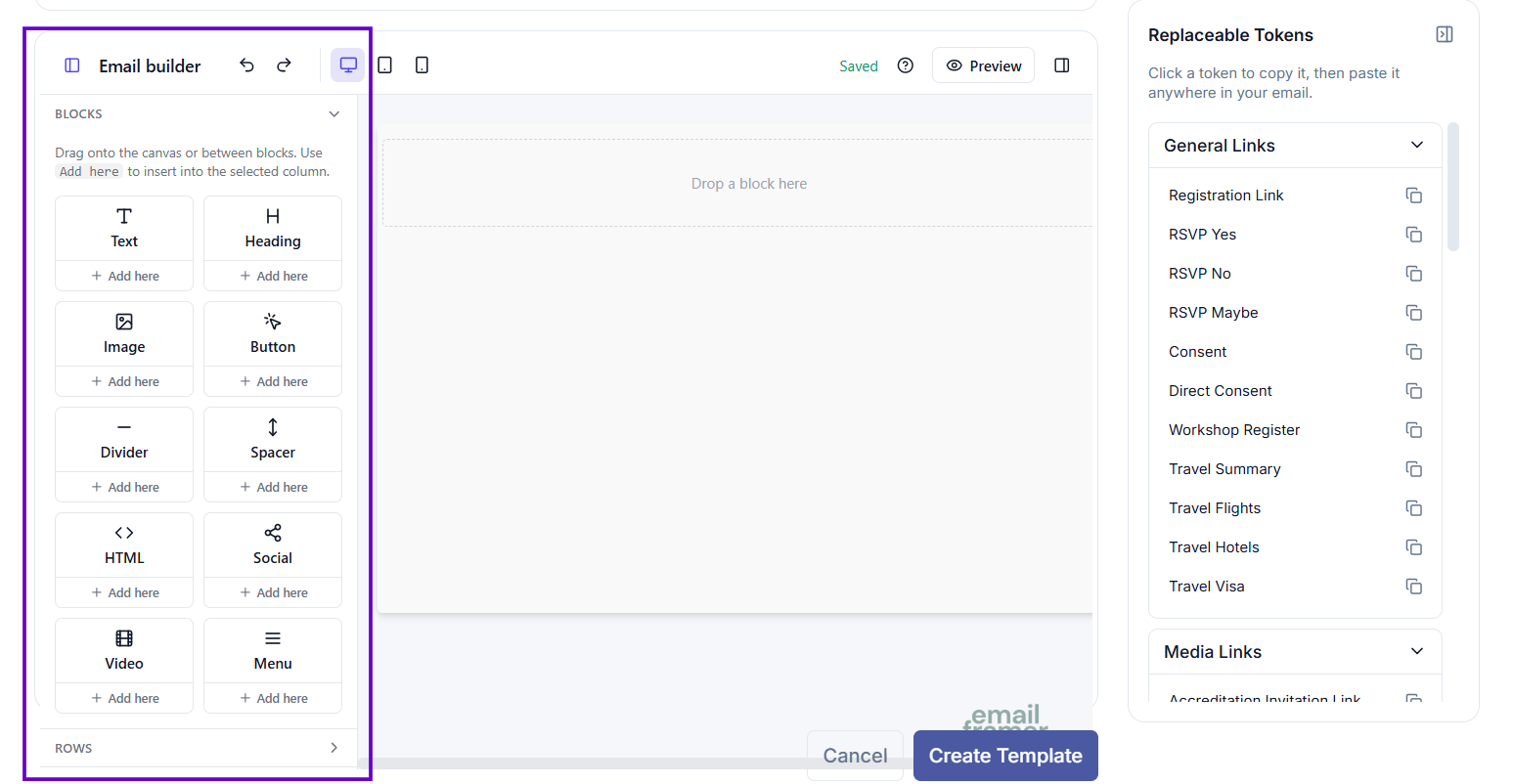
Step 4 — Design the email body
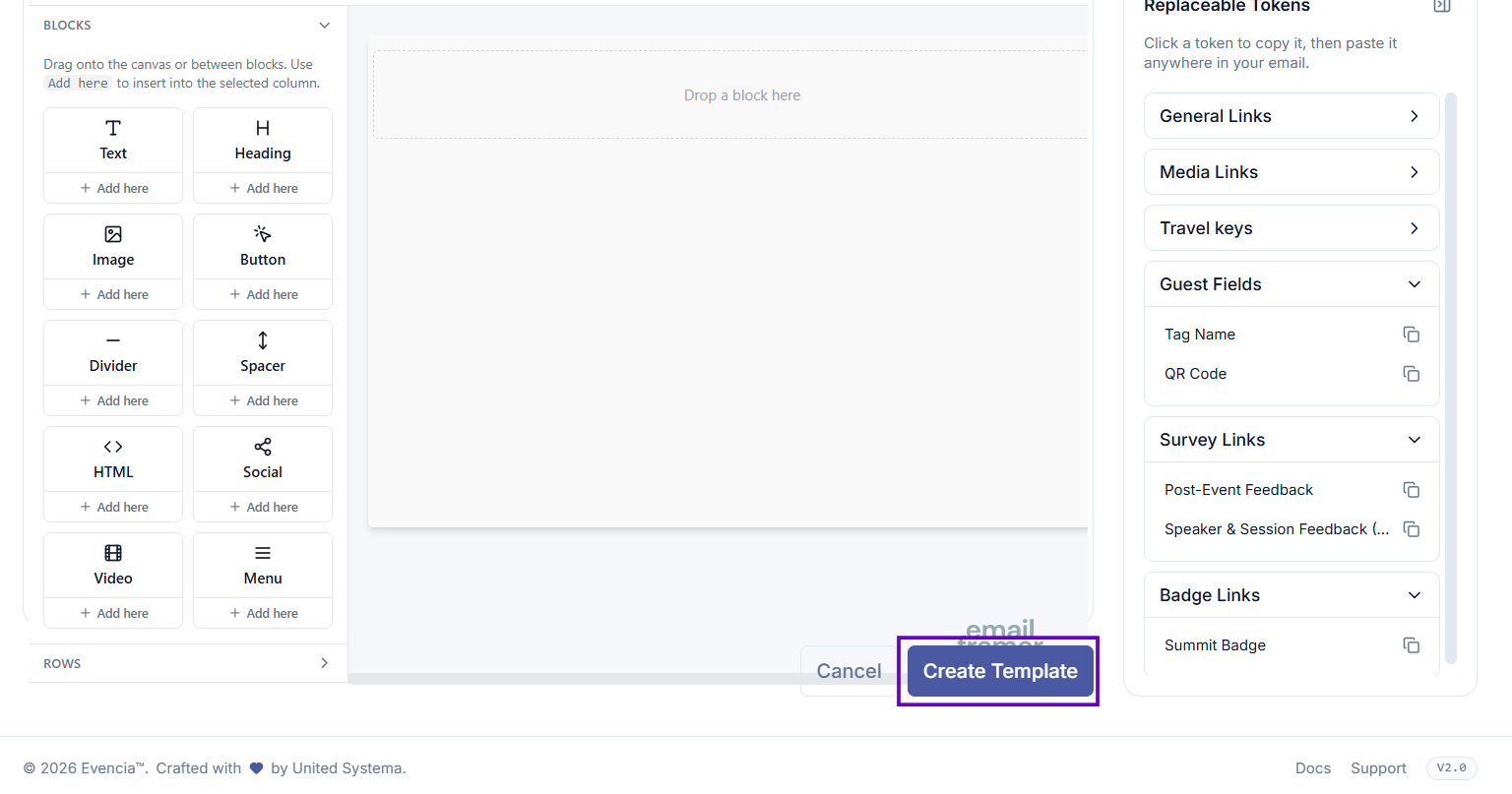
Below the fields, you will see the visual email builder. Use it to design your email by dragging in content blocks such as text, images, buttons, and dividers.
Step 5 — Use replaceable tokens
On the right side of the editor, there is a Replaceable Tokens sidebar. These are placeholders that are automatically replaced with real guest data when the email is sent.
Available tokens include:
| Token | What it inserts |
|---|---|
{{guest.tag_name}} | The guest's group name (tag). |
{{guest.QR_CODE}} | The guest's personal QR code. |
{{registration_key_link}} | A personal link to the guest's registration form. |
{{rsvp_yes_link}} | A link for the guest to confirm attendance. |
{{rsvp_no_link}} | A link for the guest to decline attendance. |
{{rsvp_maybe_link}} | A link for the guest to respond "maybe". |
{{travel_summary_link}} | A link to the guest's travel summary. |
{{guest.form_data.<field_name>}} | Any field the guest filled in on the registration form (for example: {{guest.form_data.first_name}}). |
To use a token:
- Click the token in the sidebar — it is copied automatically.
- Click inside a text block in the editor.
- Paste the token where you want the information to appear.
Step 6 — Save the template
Select Create Template (or Save Changes when editing). You will be returned to the template list.
Language-specific templates
If your event registers guests in multiple languages, use the Languages field to limit a template to specific languages. This is useful when you have translated versions of the same message and want to make sure the right one is used when sending.
When sending to a group that includes guests in several languages, Evencia only counts and emails guests whose registration language matches one of the template's selected languages. Guests in languages not selected are skipped for that template.
A template with no languages selected is available to guests in any language.
How to edit a template
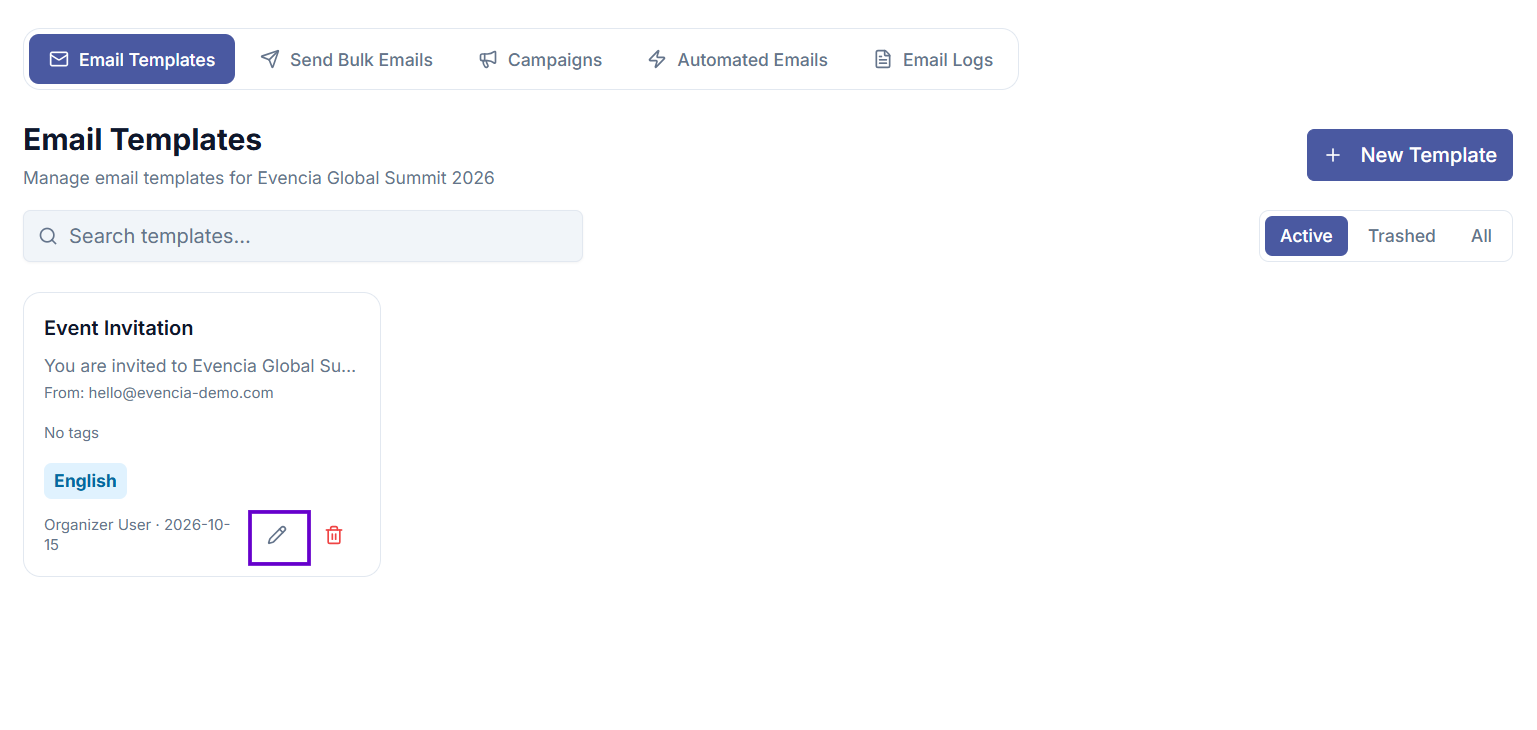
- Find the template in the list.
- Select the pencil icon on its card.
- Make your changes and select Save Changes.
How to delete a template
Deleting moves the template to the trash. It can be restored later.
- Select the trash icon on the template card.
- Confirm when prompted.
To permanently remove a template, first switch to the Trashed filter, then select the permanent delete icon.
Restoring a deleted template
- In the filter bar, select Trashed.
- Find the template and select the restore icon (circular arrow).
Searching templates
Use the search bar at the top of the template list to filter by name, subject, or sender address.
Common issues
I cannot see the "New Template" button
You do not have permission to create templates. Contact your administrator.
The email domain cannot be changed
Only the part before the @ in the sender address can be customised. The domain is set at the account level and cannot be changed here.
The editor is not loading
Check your internet connection and refresh the page. If the problem continues, contact your administrator.
Tips
- Give templates clear, descriptive names so you can find them easily when setting up campaigns or bulk sends.
- Use tokens for personalization — emails with the guest's name or a personal link feel more relevant and get higher engagement.
- Templates tagged with specific guest groups will only appear as options when sending to those groups.