
Assets
Upload and manage photos, videos, documents, and links for your press room.
Overview
Assets are the files and links you share with accredited press through the press room. You can upload photos, videos, documents, and other files, or add links to external content such as YouTube videos. You control who can see each asset and when it becomes available.
Where to find it
From your event's main navigation, select Media, then Assets.
Asset types
| Type | What it is |
|---|---|
| File | A photo, video, document, or any other file you upload directly. |
| Link | A URL pointing to external content (a video on YouTube, a page on your website, etc.). |
Asset states
| State | What it means |
|---|---|
| Draft | The asset is uploaded but not yet visible to press. |
| Live | The asset is published and visible to eligible press. |
| Embargoed | The asset is published but will only become visible from a future date and time. |
Uploading assets
Uploading files (bulk)
You can upload one file or many in a single session. All files in a batch share the same metadata (description, visibility, press kit, rights, etc.) which you set once before submitting.
- Select Upload from the assets list.
- Drag files onto the drop zone, or select browse to pick files from your computer. You can add as many files as you need.
- The queue table appears and lists each file with its filename, generated title, and current status.
- Optionally set a Title that becomes the base name for the whole batch. Multiple files are automatically named Title, Title_1, Title_2, and so on to avoid duplicates. Leave the field blank to use each file's filename.
- Toggle Use file name as title to derive every title directly from the filename (the extension is stripped automatically).
- Fill in the shared metadata fields below the queue.
- Select Upload (the button shows how many files are queued, e.g. Upload 3 files).
Each file uploads in sequence. The status column updates in real time:
| Status | Meaning |
|---|---|
| Ready | Queued and waiting to upload. |
| Uploading | Currently being sent. |
| Done | Successfully uploaded. |
| Failed | The upload failed. An error message is shown. |
If any files fail, a Retry failed button appears. Selecting it resets those files to Ready and re-runs the upload. Files that already succeeded are not re-uploaded.
When all files are done, you are returned to the assets list automatically.
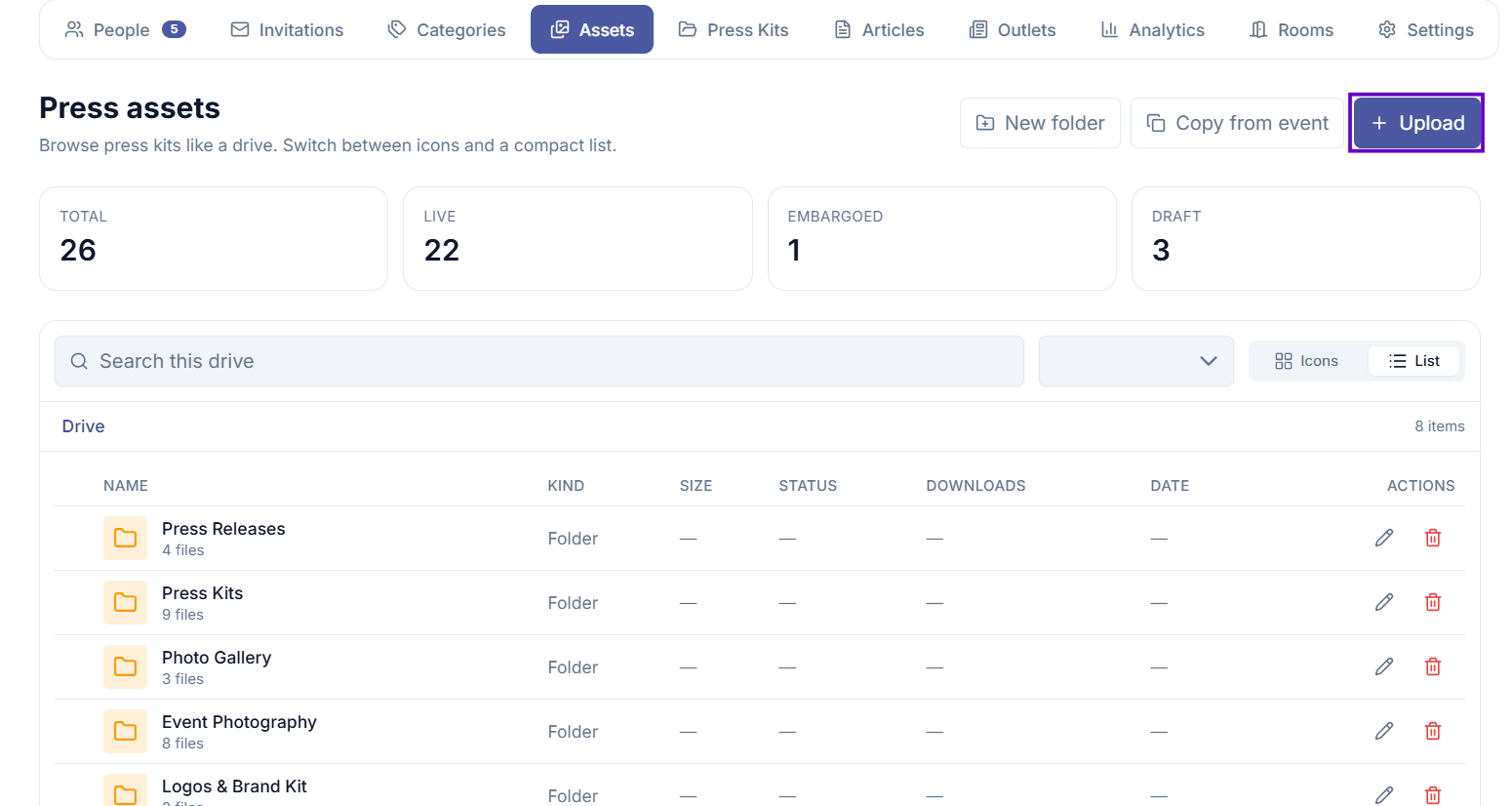 1 / 4
1 / 4Assets list — Upload button
Adding an external link
- Select Upload from the assets list.
- In the Type field (inside the metadata form), choose Link.
- The file drop zone is replaced by a URL field. Paste the external URL (e.g. a YouTube video or a broadcast-quality video hosted elsewhere).
- Fill in the remaining metadata fields.
- Select Upload.
Publishing after upload
At the bottom of the upload form there is a Publishing section:
- Publish now — makes all uploaded assets immediately visible to eligible press. Leave it off to keep them as drafts.
- Email accredited press — appears when Publish now is on. Sends a single digest email per recipient covering all newly published assets. Press never receive one email per file.
You can also publish and notify press later from the assets list or individual asset page.
Asset fields explained
| Field | What it means |
|---|---|
| Title | The name shown to press. When uploading files, set a base title in the dedicated Title section above the metadata form; each file in a batch gets a unique name derived from it. Defaults to the filename if left blank. |
| Description | Optional extra context about the asset. |
| Press kit | Group this asset into a press kit (collection) for easier browsing. |
| Visibility | Who can see this asset — see below. |
| Categories | If visibility is set to Categories, choose which press categories can see this. |
| Specific journalists | If visibility is set to Specific, choose which approved journalists can see this. |
| Available from | An embargo date: the asset is published but hidden until this date and time. |
| Available until | An expiry date: the asset disappears from the press room after this date. |
| Requires terms acceptance | If enabled, press must accept the usage terms before downloading. |
| Credit | The photographer or creator to credit when using the asset. |
| Usage rights | How press are permitted to use the asset. |
| License note | Extra details about usage restrictions. |
Controlling who sees an asset
The Visibility field has three options:
- All accredited media — every approved journalist can see the asset.
- By category — only journalists assigned to the selected press categories can see it.
- Specific journalists — only the specific approved journalists you name can see it.
If you choose Categories or Specific but do not select anyone, Evencia will warn you — the asset would be hidden from everyone.
Publishing an asset
Assets start as drafts. To make an asset visible to press:
- Open the asset.
- Select Publish.
To unpublish an asset (hide it again):
- Open the asset.
- Select Unpublish.
You can optionally notify press by email at the same time as publishing.
Embargoed assets
To release an asset on a specific date:
- Set Available from to the date and time you want the asset to go live.
- Publish the asset.
The asset is counted as published but stays hidden in the press room until the embargo date. Press are notified automatically when the embargo lifts.
Notifying press about an asset
To send an email announcement about an already-published asset:
- Open the asset.
- Select Notify press.
This sends a digest to everyone who is eligible to see that asset. You can only notify about assets that are currently live (published and inside their availability window).
Downloading an asset (staff)
Staff can download the original file directly from the asset detail page using the Download button.
Copying assets from another event
If you have uploaded assets for a previous event and want to reuse them:
- Select Copy from another event.
- Choose the source event.
- Select the assets you want to copy.
- Select Copy selected.
Copied assets arrive as drafts with default visibility. Review their visibility settings before publishing.
Deleting an asset
Deleting an asset removes it from the press room. The download history is kept for reporting purposes.
To delete: open the asset and select Delete.
Common issues
I published an asset but press cannot see it
Check the following:
- The visibility setting includes the journalist's category or name.
- The Available from date has already passed (no active embargo).
- The Available until date has not yet passed.
The asset is published but shows as "embargoed"
The Available from date is in the future. The asset will appear automatically when that date arrives. Press will be notified at that time.
A file in my batch failed to upload
The status column shows the error message next to the failed file. Common causes are an unsupported file type or a file that exceeds the maximum size set by your administrator. Remove the problem file from the queue (select the ✕ on its row) or fix the file and re-add it, then use Retry failed to continue.
I cannot upload — I get a file type or size error
The press room only accepts certain file types and sizes configured by your administrator. Try a different format or a smaller file.